Introduction
Screenplay is a canvas for building software with coding agents. Ask the Coordinator for a change. It hands the work to a chat’s agent, and you watch the app change in a live frame. Every branch gets its own environment, and its running app appears as real, clickable previews on an infinite canvas.
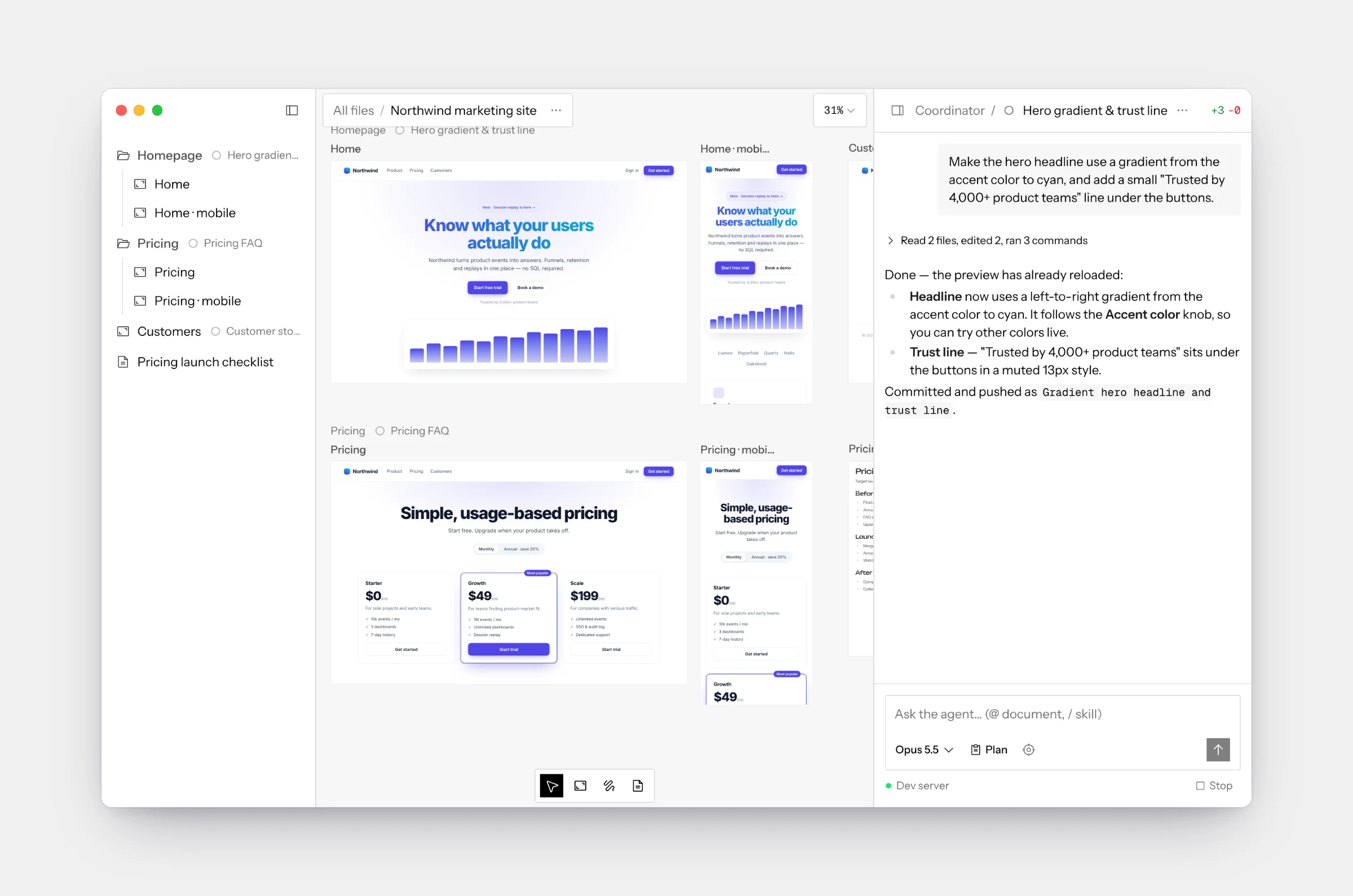
Instead of juggling terminals, browser tabs and branches, you lay the work out spatially:
- Ask in one place. The Coordinator sees the whole canvas: every chat, frame and document. It sends each piece of work to the right chat and tells you when something needs you.
- Run several attempts side by side. Each chat is its own git branch with its own dev server. Try three directions at once and compare them visually.
- See every screen at every size. Frames are live previews of any route at any device size: desktop, tablet, or phone. They stay arranged next to each other, and hot reload keeps them current.
- Point, don’t describe. Target an element in a preview, mention a document, or load a skill straight from the composer. On the hosted app, comments pinned to a preview can go straight to the agent too.
- Keep the plan next to the product. Documents live on the same canvas as your previews, and the agent can read and write them.
- Try it full screen. Open any chat’s code as a clickable prototype in play mode, with live knobs for tweaking values without code.
Two ways to run it
A single-user macOS app. Each chat’s code is a git worktree on your machine, and the agent is the coding CLI you already use (Claude Code, Codex, …), signed in with your own account.
Desktop appA multi-user deployment. Each chat runs in a cloud sandbox VM, the agent runs on your model provider keys, and teammates share canvases, cursors, and comments.
Self-hosted appBoth run the same product from the same codebase. The guides point out the few places where they differ.
Privacy and data
On the desktop app, your work stays on your Mac. Canvases, chats and
thumbnails are stored in the app’s data folder under
~/Library/Application Support, and each chat’s code is a git worktree under
~/.screenplay/worktrees. Chats run through the coding
CLI you signed in to, so your code and prompts go only to that CLI’s provider,
under your own account. A GitHub token you connect is kept in the macOS
Keychain. Screenplay itself sends no analytics.
On the hosted app, the data lives in the services you deploy it with. The database holds users, canvases, comments, chat history and encrypted settings; the realtime host holds each canvas’s live state; each chat’s code runs in a sandbox VM; and chats go to the model providers you configure. See Self-hosting for each service and its defaults.
Where to go next
Screenplay is open source under the MIT License (GitHub).