Frames
A frame is a live preview of a chat’s dev server. It’s a real browser view, so hot reload, client-side routing, and app state all work as normal.
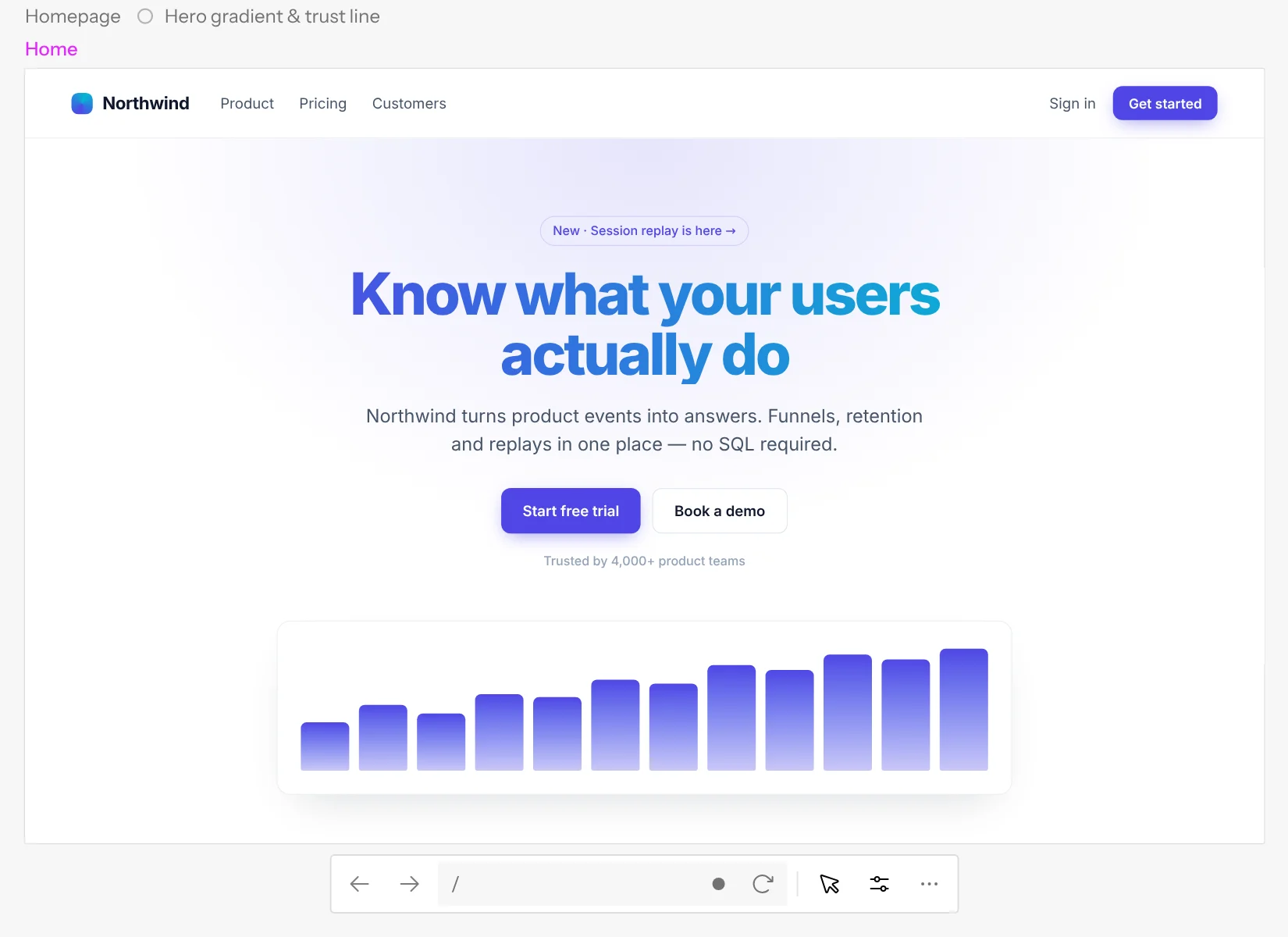
Adding frames
-
A new chat gets a frame automatically once its dev server is up.
-
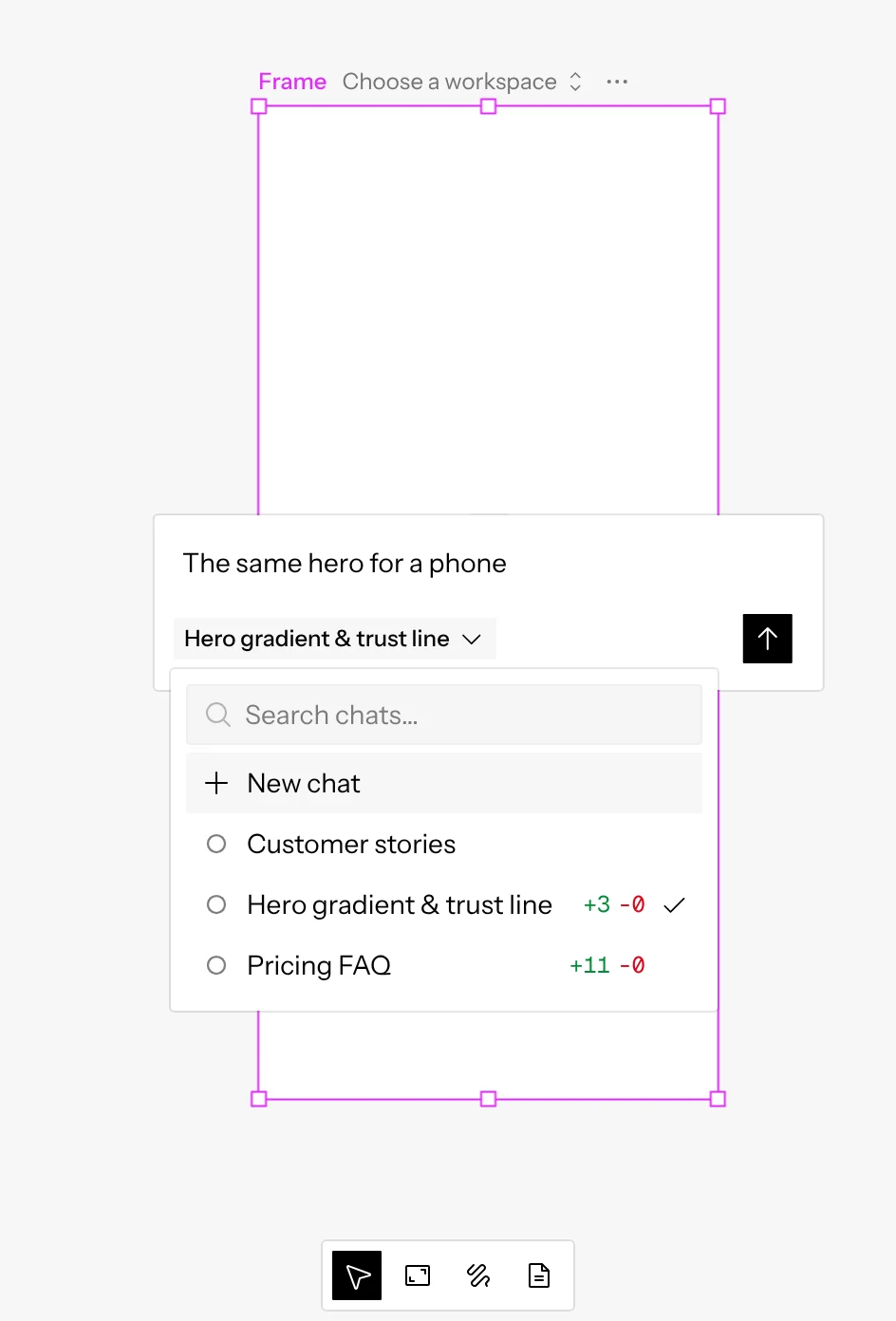
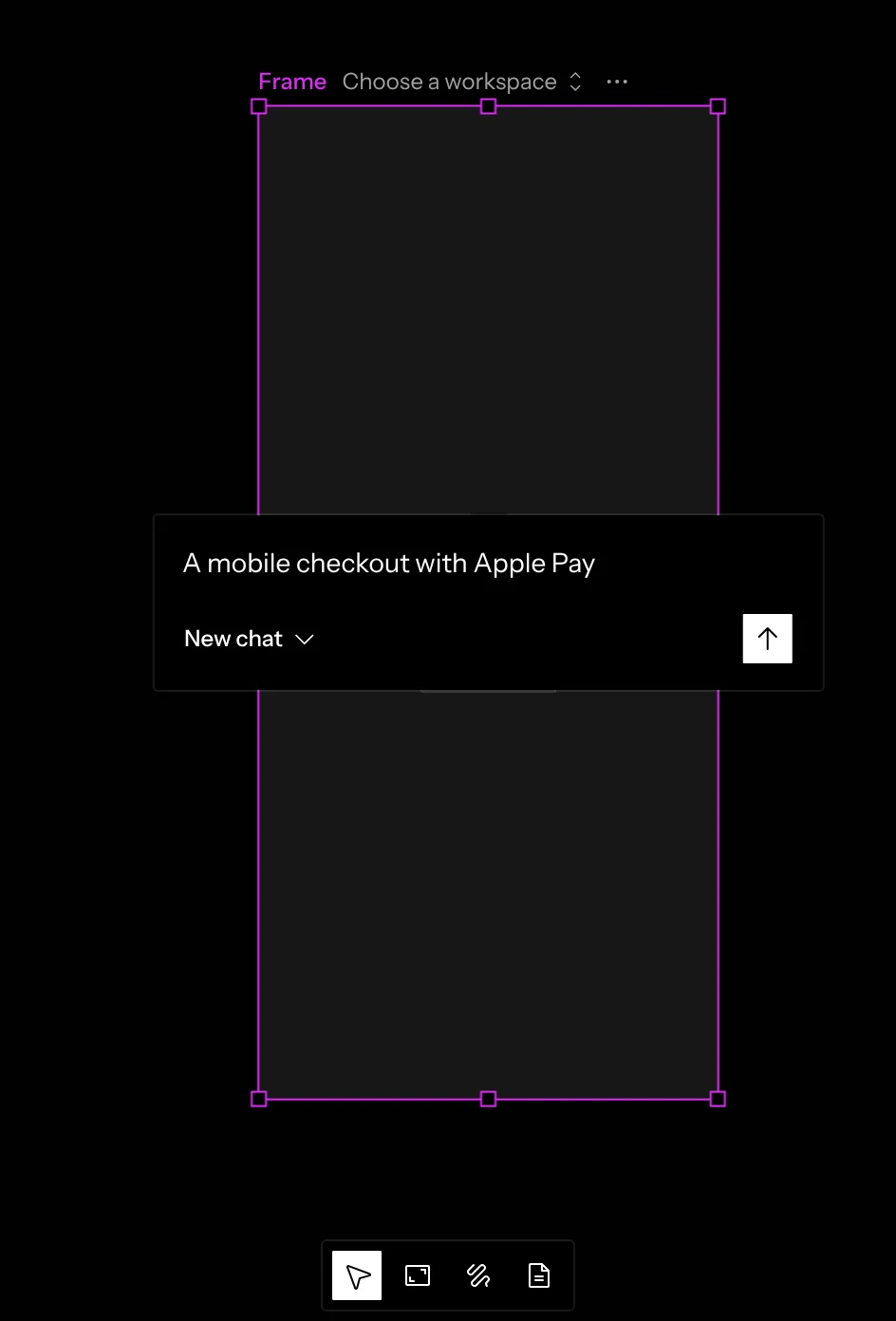
The Frame tool (F) drops a 1280×800 frame where you click, or draws one where you drag. As you let go, the frame asks what it should show. Type what to build and press Enter (Shift Enter for a new line). The frame’s size is sent along as the viewport, so a phone-sized frame gets a mobile layout. A frame shows a chat’s code, and that needs a repository, so on a canvas with no repository the Frame tool is off until you add one.
-
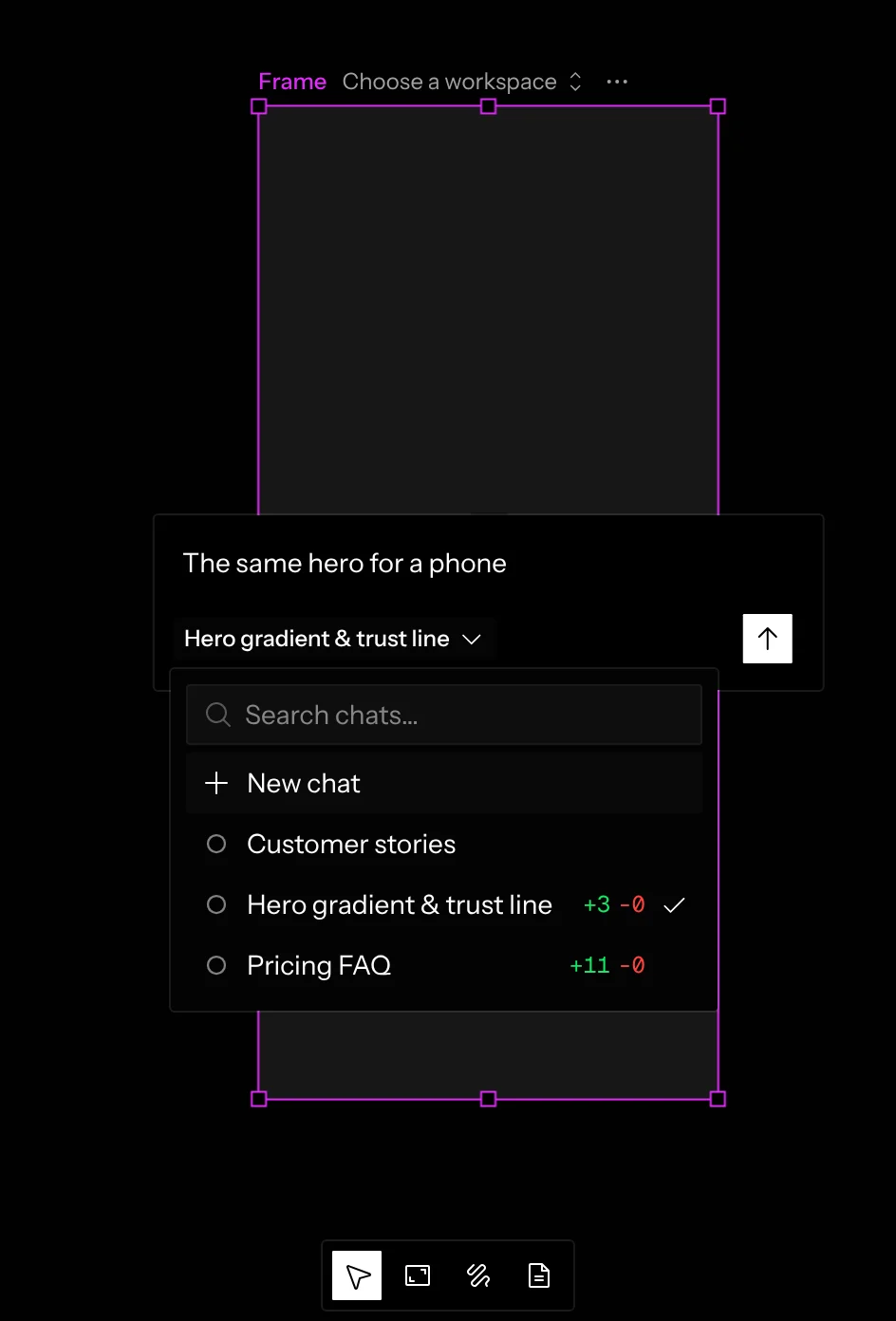
The chip beside Send says who answers. With nothing selected it’s New chat: a new chat starts on it, and its code boots in that frame. If you had a frame, mockup or document selected when you drew, it’s that layer’s chat instead: the frame shows that chat’s code, and your message goes to that chat, as if you’d sent it there (see Sending while the agent works). Click the chip to switch between New chat and any other chat.
-
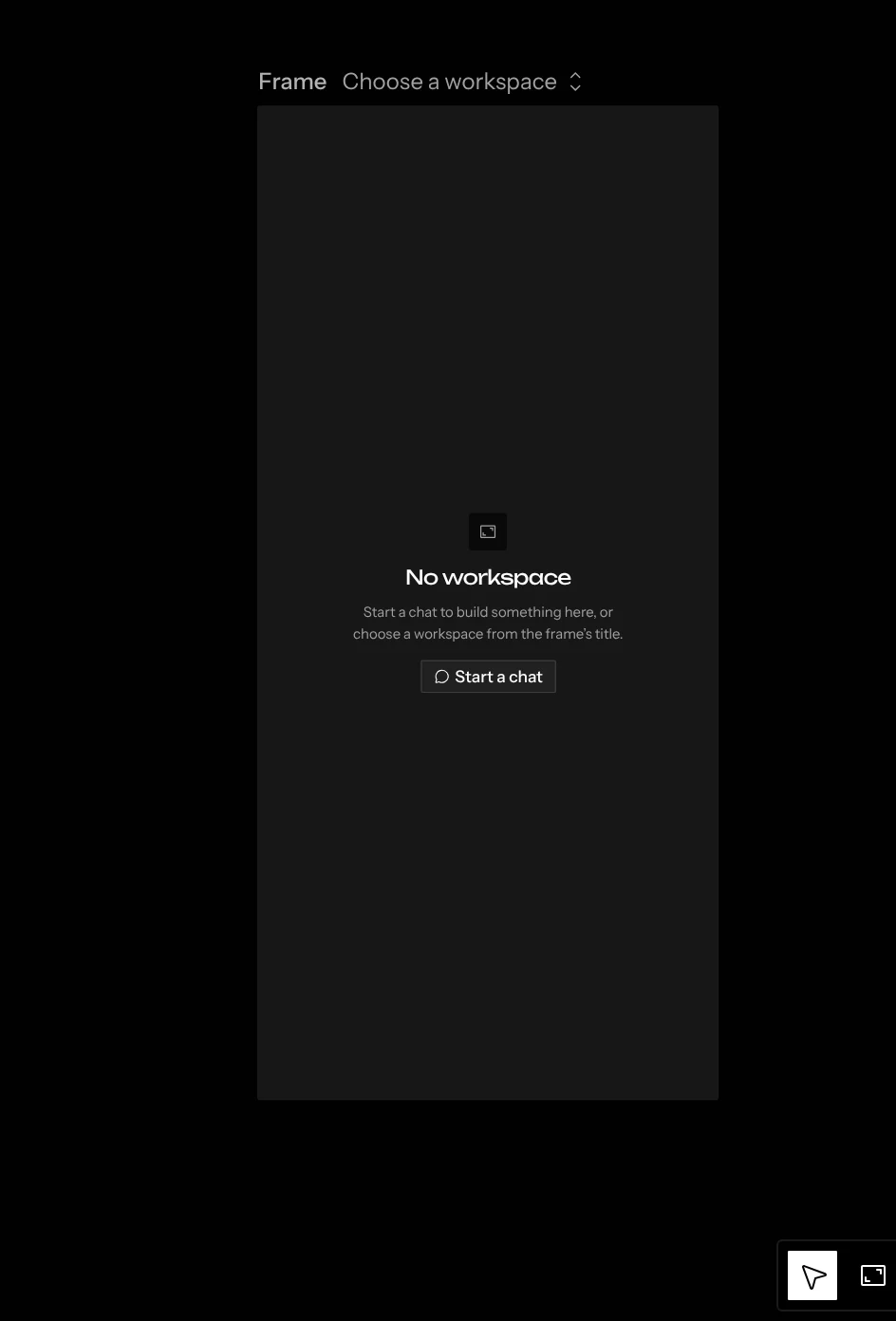
Press Esc or click elsewhere to skip the question. The frame stays and shows No chat. Click Start a chat in it to ask again, or pick a chat for it from its title (Choose a chat).
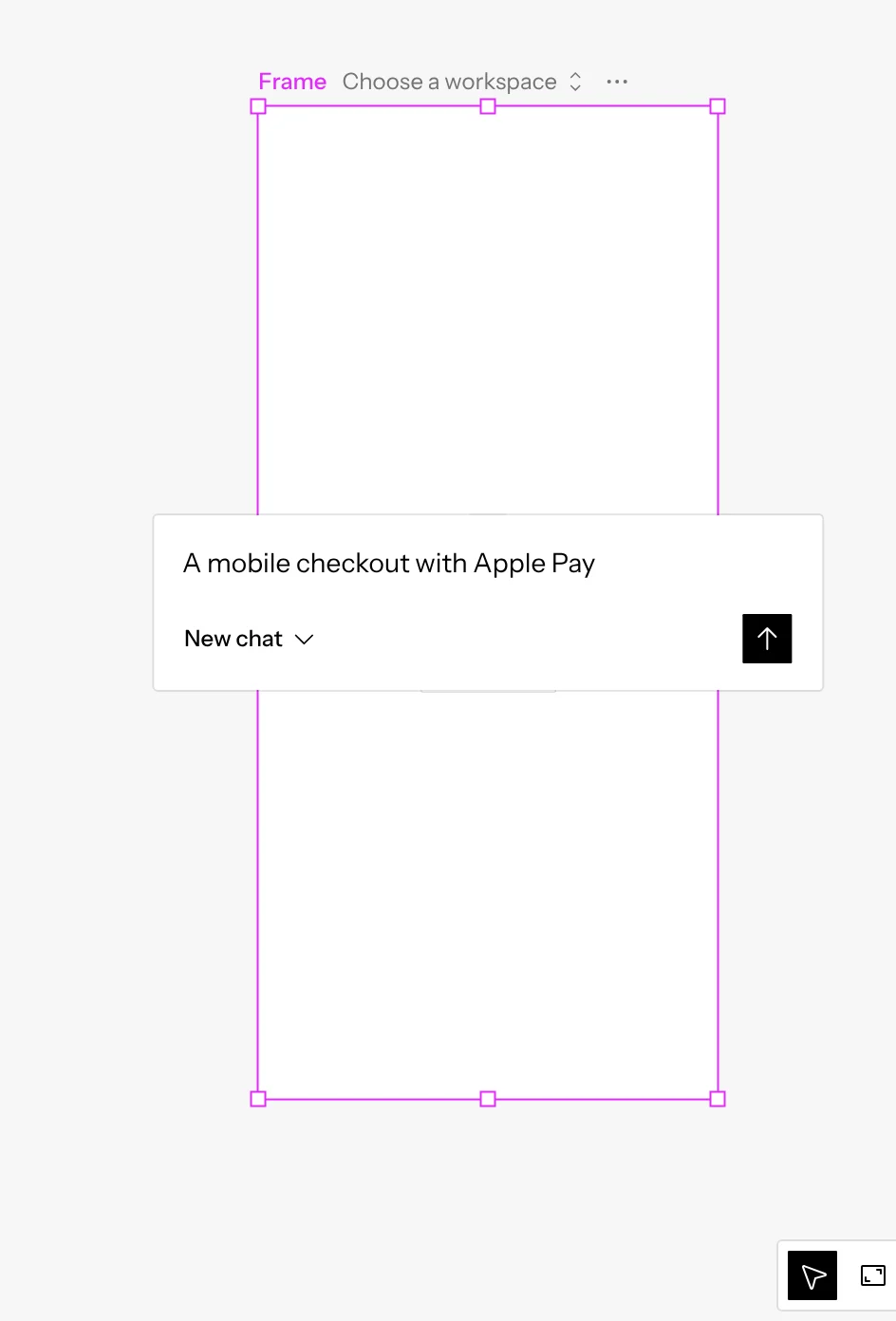
Just drawn: what should it show? 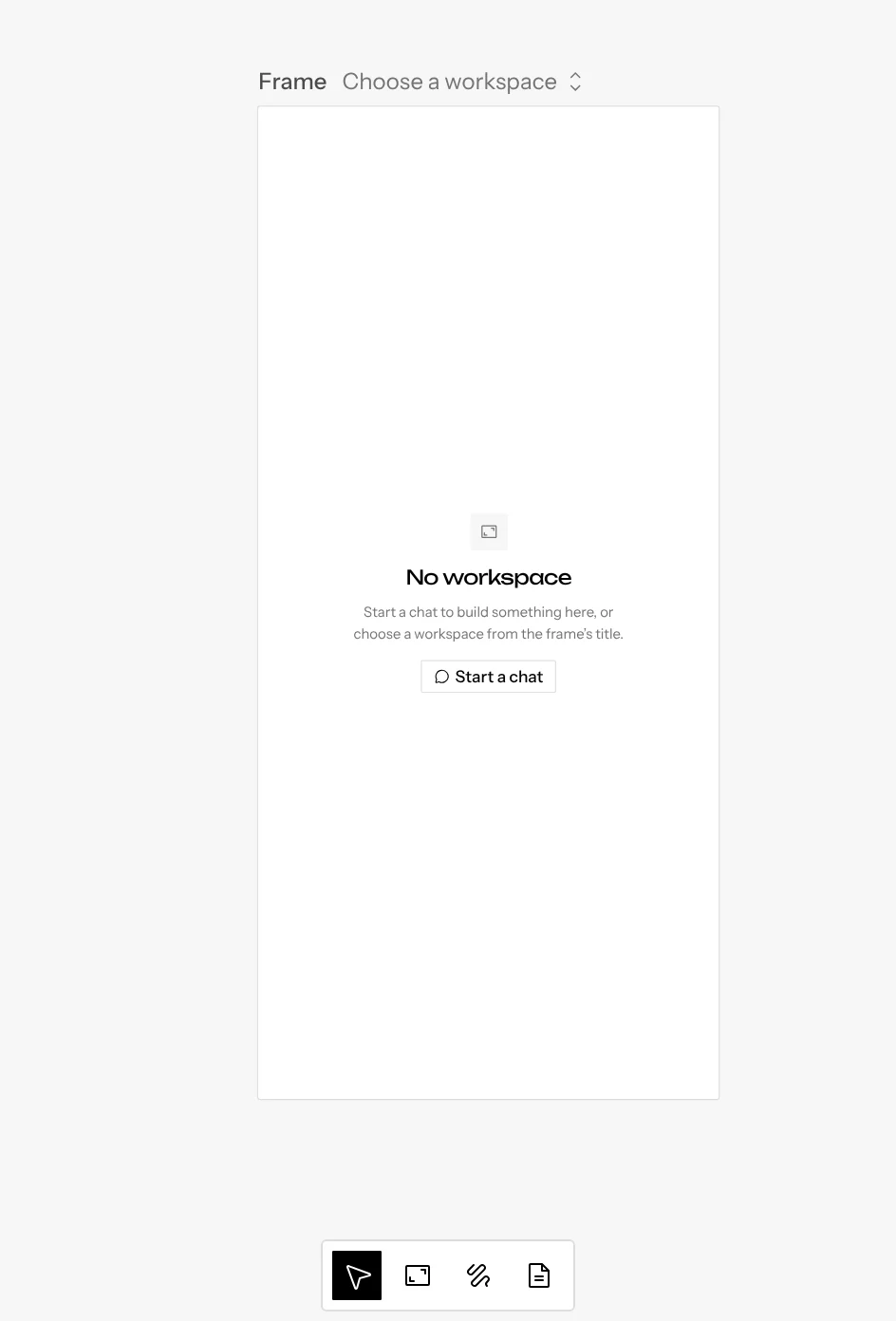
Skipped: no chat yet. -
Show all routes in the chat menu adds a group with a frame for every route the chat’s preview has visited.
The title bar
Above each frame:
- Name: double-click to rename.
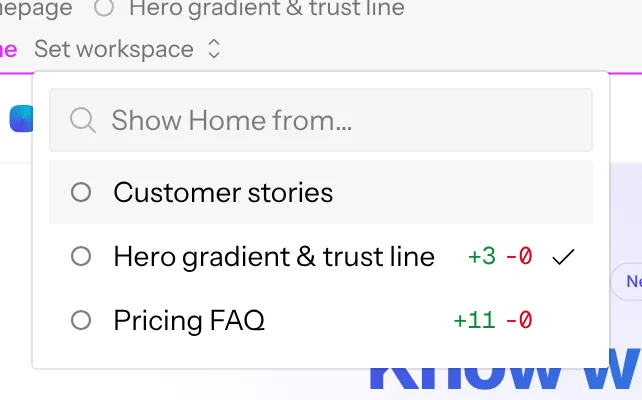
- Chat, with its state icon, unless its group names it because every frame in the group shows the same one. Click it to switch the frame’s chat. When the group names it, hover the frame’s name and click Choose chat to switch just this frame.
Switching keeps the frame’s route and state; this is how you compare chats on the same screen. Picking one that differs from the other frames in its group moves the chat from the group’s title onto each frame’s.
Under the selected frame, an address bar shows its route. Click the route to edit it in place, like a browser’s address bar: type any path and press Enter, or pick a route the chat’s preview has visited from the list under the bar. Esc puts the route back. Routes you visit while interacting are added to the list automatically.
The route and scroll position are shared: when anyone viewing the canvas navigates a frame, everyone else’s copy follows. Your copy changes page through the app’s own router (Next’s router, or the history API for React Router, Vite and similar apps), so anything you typed or opened in the frame stays put. Only a page with no client-side router reloads onto the new route.
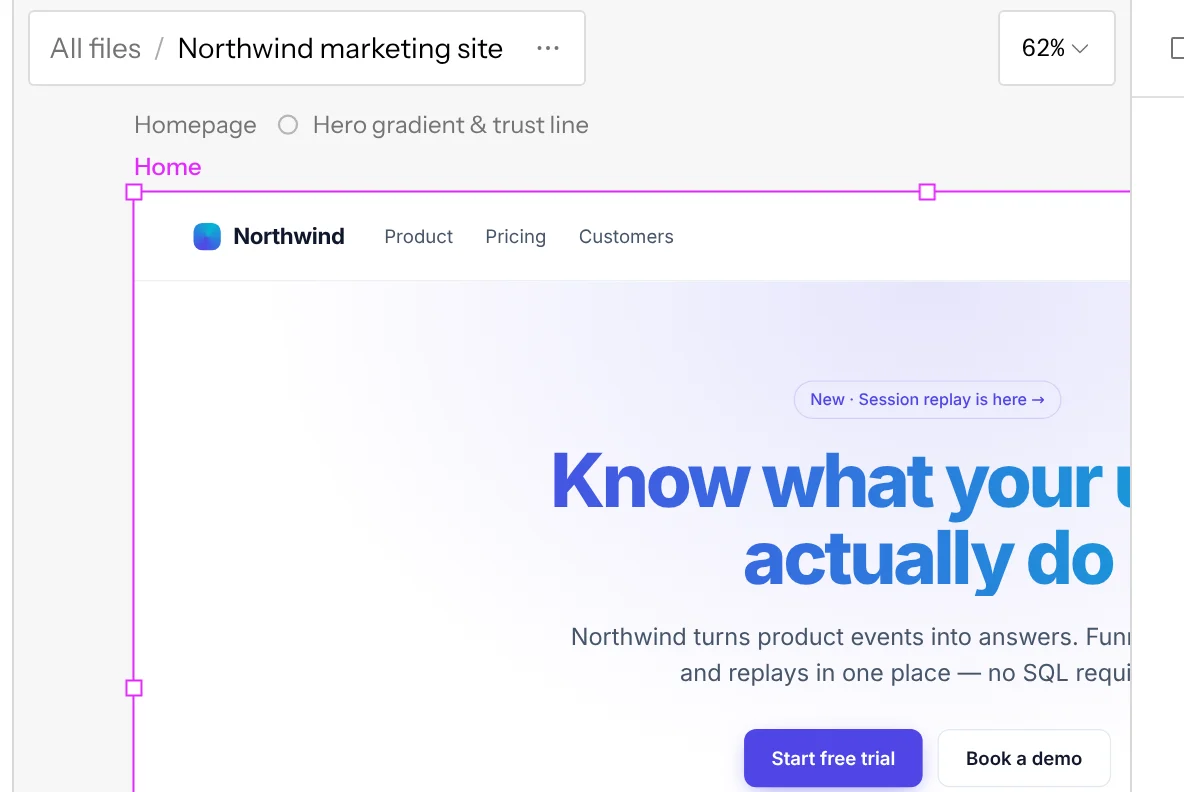
The frame toolbar
When exactly one frame, and nothing else, is selected, a toolbar like a browser’s appears under it. A frame with no chat has no toolbar until you pick one; its menu is … after its name instead. From left to right:
Interact and recording switch off automatically when you select something else.
The status dot
While the preview is up, the address shows no dot. When it’s down, a dot at the start of the address says why; hover it to read the reason:
- Yellow: Dev server disconnected. The page is still there, but its dev server stopped answering, so edits won’t show until it’s back.
- Red: Preview failed. The chat’s code or its dev server didn’t start.
- Grey: Preview stopped. Its sandbox is stopped.
The frame itself shows the detail and what to do; see Preview states.
Who’s driving
One party drives a frame at a time, and only the driver’s clicks and keys reach it. Interact is the driver’s seat: pressing it makes you the driver, and leaving it lets go.
When the agent drives a frame, the frame shows it:
- Agent has control sits on the frame’s title line, at its right edge.
- An unselected frame gets a 2px ring, so you can spot it from across the canvas.
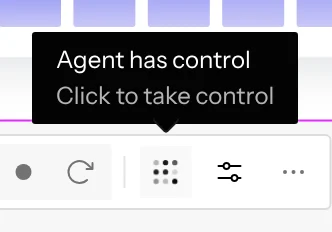
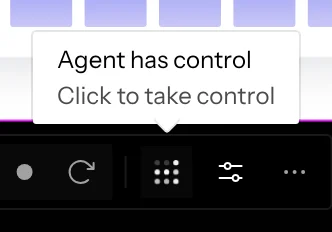
- Selected, the Interact button shows the agent’s dots instead of the cursor, and the frame has no resize handles, so its size can’t change under it.
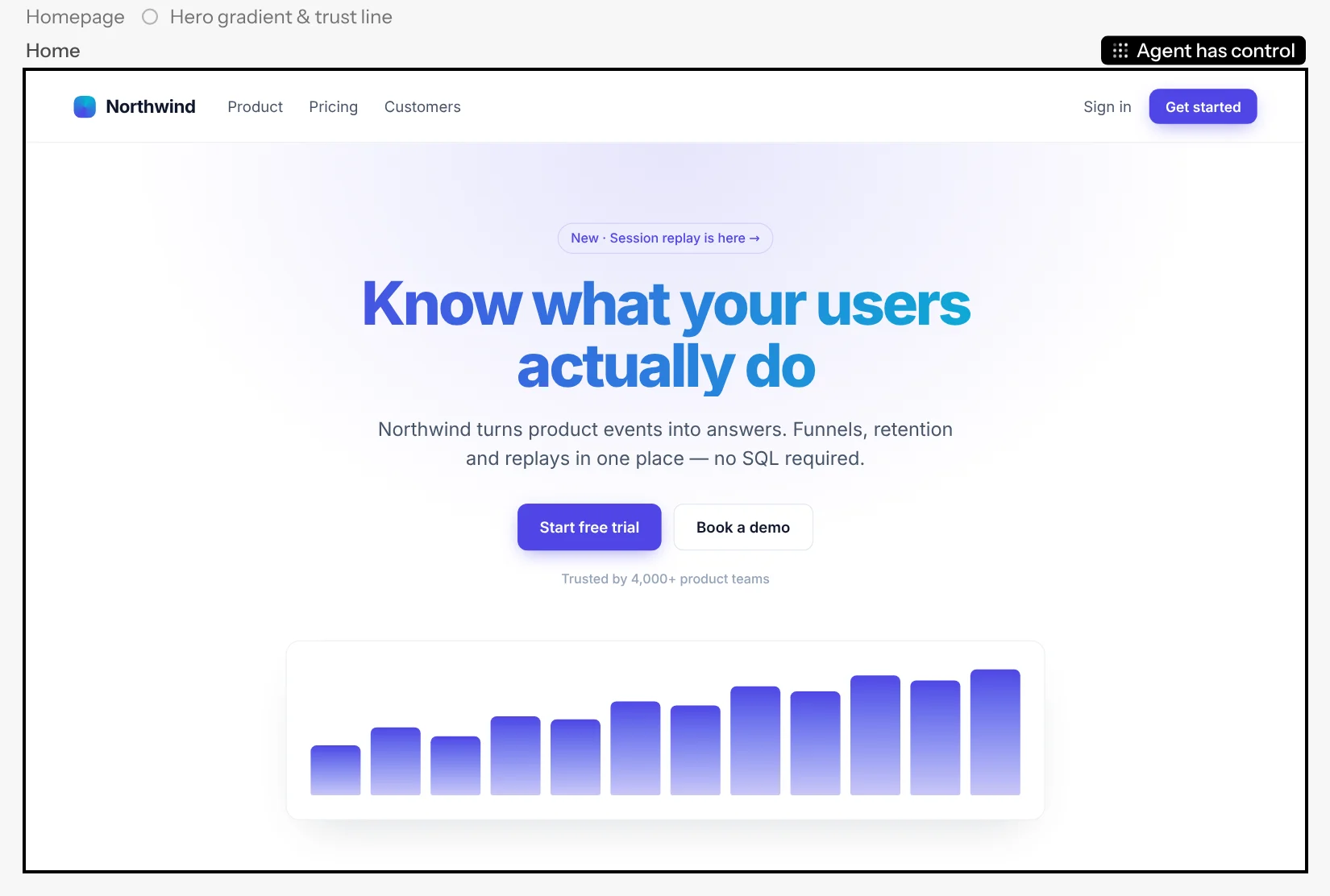
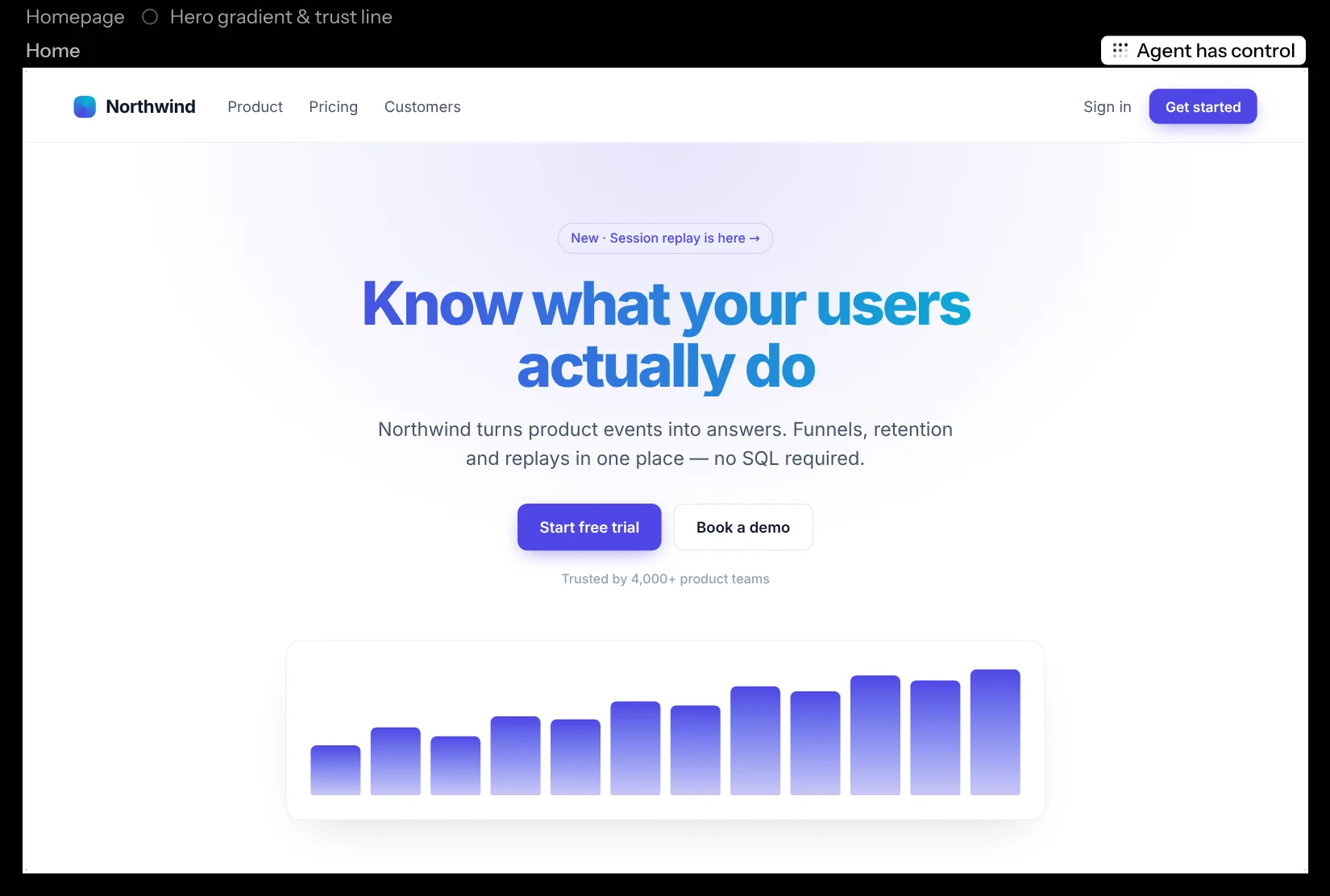
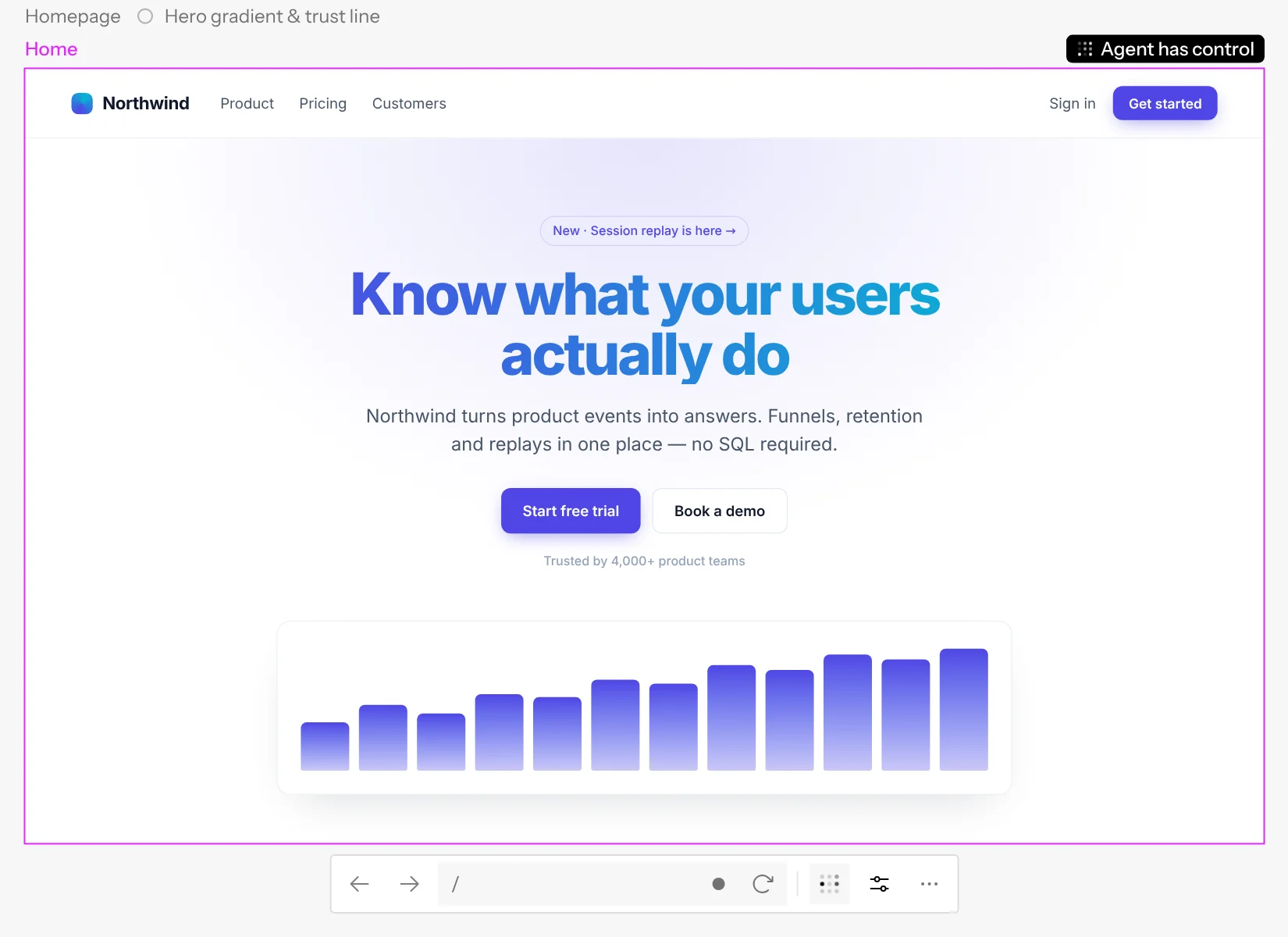
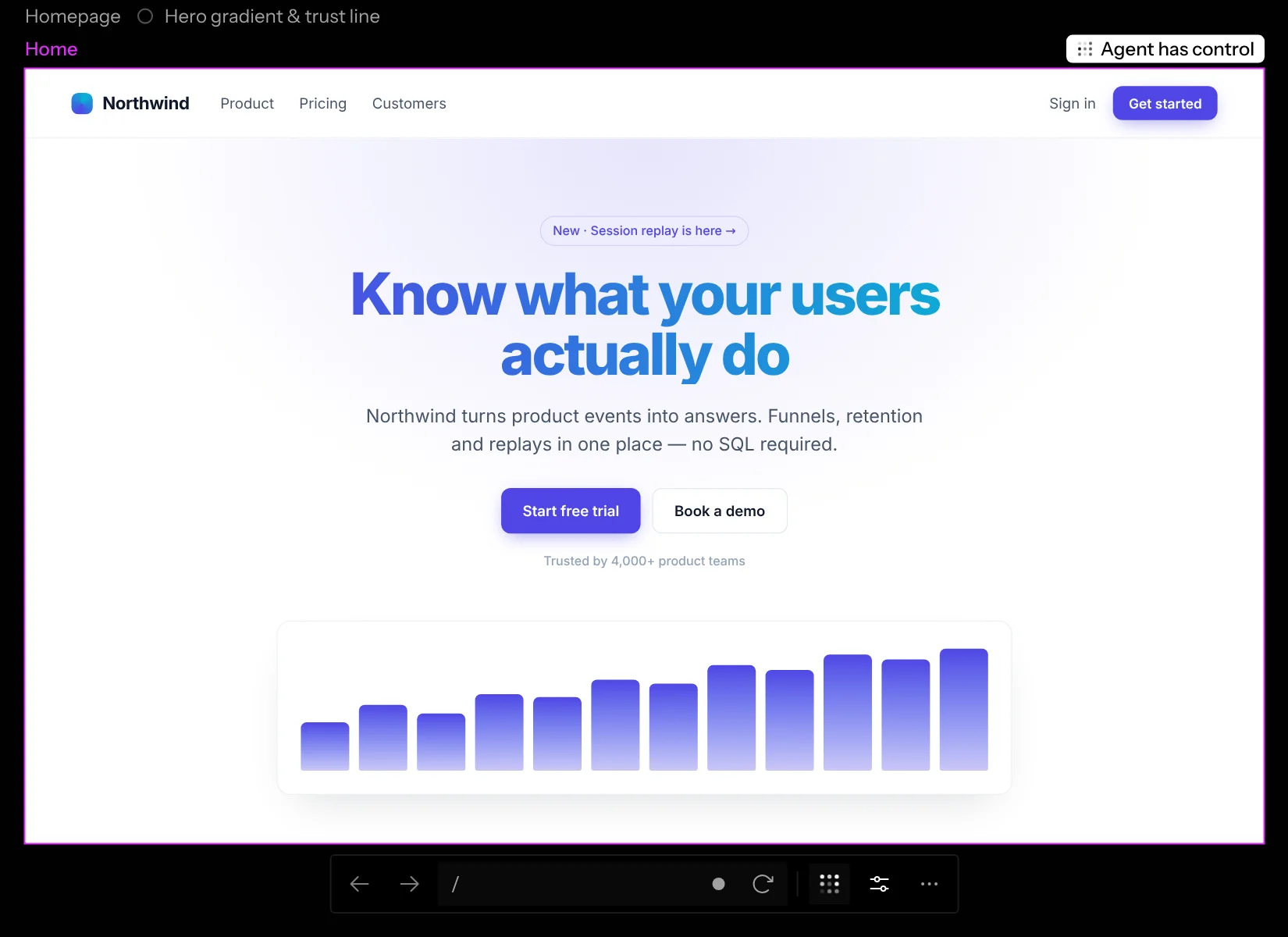
The agent always gives way. Click the button (or double-click the frame) to take over at once: you’re interacting, and the agent stops and waits. When you leave Interact, the agent carries on if it asked to.
Live frames
On a hosted canvas, each frame starts as your own copy: a preview running in your browser, as fast as any page. Your copy follows the canvas: when someone scrolls or navigates the frame, or changes its shared state or Knobs, every copy follows. A frame opens, and reloads, at the canvas’s scroll position.
To look at the very same page together, click Go live (the broadcast button after Interact in the frame’s toolbar). Going live works like navigating: it’s the frame’s, so it happens for everyone on the canvas. The frame’s browser starts in its chat’s sandbox, on the frame’s current page, and everyone’s copy of that frame switches to it. The title line shows a Live badge with the broadcast icon. When one of you clicks through the page the others see it happen. Anyone who opens the canvas while the frame is live lands on it live.
Until the live page’s first picture arrives, a spinner takes the broadcast icon’s place, and clicking again does nothing. If the frame can’t go live, it goes back to everyone’s own copy and a message says why:
- The chat’s code isn’t running, or its dev server is stopped. Start it, then click Go live again.
- The chat’s code didn’t answer, for example while its sandbox wakes up from sleep and doesn’t come back.
- The frame’s browser didn’t start, or took too long to show the page.
The Go live button stays filled while the frame is live. Anyone can click it again to end live for everyone: each of you is back on your own copy, on the live frame’s page, with its cookies and local storage. What the page held only in memory, like a half typed form, doesn’t come along. A live frame stays live when everyone leaves the canvas; its browser pauses while nobody is watching.
On your own copy, Interact works on your copy alone. On a live frame, whoever has control is the only one whose clicks, keys and scrolling reach it. Press Interact on a live frame nobody controls to take control. On one someone else controls, nothing you do reaches the page: its title line says who has control instead of Live, and the Interact button shows their avatar. Ending live on a frame you control lets go of control first.
Asking for control
To take a turn on a frame someone else controls, click the Interact button (its tooltip says Click to ask for control). The button stays pressed while you wait. The person with control sees your ask under their Interact button and picks Give control or Not now. When they give you control, the frame is yours and you’re interacting with it. When they pick Not now, a message tells you, and the button goes back to how it was. Click the button again to take your ask back.
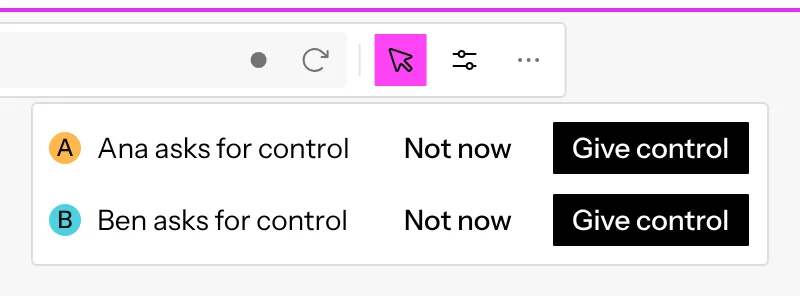
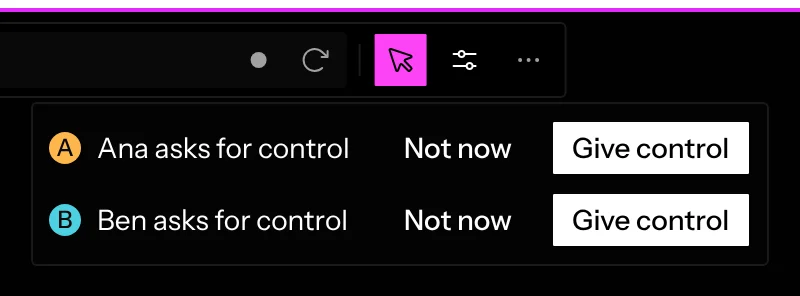
When several people ask at once, the driver sees each of them and picks one; the others keep waiting. When the driver leaves Interact, control passes to whoever asked first. A driver who reloads the page or drops their connection keeps control for 5 seconds. If they don’t come back, control passes to whoever asked first and is still here, or to nobody.
A driver who walks away from the frame doesn’t keep it from you. Once your ask has waited 3 minutes without the driver clicking, scrolling or typing in the frame, control passes to you, or to whoever asked before you.
A live frame streams at up to twice its size, so it stays sharp when you zoom in to 200%. When a chat’s sandbox goes to sleep, its frames’ browsers stop with it; when it wakes up, each frame reopens at the page it was on.
Comment pins, Knobs, the element picker and Fit to content work on a live frame as on any other. A pin sits on the same element for everyone, and a Knob you change shows in the one live page, so everyone on it sees it at once.
A live frame’s Knobs also have a Theme knob, above the page’s own, that
switches the page between Light and Dark. It sets what the page’s
prefers-color-scheme matches, for everyone watching. A new frame starts in
Light. A preview running in your own browser, like your own copy or a frame
in the desktop app, follows your system’s appearance instead.
A live frame nobody has on screen pauses a few seconds later, and its page keeps its state. Scroll back to it and it shows its last picture at once, then picks up live where it left off. A chat keeps six frames’ browsers open. Past that, the frame nobody has looked at for longest closes its browser, and the next time someone looks at it, it reopens at the page it was on, still signed in and with its saved settings, but anything the page only held in memory, like a half-filled form, starts over.
The desktop app has no Go live: there, every frame is a preview running on your Mac.
The agent driving a frame
A chat’s agent can use a frame: click, type, press keys, scroll, pick options, drag and hover, like you would. It reads the page’s buttons, links and fields to find what to act on, and looks at the frame after each step to check it worked. Ask it to show you what it built, or to get a frame into a state for you.
How it drives depends on how you ask:
- “Show me” plays like a demo. The agent brings the frame into view for you, and a cursor labelled Agent glides to each button or field and pauses before it clicks, so you can follow along. Text goes in a character at a time.
- “Get it into that state” jumps straight to the end. There’s no cursor, and your view of the canvas doesn’t move.
Each step shows up in the chat as a short line, like Click Save,
Hover Info or Type ada@example.com, so you can see where it went if something goes
wrong. When no frame shows what it needs, or you’re using the one there,
the agent opens a new frame beside its chat’s other frames instead of taking
yours over.
- Asking is the go-ahead. Asking the agent in the chat lets it drive, even while you’re interacting with the frame, so there’s no second prompt.
- You can take over at any moment. Click the driver button (or double-click the frame) and the agent stops at once. It tells you where it got to and asks before it carries on; when you leave Interact, the frame is the agent’s again.
- It hands the frame back. When it’s done, or after a minute without a step, the frame stops showing the agent as its driver.
On a shared canvas
On hosted Screenplay, the agent drives the frame’s one live browser: when it picks a frame up, the frame goes live for everyone, as if it pressed Go live, so everyone on the canvas watches each step as it happens, with Agent has control on the frame’s title line. The frame stays live after the agent hands it back or someone takes over, so nobody loses the page it got to; click Go live to end it when you’re done. Anyone can take the frame from the agent; between people, the usual asking for control applies. The agent can drive a frame nobody is looking at, too: it keeps running while the agent works on it. When you ask it to show you something, everyone watching sees its cursor, but only your view moves to the frame.
The agent’s clicks and keys reach the shared browser as real input, the same as yours: focus, typing, Tab and hover styles all work, and native dropdowns and date pickers open as they would for you. The one thing it can’t do is choose a file: when a step needs one, it asks you to pick it yourself.
In the desktop app
- It drives your own frame. The steps happen in the frame on your canvas, and nothing is sent anywhere else.
- Screenplay has to be open. The agent drives only while the canvas is open in the desktop app. A canvas that opens in a window hidden behind other windows doesn’t load until you bring it forward. With the canvas closed or not loaded, the agent tells you so in the chat instead.
The agent’s clicks and keys reach the frame as real input, the same as yours: focus, typing, Tab, rich-text editors and hover styles all work. The desktop app sends them to the Screenplay window itself, so your own pointer doesn’t move, Screenplay doesn’t come to the front, and you can keep working in another app.
- Copy and paste use the agent’s own clipboard. When the agent copies something (a page’s Copy button, or ⌘ C), it sees what was copied and your clipboard is put back as it was. When it pastes, it pastes what it copied, never what’s on your clipboard.
- It picks files from its chat’s code. When a step opens a file picker, the agent answers it with files from the code of the frame’s chat, and no panel opens. For a file anywhere else, it asks you to choose it. When you click a file input yourself, you get the usual Finder panel.
- Native dropdowns and pickers stay closed. It can’t open a native dropdown, date, time or colour picker, though it can still set its value.
While a step lands, the frame takes the pointer and keyboard for a moment, as in Interact. After a hover, the frame keeps the pointer so the page stays hovered, until you move your own mouse on the canvas. A frame that’s scrolled off the canvas or covered can’t take a click, so the agent’s step there is simulated inside the page instead, with the limits a mockup in the browser has. Moving your own mouse over the frame hands hover back to you.
When a step needs something it can’t do, the agent says which and asks you to do it in the frame. Tell it in the chat when you’re done, and it carries on from there.
The agent drives mockups in the desktop app the same way. In the browser, its steps on a mockup are simulated inside the page.
Sizes
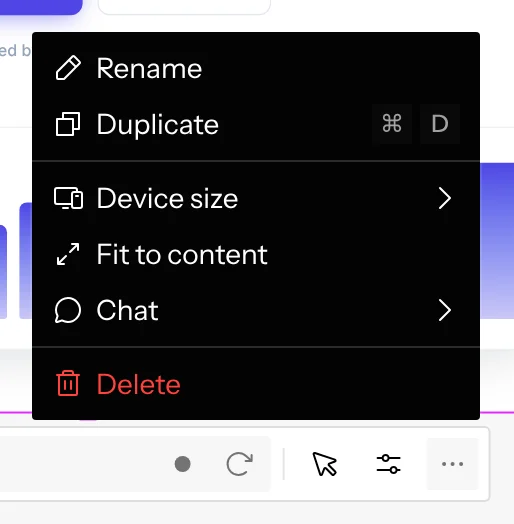
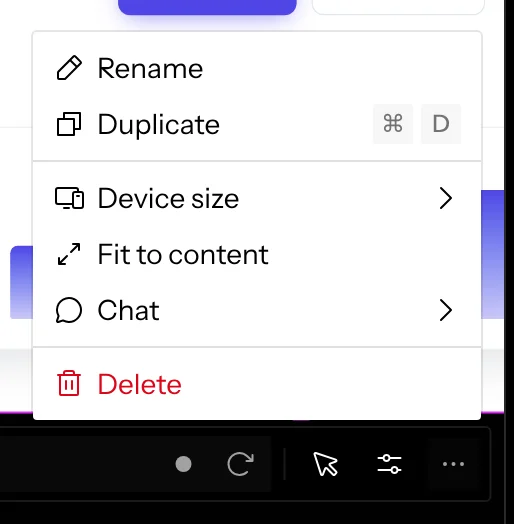
Frame options → Device size sets exact device dimensions:
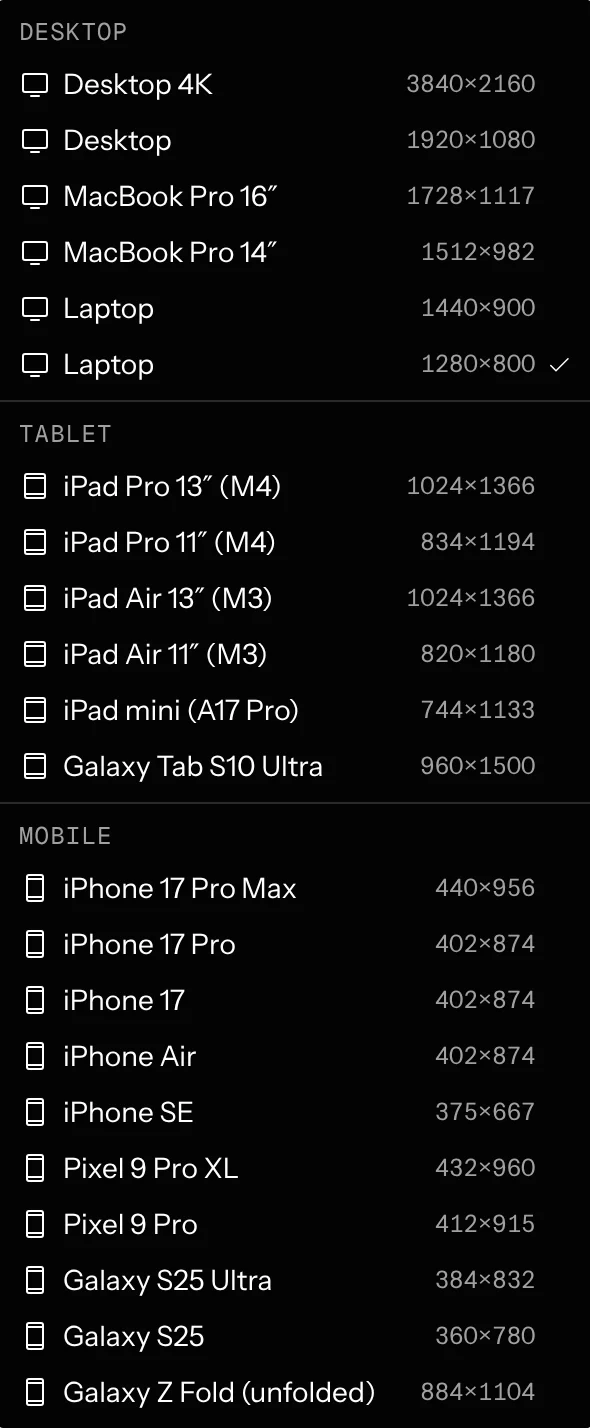
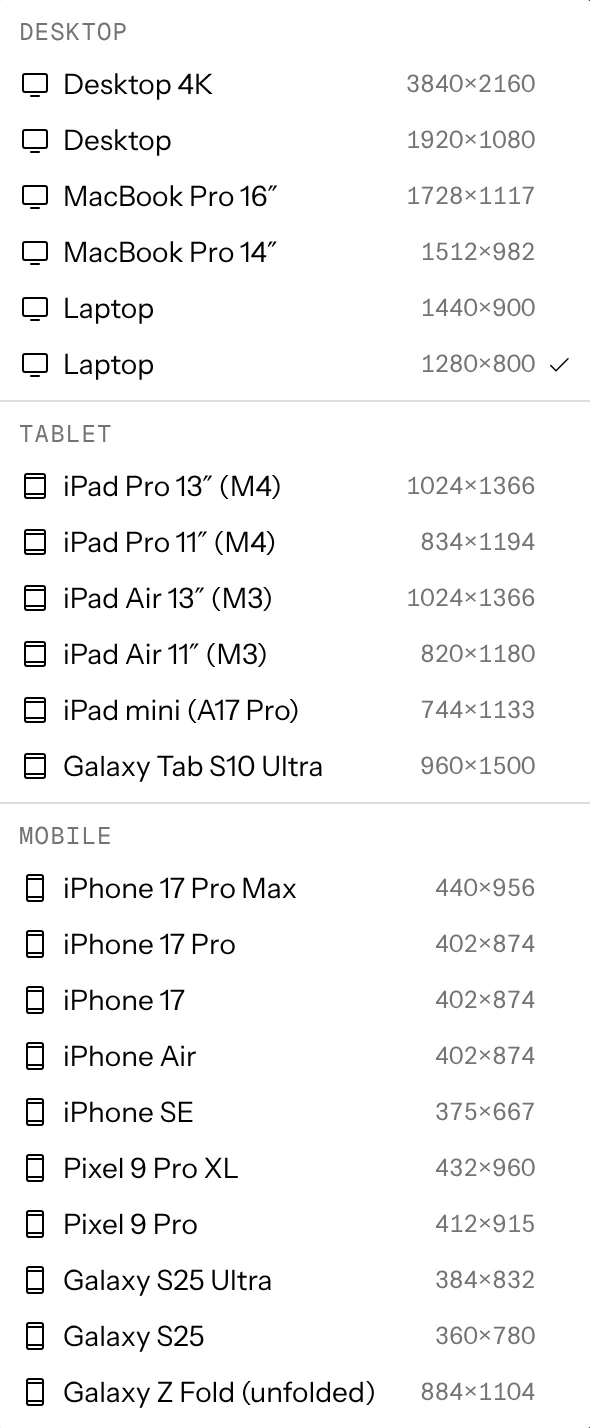
You can also drag a corner handle. While resizing, the frame snaps to nearby device sizes, which are outlined as you get close. Hold ⌘ to resize freely.
Fit to content is a toggle. While it’s on, the frame’s height follows the page’s content, growing and shrinking as the page changes, which is handy for seeing a whole long page. The width stays yours: drag a side edge and the page reflows to the new width while the height keeps up. Dragging the top, the bottom or a corner, or picking a Device size, sets the height yourself and turns Fit to content off.
A repository’s Default frame size decides what new frames open at.
Knobs
If your app declares knobs, the Knobs button opens live controls: sliders, switches, text fields, selects, and color pickers. Changes apply instantly and sync to everyone viewing the canvas. A dot on the button means values differ from their defaults, and Reset in its header clears them.
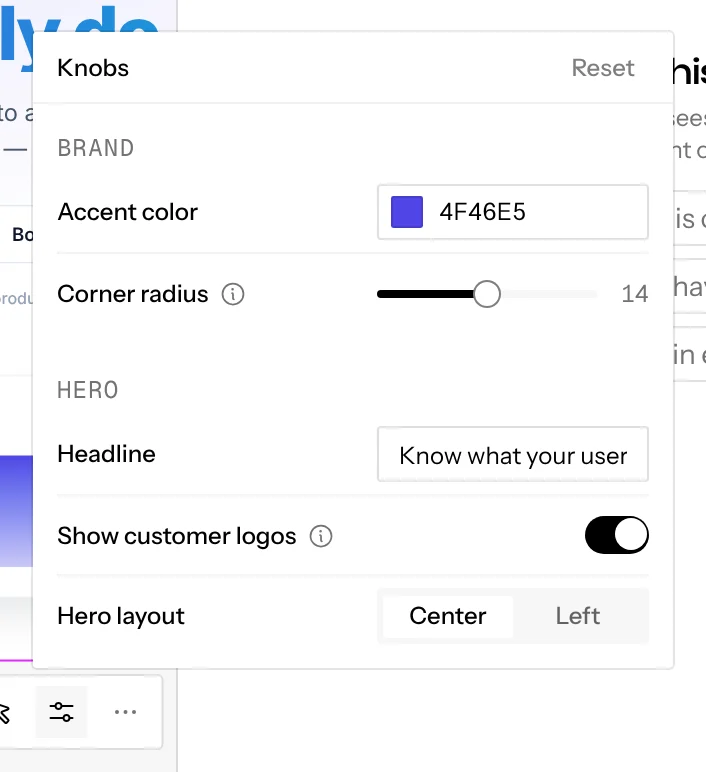
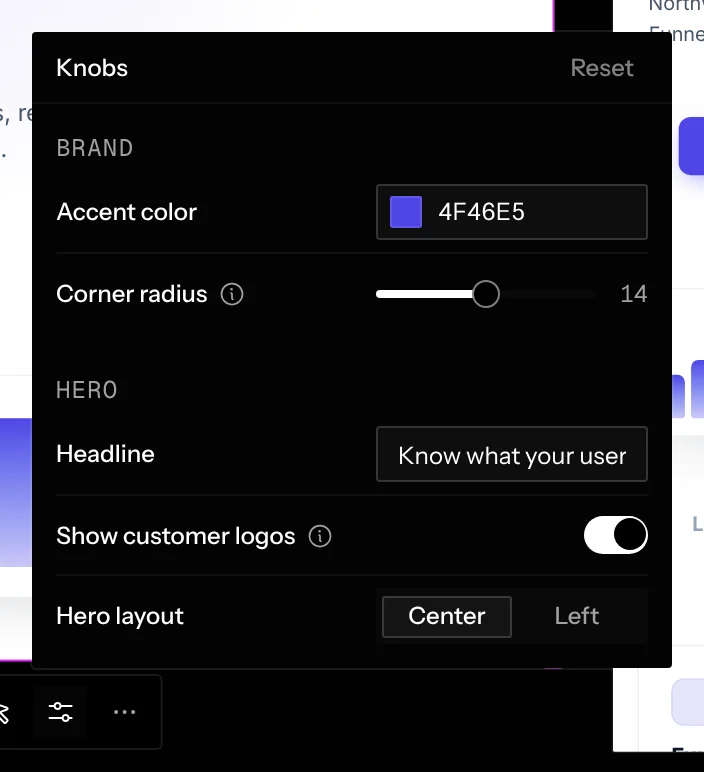
With no knobs declared, the popover explains what knobs are and offers Ask the agent to add a knob, which opens the frame’s chat with a prompt filled in.
Shared state
When your app shares state through
@screenplay.space/state, a small {} appears on
the route in the selected frame’s address bar. Hover it to see the current JSON. The state is kept with the
frame and synced to everyone.
Preview states
While there’s no live page, a frame shows where its chat’s code is:
- No chat until you pick one for the frame.
- Setting up the code, then Starting dev server, while the chat’s code starts.
- Setup failed when setup fails, and Dev server not responding if the server doesn’t answer in time. Both offer Retry and Open logs.
- Preview stopped when its sandbox is stopped. Click Start.
A preview that never loads usually means the dev server isn’t listening on the port Screenplay assigned. See Troubleshooting.