Terminal tabs
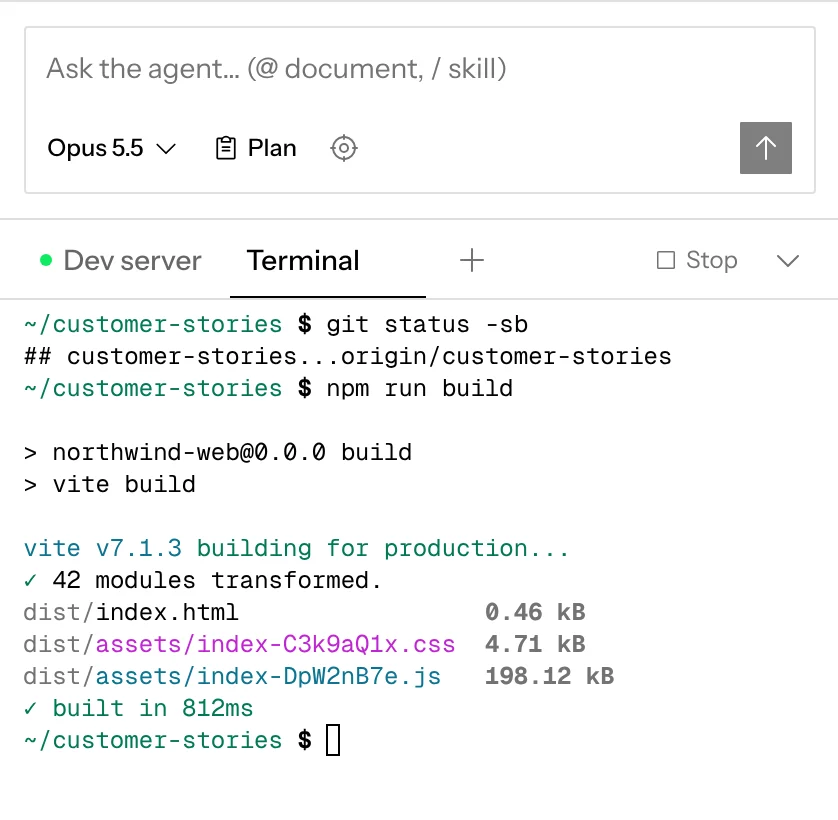
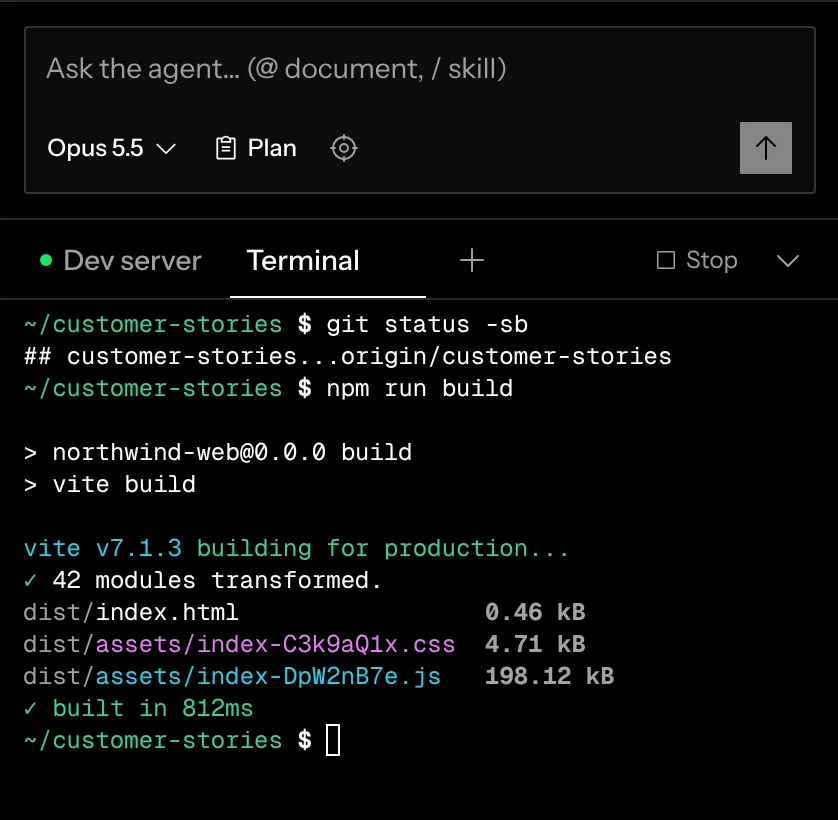
A terminal tab is an interactive shell inside a chat’s sandbox, in the same directory the agent works in. It opens in the terminal pane under the chat, beside Dev server (see Terminals). Use one to run tests, poke at git, or try a command yourself while the chat works.
Opening a terminal
Open the terminal pane (click a name under the composer, or press ⌃ `) and click + after its tabs. It opens a plain shell in the chat’s sandbox and the pane switches to it. Double-click a tab’s name to rename it. Open as many as you like.
On desktop, to work with Claude Code, Codex or OpenCode, pick it as the chat’s model rather than running it in a shell, so it’s the chat’s one agent and the Coordinator can see what it does (see Choosing a model). A coding CLI installed in the sandbox still runs if you type its command in a shell.
A terminal that an earlier version opened with a coding CLI keeps running it until you close it.
Persistence
- Terminal tabs are yours. Collaborators on a shared canvas don’t see them, and nothing typed there enters chat history.
- Tabs survive a page reload and reattach to the same running process.
- Scrollback isn’t saved, and it ends with the sandbox.
- Closing a terminal tab ends its session for good. Closed terminals aren’t archived the way chats are. If something is still running in it, such as a test run or a dev server, Screenplay asks before closing; an idle shell closes at once. The pane then shows the tab next to it, or Dev server.
A shell and the chat work in the same files. Commit from one and the other sees it.