Core concepts
Screenplay has a small set of nested ideas. Once they click, the rest of the UI follows.
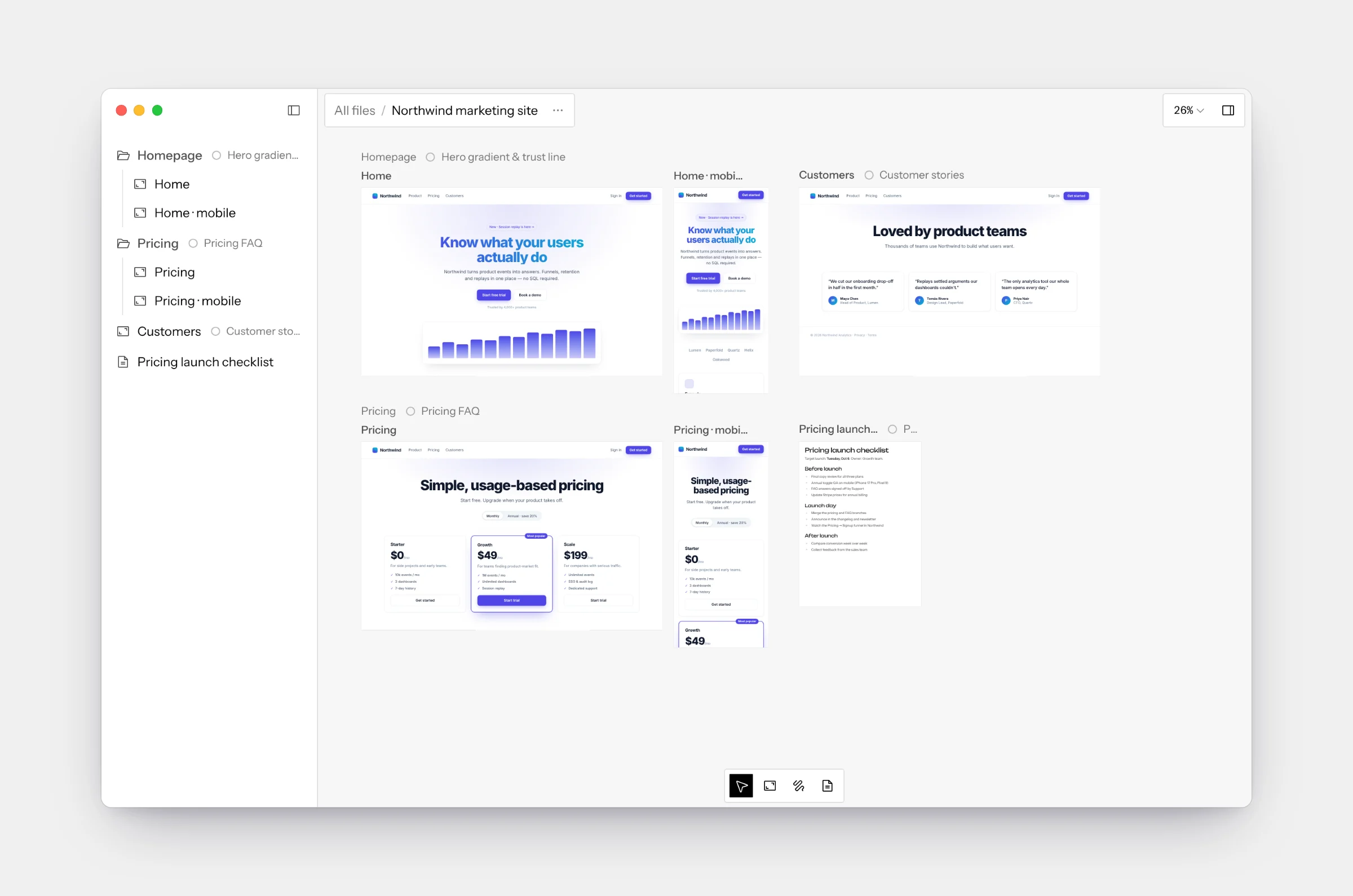
Canvas
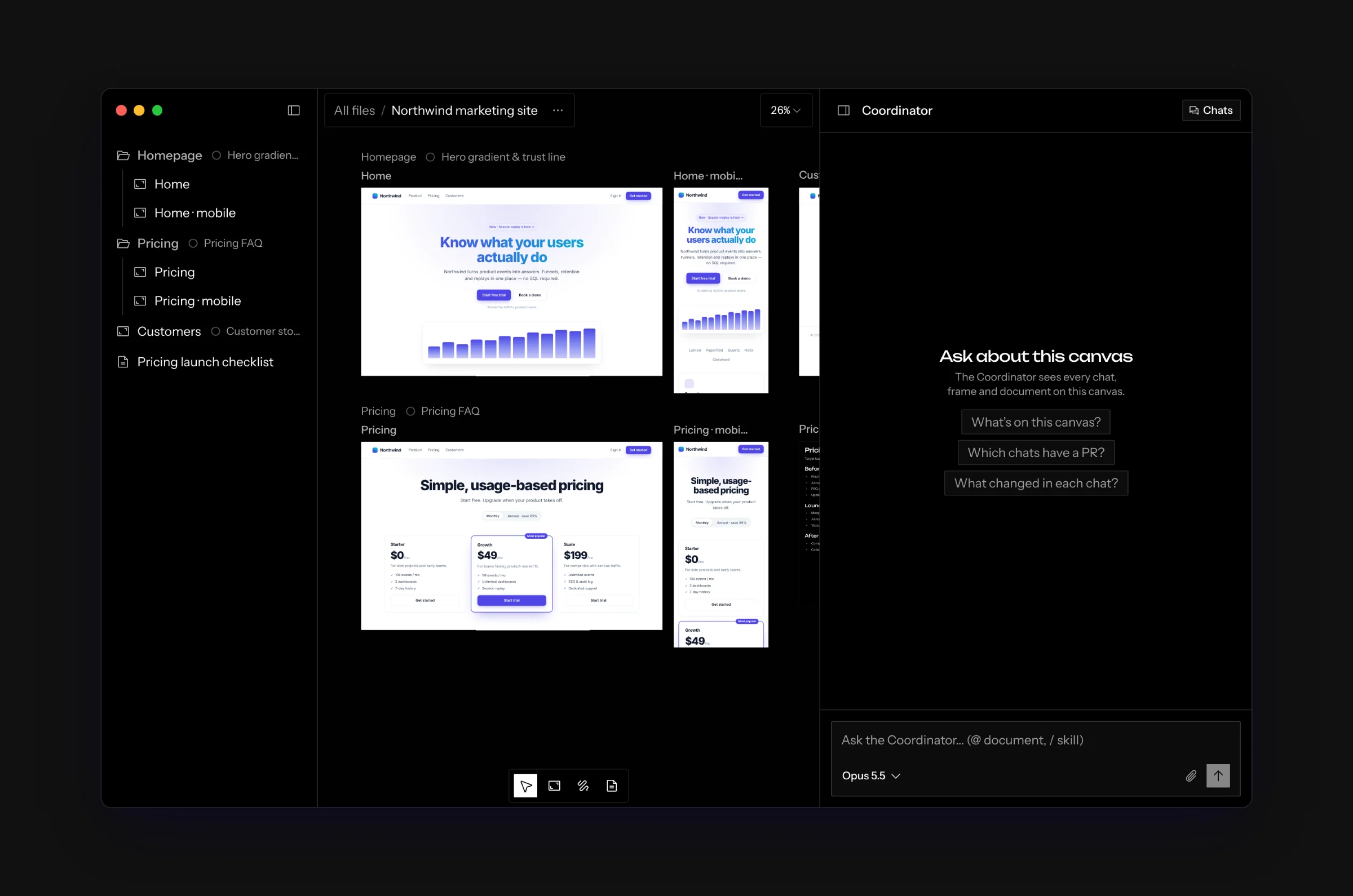
A canvas is the container for one piece of work: a feature, a redesign, an experiment. It’s an infinite, zoomable surface with the sidebar on the left and the agent panel on the right. Canvases live on the home screen, where you can file them into folders and pin them. On the hosted app you can share a canvas, and everyone in it sees the same layout, previews, and agent activity in real time. Its setup lives in Canvas settings, under the … next to its name.
Coordinator
The Coordinator is the canvas’s own chat, and where the agent panel opens. Every canvas has exactly one, shared by everyone on it. It sees the whole canvas: each chat’s status, changes and pull request, and every frame and document. It arranges the canvas for you, and when you ask for a change, a document or a mockup it sends a message to the right chat’s agent, which does the work. The Coordinator makes nothing itself. It can also start new chats, open a chat’s pull request and remove a chat, right away. → The Coordinator
Repository
A repository on a canvas is the code its chats run, together with the
settings Screenplay needs to run it: a setup script (for example
npm install), a run script that starts the dev server, and a few optional
extras. You add and edit them in Canvas settings. One canvas can hold several
repositories, for example a web app and its API. The same repository can also
appear twice with different settings, which suits monorepos. Your repositories
live in Settings → Repositories, ready to add to any canvas.
→ Repositories
Chat
A chat is one git branch of a repository, running in its own isolated sandbox:
- On the desktop app, a sandbox is a git worktree on your machine, and the dev server runs locally on a port assigned to that chat.
- On the hosted app, a sandbox is a cloud VM with its own clone of the repository.
Each chat has a title (the agent writes it from your first message), its own dev server, and its own agent and terminals. The Chats button at the top right of the agent panel lists every chat, like threads in a project: each by its title, grouped by what it’s doing. On a canvas with several repositories each row ends with its repository’s name. Chats are cheap: start one for every idea you want to try and compare them side by side. → Chats
Frame
A frame is a live preview on the canvas. It shows one route of one chat’s dev server at a chosen device size. Frames are real browsers: switch into Interact mode and you can click through the app. → Frames
Document
A document is a rich-text page on the canvas for specs, checklists, notes and plans. Documents are edited collaboratively, and a chat can write one for you and keep editing it. → Documents
Mockup
A mockup is a self-contained page a chat draws on the canvas to show a design option. It needs no dev server, so it shows up at once, beside its chat’s frames or in a group of its own, and you can click through it. It names the chat that made it, and only that chat can change it. → Mockups
Group
A group is a row of frames, documents and mockups laid out left to right, so the desktop and mobile versions of a page, or the steps of a flow, stay together. Every frame, document and mockup lives in one. When all of a group’s frames show the same chat, as the screens of one flow do, the group names it once; otherwise each frame names its own. → Groups
Agent
Each chat’s agent does the coding, and only that chat changes its code. When you (or the Coordinator) give it work, it reads files, edits them, runs commands, and commits inside that chat’s sandbox. It can read other chats’ code, but never changes it. Where the agent comes from depends on how you run Screenplay:
- Desktop: the coding CLI installed on your machine (Claude Code, Codex or OpenCode), running on your own login.
- Hosted app: a built-in agent loop that uses the model providers the operator configured (Anthropic, OpenAI, Google, the Vercel AI Gateway, or any OpenAI-compatible endpoint).
Alongside chat, terminal tabs give you plain interactive shells in the same sandbox. → Working with the agent, Terminal tabs
Memory
Memory is short notes every chat follows, like “Use pnpm, never npm.” Each canvas keeps a shared canvas memory that every chat on it reads; any chat saves to it when you tell it something worth keeping. Your account memory follows you: every chat you send a message in reads it, on any canvas, and saves your preferences to it. You edit canvas memory in Canvas settings and account memory in Settings. → Memory
Canvas files are files chats save for a canvas, like research notes or a reference image. Every chat on the canvas can open them; agents organize them, and you browse or delete them in Canvas settings. → Files
Skills
A skill is a packaged set of instructions a chat loads when a task calls for it, like a release-notes checklist. Type / in any chat to pick one. Skills come from the chat’s repository, the canvas, your account and Screenplay itself, which ships a few, such as a design audit. Ask a chat to save what you worked out as a skill, and it offers a card to save it to the canvas or your account. → Agent skills
Names you’ll see in the code
The UI labels are deliberately friendlier than the code’s names. If you read the source or the self-hosting docs: