Files
Chats keep files for later chats in two places. Canvas files belong to one canvas: research notes, a reference image, a PDF about its work. Every chat on the canvas sees the list and opens the ones it needs, so a later chat can pick up what an earlier one saved. Account files are yours and follow you to every canvas: a style guide you write to, a template you reuse. Every chat you message sees your account files beside the canvas’s. Nothing in either shows on the canvas.
A chat saves to the canvas unless what it’s saving is yours rather than the canvas’s work; ask it to save something to your account and it does.
Agents organize the files. Ask a chat to save something, put files in a folder, rename one or tidy up, and it does. People browse them and can delete them, but don’t rename or move files themselves. A file you attach to a message, or an image you put in a document, is saved to the canvas’s uploads folder.
Browsing a canvas’s files
Open Canvas settings from the … next to the canvas name and choose Files. The files show as one tree: folders first, each with how many items it holds, then files. Click a folder’s arrow to expand or collapse it. Each file says its size and who added it: Saved by agent, or the member who added it.
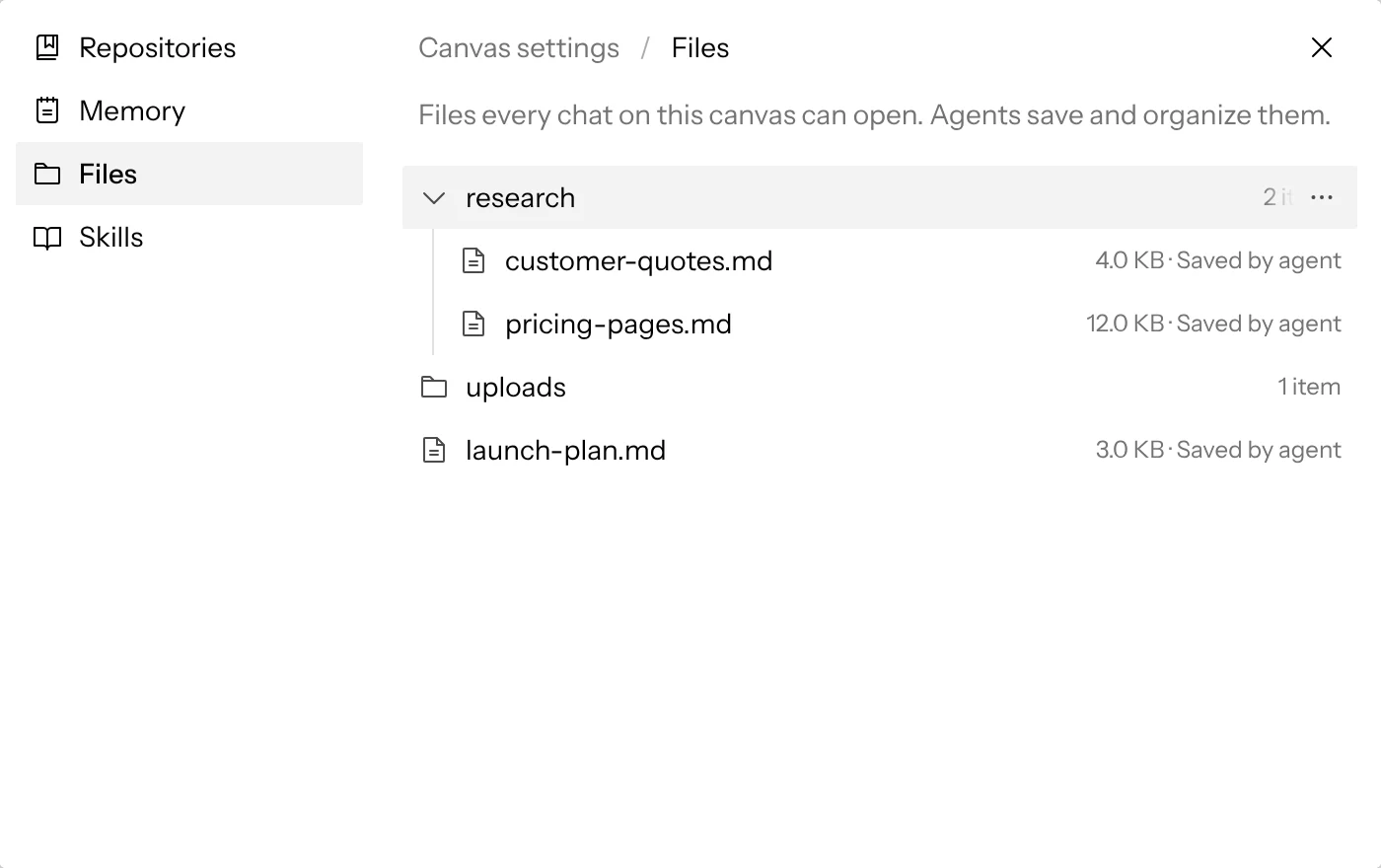
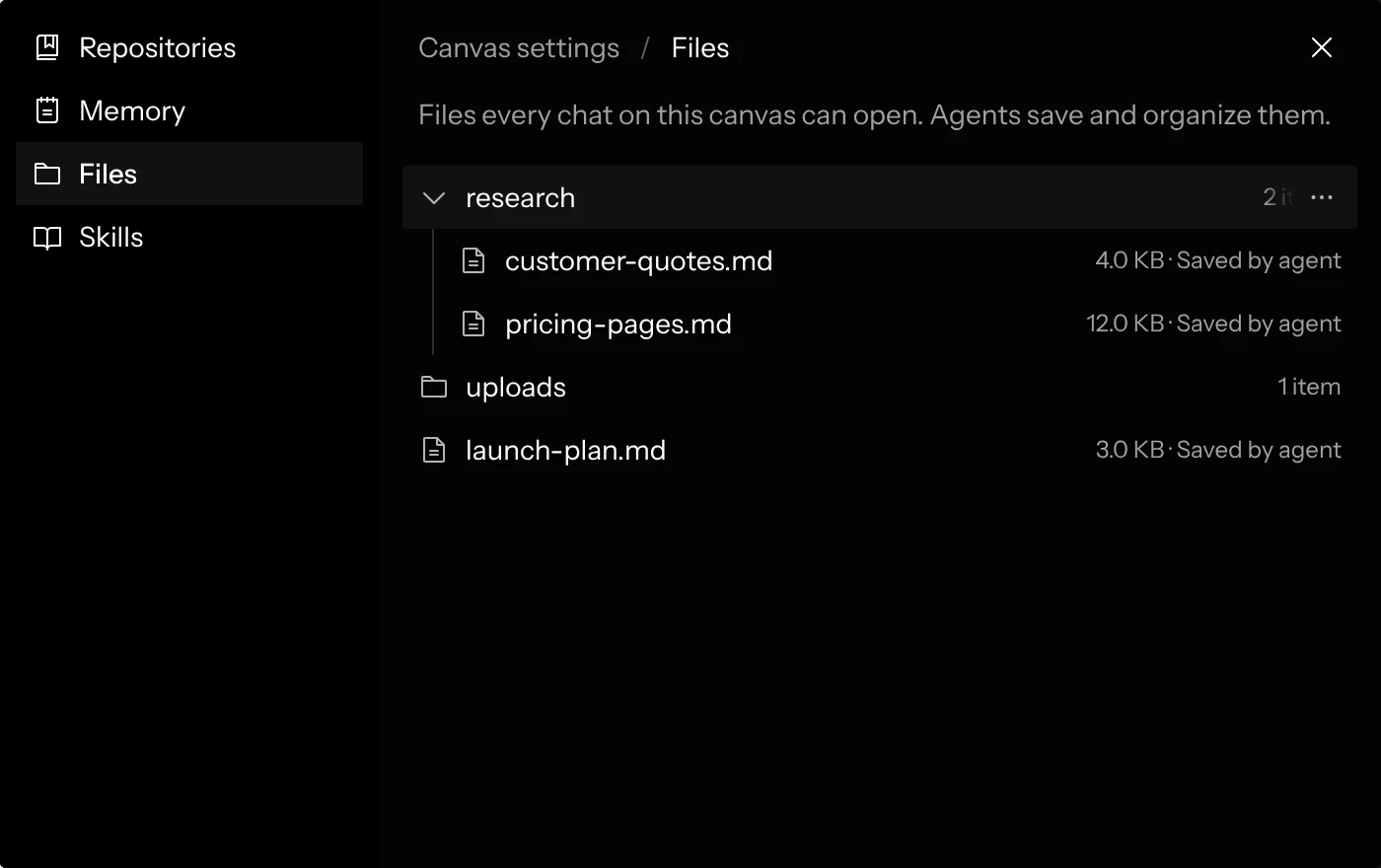
… › Open shows a file in its own window over Canvas settings: images and PDFs as they look, text and code as plain text, and anything else as a download. Download saves a copy.
On the desktop app, Open opens the file in its own app on your Mac, the way double-clicking it in Finder would, and … › Reveal in Finder shows a file or folder in Finder. These are copies the app keeps up to date as agents save, move and delete files; edits you make to them don’t reach chats.
Coding agents on the desktop app
When a chat on the desktop app runs Claude Code, Codex or OpenCode, the app also writes the canvas’s files and your account files to a folder of its own before every message, so the agent opens them with its own tools, without asking you for permission. The folder is in the app’s data folder, never in the repository, so files can’t be committed by accident. It holds a copy brought up to date each time: a file deleted or moved since the last message is gone from it, and the agent still saves and changes files through the app, since edits it makes in that folder are lost.
Deleting
… › Delete deletes a file, or a folder with everything in it, for everyone on the canvas. It asks first, naming the file or saying how many items a folder holds, and can’t be undone. Chats can no longer open what you delete, and deleting something in uploads (chat attachments and document images) also takes it out of the documents and messages that show it.
Everyone on a shared canvas sees the same canvas files, and only the canvas’s members can open them. Files work the same on the desktop app.
Account files
Open Settings from the bottom of the home screen sidebar and choose Files. Your account files show in the same tree as a canvas’s, with the same Open, Reveal in Finder (on the desktop app) and Delete. Deleting one means no chat of yours can open it again.
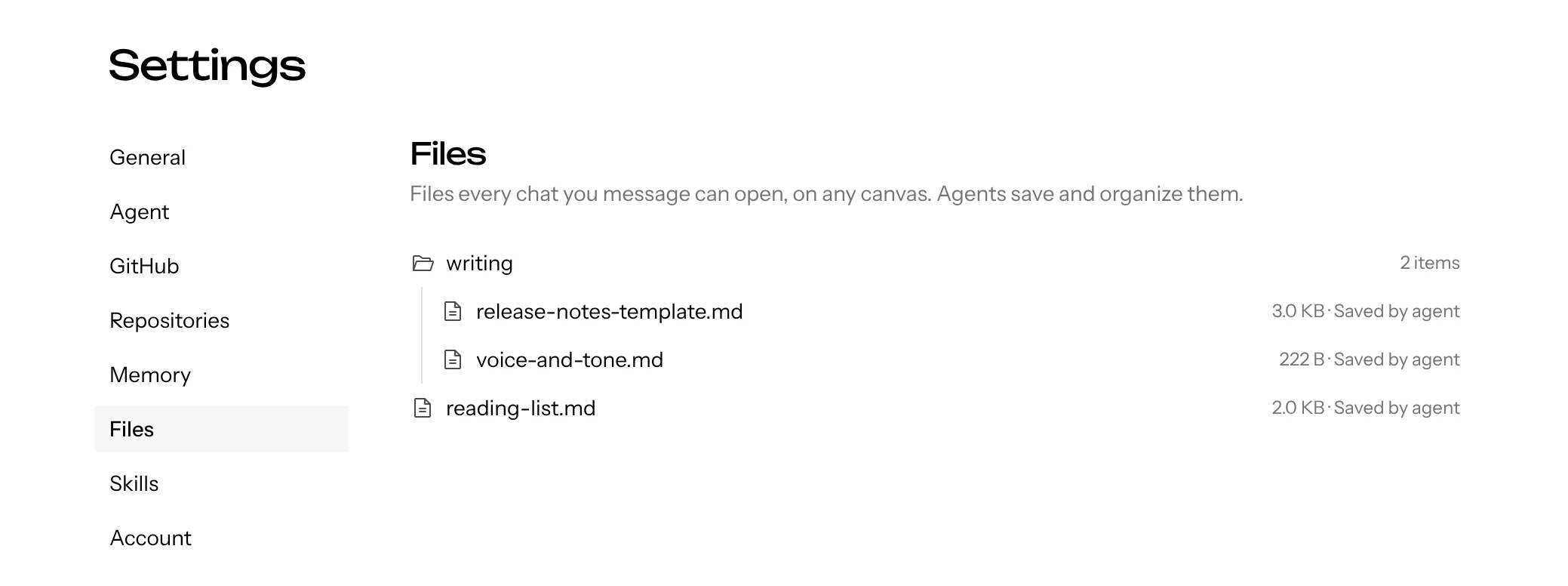
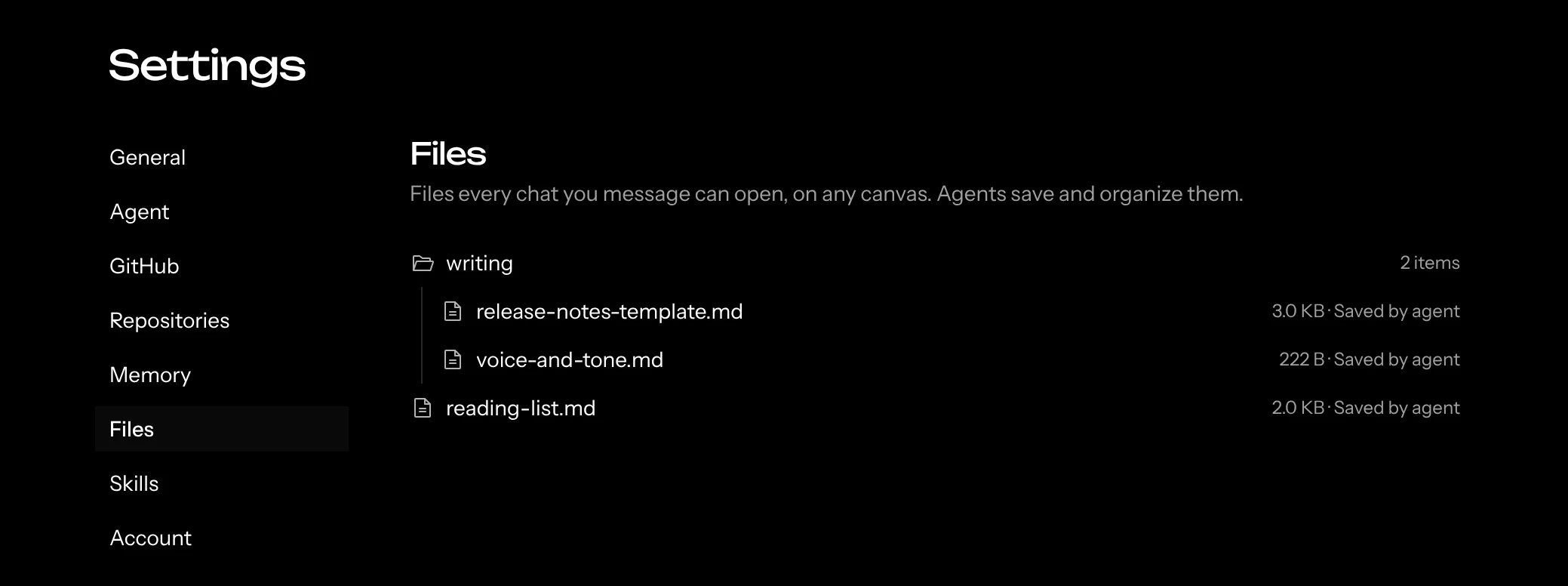
On a shared canvas, a chat reads and saves the account files of whoever sent the message, not of whoever started the chat. Nobody else ever sees your account files, in a chat or in Settings. Messages the Coordinator sends on its own, when a chat finishes, see no one’s account files and save only to the canvas.