Documents
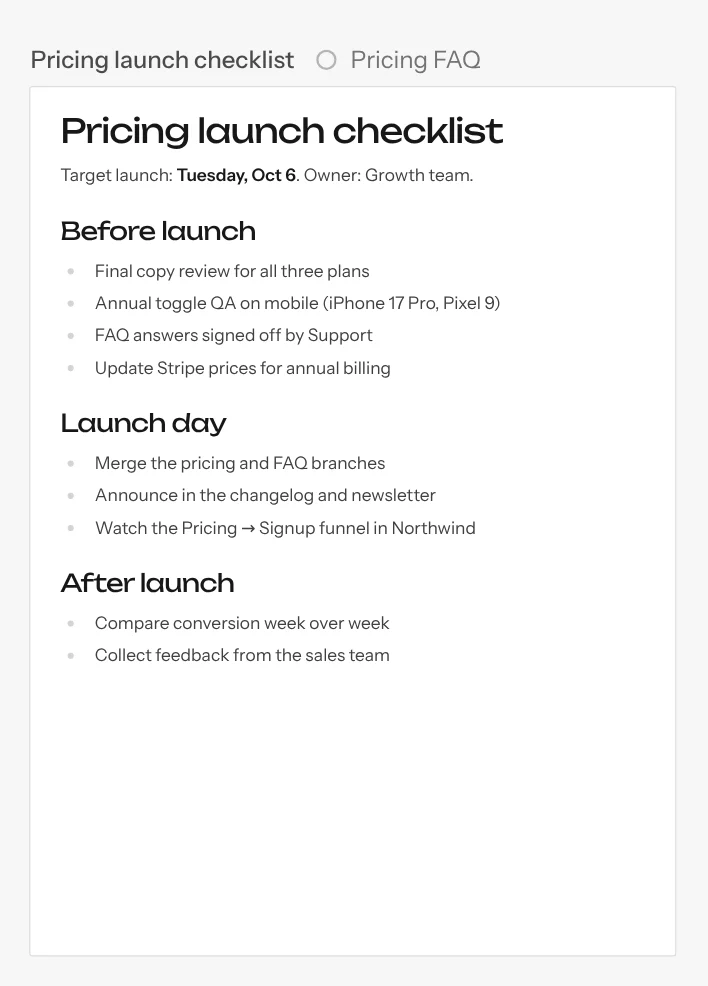
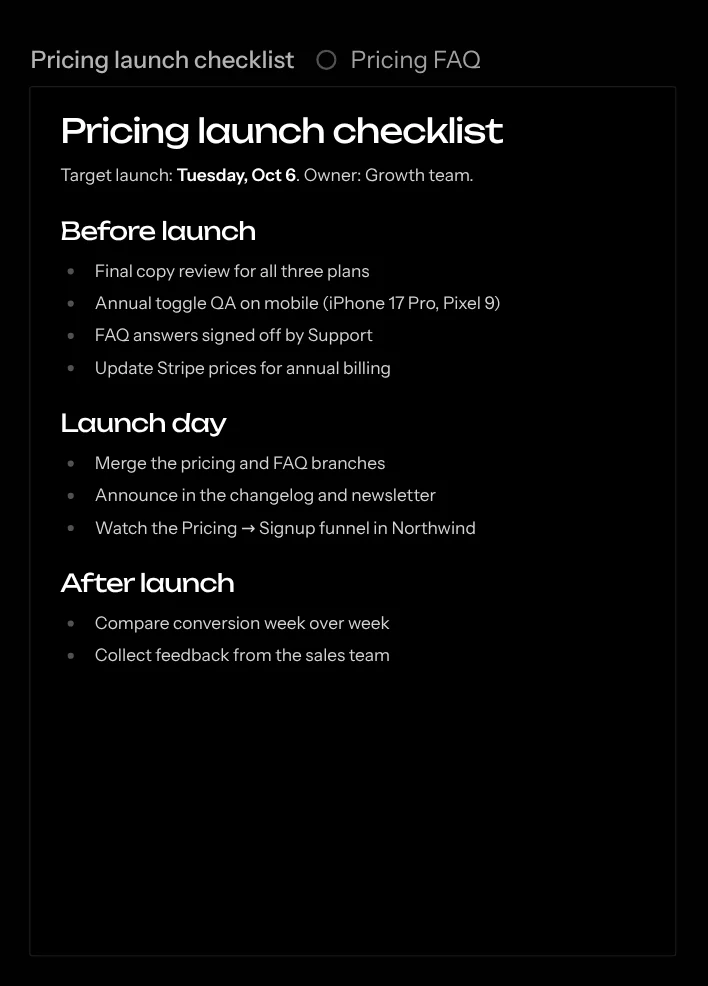
Documents are rich-text pages that live on the canvas next to your previews. Use them for specs, launch checklists, research notes, or anything the team and the agent should share.
Creating and editing
- Press D (or pick Document in the toolbar), then click to drop a document or drag to draw one. It opens straight into editing.
- Double-click a document to edit it. Esc or clicking outside stops editing.
- The first heading is always the document’s title. It’s also shown in the title bar and the layers list.
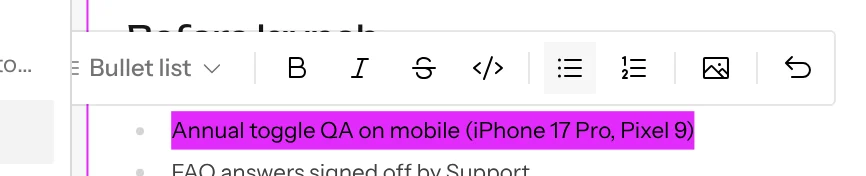
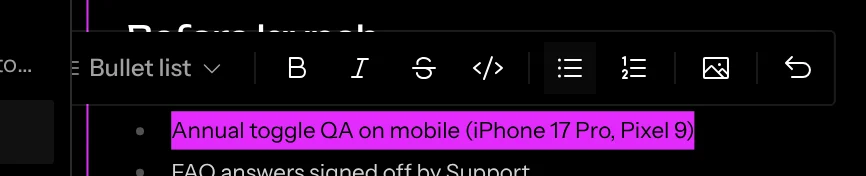
Select text to open the formatting toolbar. Its first menu shows the block’s current type (for example Text) and converts the block (text, headings 1–3, bullet or numbered list, quote, code block). The buttons apply bold, italic, strikethrough, inline code, and lists. In the hosted app the toolbar then has Comment, which starts a thread on the selected text (see Comment on document text). The last button, Reply in chat, asks an agent about the passage.
Type / at the start of a line for the / menu. Its
Format group turns the line into text, a heading, a list, a quote or a
code block, or adds a divider. Its Insert group adds an
image or a mention.
Keep typing to narrow the list, and press Enter to pick. Each item
shows the markdown you can type at the start of a line instead, such as ##
for a heading 2 or - for a bullet list.
Several people can edit the same document at once, and each person’s cursor shows in their color. Documents are layers like frames: you can move them, resize them, and group them with frames.
Images
To put an image in a document, paste it, drag it in from your computer, or type / at the start of a line and pick:
- Upload image chooses images from your computer.
- Image from files lists the images in the canvas’s and your account’s files, newest first, with a search box.
The Image button on the formatting bar, which shows when you select text, offers the same two and puts the image after the selected paragraph or list.
An image you paste, drop or upload is saved to the canvas’s files, in the uploads folder, so chats can open it too. An image from your account’s files is copied there, so everyone on the canvas can see it. A spinner holds its place while it uploads. Click an image while editing to select it, and press Backspace to take it out of the document; the file stays in Files. If an image’s file is deleted, the document says so where the image was.
Documents show PNG, JPEG, GIF and WebP images. A chat that writes a document can put an image from the canvas’s files in it too.
Ask an agent about a passage
Select text in a document and click Reply in chat (the curved arrow at the end of the formatting toolbar). On a document a chat wrote, the passage goes into that chat’s composer and the panel switches to it. On a document you made yourself, it goes into the chat the agent panel is showing, whether that’s the Coordinator or another chat. Either way the panel opens if it was closed. This works the same in the hosted app and the desktop app.
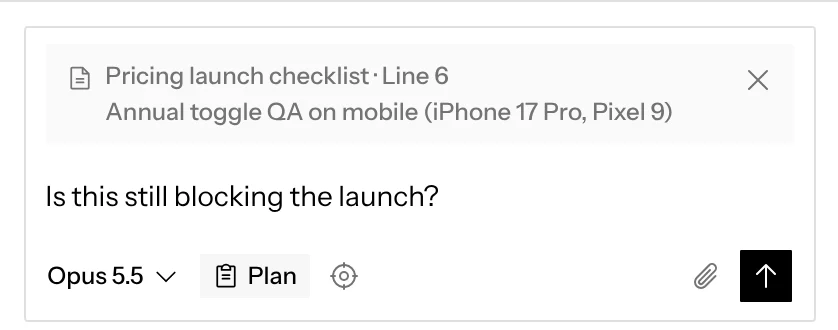
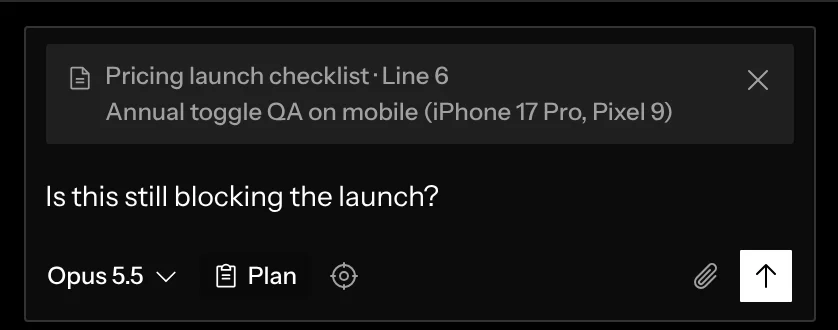
The quote sits above the input with the document’s title, the line range and the first lines of the text. Type your question and send: the agent gets the document, the lines and the passage along with it. Lines count the document the way the agent reads it, as markdown with a blank line between paragraphs, so the agent finds the passage on the line the quote names. Nothing is sent until you do. Click × on the quote to drop it, or select other text and click Reply in chat again to replace it.
Mentioning documents, chats and mockups
Type @ in a document, or pick Mention in the / menu, to link to another document, a chat or a mockup on the canvas. The list groups them under Documents, Chats and Mockups; keep typing to narrow it. A mention follows its target if it’s renamed. @ in the agent composer lists documents: the agent is told which documents you mentioned and reads their current contents.
Documents a chat writes
A chat can write documents: ask it for a plan, a spec or release notes and it drops a new document beside that chat’s frames. The document shows the chat’s name next to its title, the same way a group does, unless the group around it already says it. Documents you make yourself show no name. A chat with no repository writes documents too, on a canvas with no repository or beside other chats.
A chat edits only the documents it wrote. It can rewrite the body, append to it and change the title, and its edits merge live into the shared document, so it never overwrites what you’re typing. A chat reads a document’s formatting, images and mentions, each mention by its current name, and appending keeps them all. Every chat can read every document, but to have a chat change one you made, ask it to write a new one or edit the text yourself. When the chat that wrote a document is deleted, any chat can edit it, and the first one that does becomes the chat it belongs to. The agent’s tool calls show as Create document, Rewrite document, Append to document, Set title and Read document rows.
Comments go to the same place. Send to agent on a thread on a chat’s document sends it to the chat that wrote it. On a document you made, it goes to the chat the agent panel is showing.