Mockups
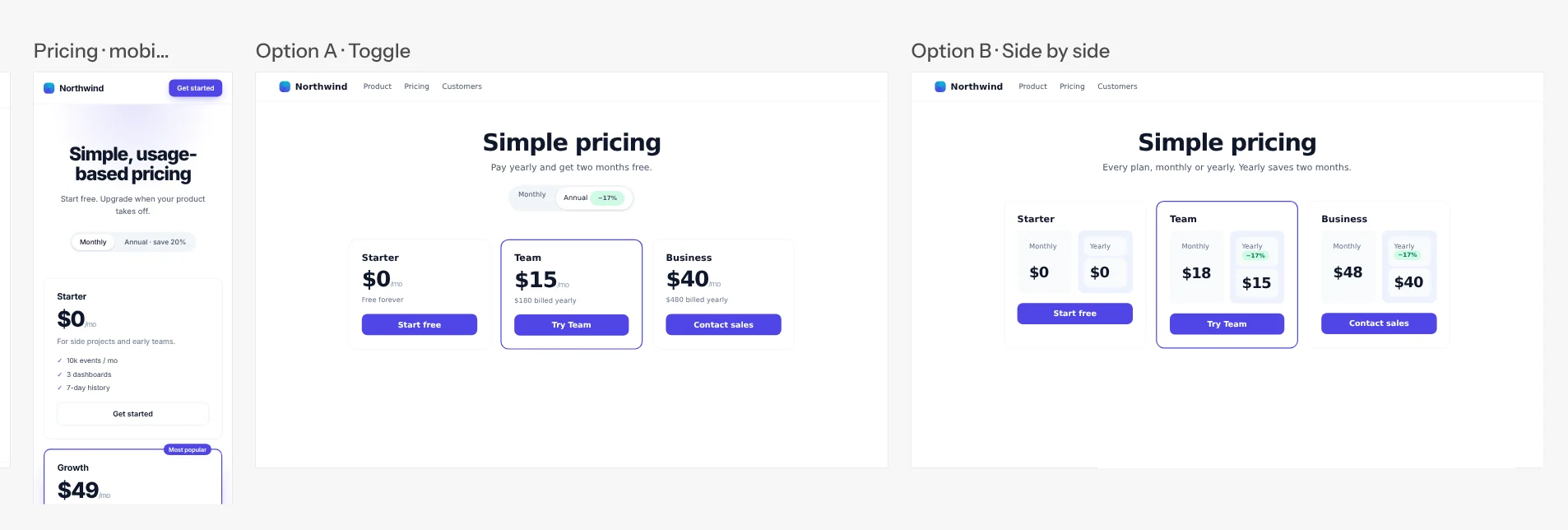
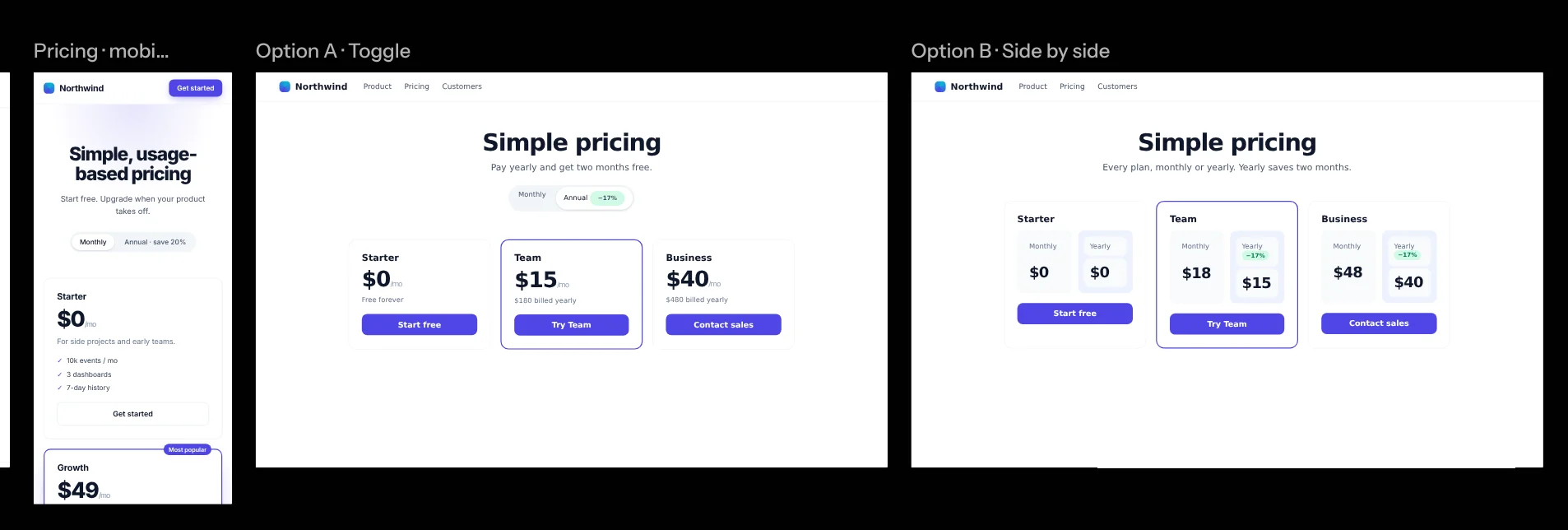
A mockup is a single self-contained page a chat draws on the canvas to show a design idea. It needs no dev server, so it appears the moment it’s written. Mockups let you compare a few options side by side with the running app before anything is built.
Ask a chat for it in your own words, for example “sketch three takes on the empty cart as mockups”. The chat writes each take as its own mockup, and when you ask for changes it rewrites them in place. Or draw one yourself with the Mockup tool and say what goes in it.
Drawing one
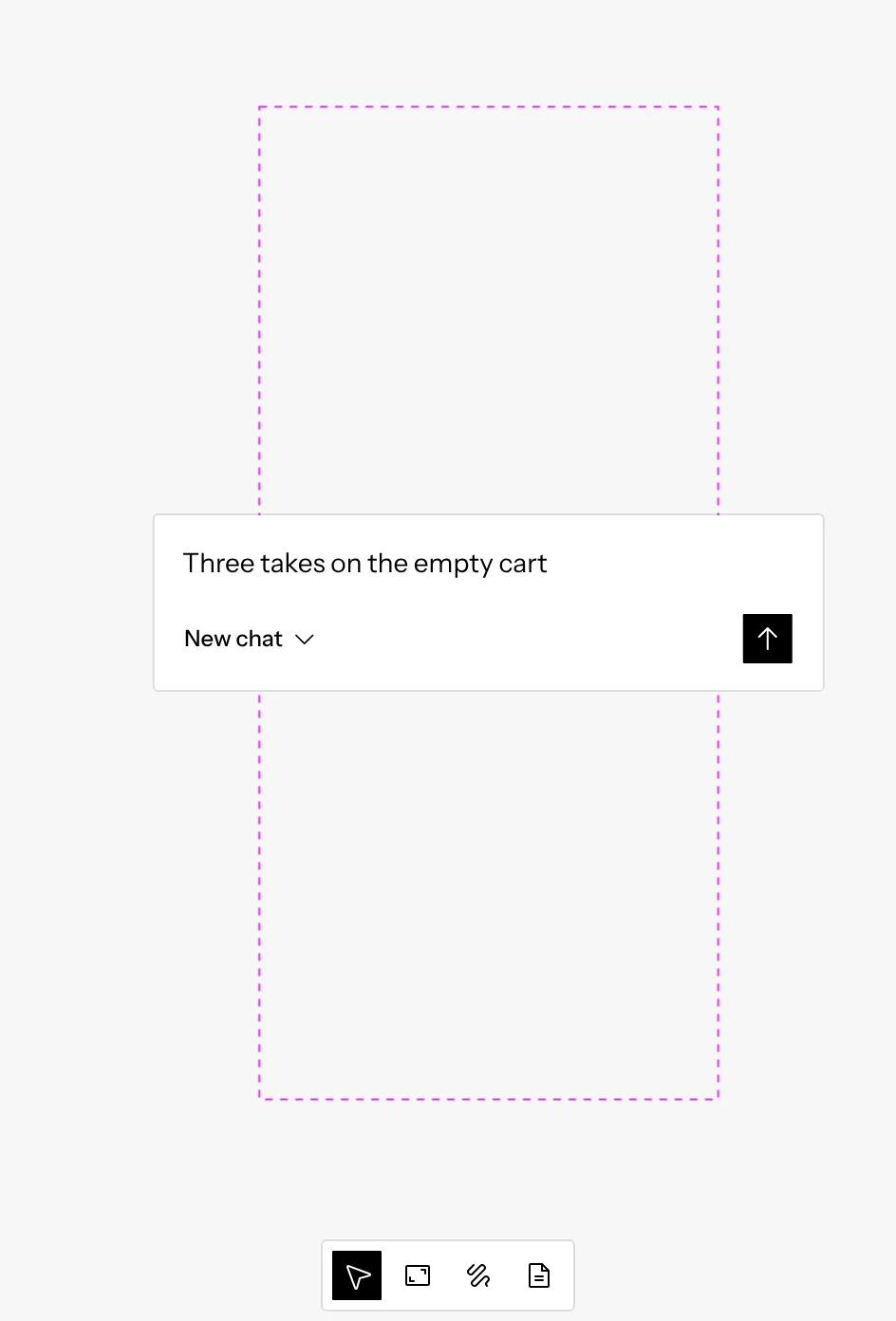
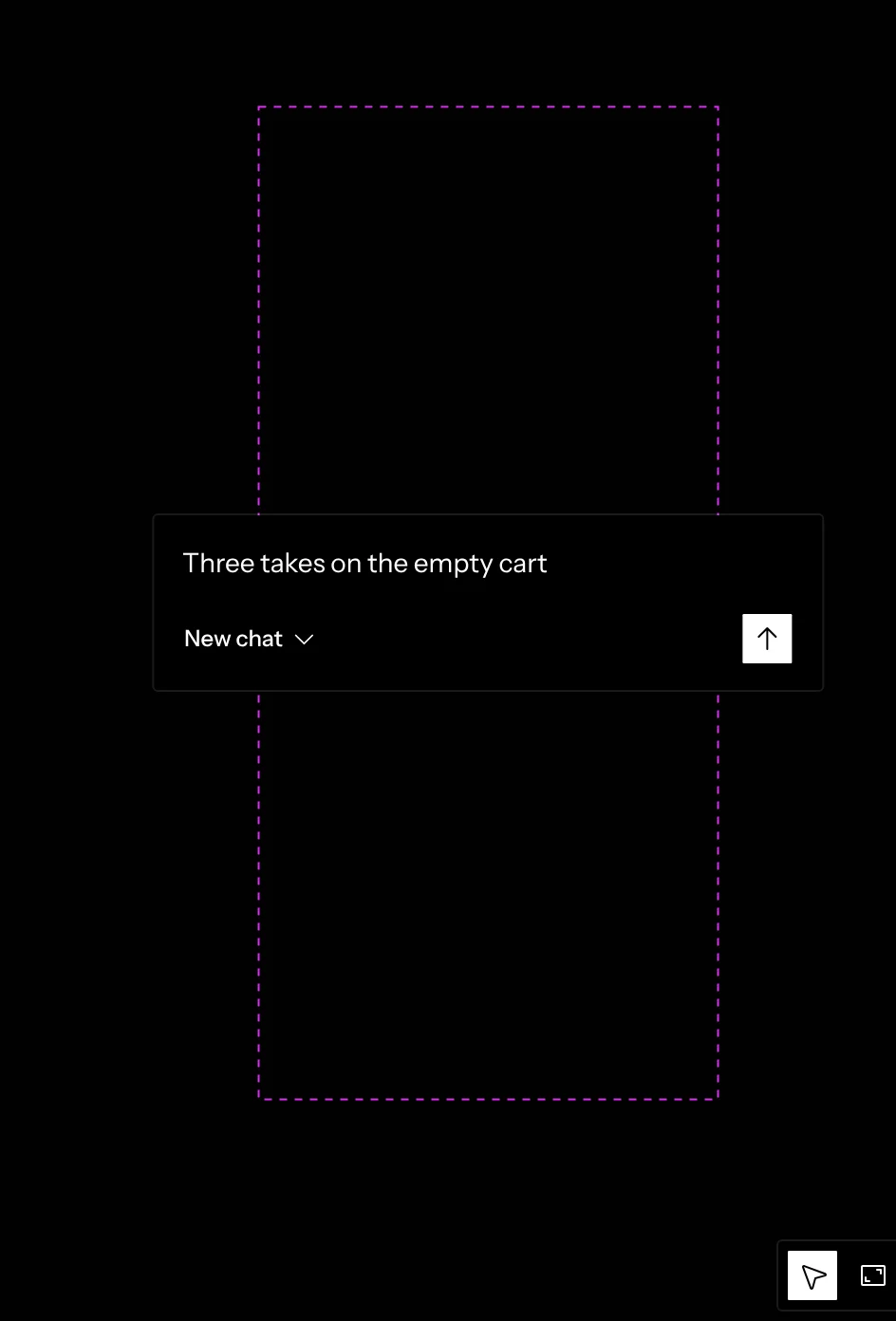
The Mockup tool (M) in the bottom toolbar draws a box where you drag, or a 1280×800 one where you click. As you let go, it asks what the mockup should show, the same way a drawn frame does. Type what to sketch and press Enter. The box’s size is sent along as the viewport, so a phone-sized box gets a mobile take.
- The chip beside Send says which chat sketches it. With nothing selected it’s New chat, which starts a new chat on a repository. If you had a frame, mockup or document selected when you drew, it’s that layer’s chat. Click the chip to switch.
- The chip also offers New chat, no repository and any chats with no repository: they write mockups and documents but no code. On a canvas with no repository that’s the only kind, so the chip reads New chat and a new one sketches it in the agent panel.
- Sending puts an empty mockup in the box, owned by that chat. It shows Sketching until the chat writes its page, then the page appears in place, at the size you drew.
- Press Esc or click elsewhere to skip the question. The box disappears, and nothing is left on the canvas.
Where mockups sit
A mockup you drew stays where you drew it. Mockups a chat makes on its own land here:
- Beside a frame. A chat’s first mockup joins the group of its chat’s frames, so the live page and the options read left to right in one row.
- Beside each other. Every later mockup from the same chat joins the group of its previous one.
- On their own. When the chat has no frame on the canvas yet, its mockups get a group of their own.
Which chat made it
Every mockup remembers the chat that made it, and shows that chat next to its title, as a chat’s documents do. When everything in a group comes from the same chat, the group’s label names it once instead. Only the chat that made a mockup can change it; ask that chat to continue the work. Once that chat is deleted, any chat can change the mockup, and the first one that does becomes its chat.
Building one
When you’ve picked a take, ask the chat that drew it to build it, for example “build take 2”. The chat reads that mockup’s page, builds it into its own code using your app’s real components, and checks the result in its frame against the mockup. Its reply sums up the decisions it built from: the take you picked, your answers to its questions and the changes you asked for along the way. The mockup stays on the canvas, so the take and the live page can sit side by side.
There’s no Build button: you ask in the chat, in your own words. How many takes the chat draws and how many rounds it goes through are up to the conversation.
Working with mockups
Mockups are layers like frames and documents. You can select, move, resize, rename and delete them, group them with other layers, and find them in the layers list with their own icon. Delete them with Delete, and ⌘ Z brings a deleted mockup back.
Mockup options (⋯), at the end of the bar under a selected mockup, holds Rename, Duplicate, Device size, Fit to content and Delete, the same menu as the mockup’s row in the layers list. Duplicate (⌘ D) adds a copy at the end of the mockup’s group, with the same page, size and chat, its name ending in “copy”.
Mockups take a frame’s sizes: Device size sets one of the same device presets, dragging a corner snaps to them (hold
⌘ to resize freely), and Fit to content, a toggle, keeps the mockup’s height on its whole page while you set the width.
Clicking a mockup selects it rather than using the page. To click through it, press Interact under the selected mockup or double-click it, as on a frame: the page takes your clicks, scrolls and typing, and Esc or a click outside the mockup returns to the canvas. A mockup has no address bar or reload. Mockups aren’t chat targets. A chat writes every mockup’s page, including the ones you draw.
You can still point at part of one. In the chat that drew it, click the composer’s crosshair and then an element in the mockup, as you would in a frame (see Targeting an element). Mockups from other chats dim while you pick.
Knobs and shared state
A selected mockup shows Interact and Knobs buttons under it, like a frame’s. When the chat gives its page knobs, the button opens them: sliders, switches, text fields, selects and color pickers that change the page as you drag, for everyone on the canvas. With none yet, Ask the agent to add a knob opens the chat that drew the mockup with a request started. When that chat was deleted, it opens the chat the agent panel is showing instead, or a new chat with no repository when the panel shows the Coordinator. A mockup you made by hand has no Ask.
A mockup’s page can also share its state, such as the open tab or what’s in a cart, so everyone looking at it sees the same thing as you click through it in Interact.
A mockup’s scroll position syncs the same way, as a frame’s does: when someone scrolls the page, everyone’s copy follows, and the mockup opens, and reloads, where it was scrolled to.
Pictures and templates
A mockup’s page doesn’t have to hold everything itself. It can show a picture from the canvas’s files, like a screenshot the agent took of your app, and load a script or stylesheet from a skill, like a page template’s shared code. The page names the file and Screenplay puts it in when the mockup shows, for everyone on the canvas, so the page stays small. A file from a skill comes from the skill of that name your chats would use, in the usual order: the repository of the chat that drew the mockup, then the canvas’s, your account’s and the built-in one.
A file the page names that isn’t there, say a screenshot that was deleted, shows as an empty picture, and the rest of the page works as before.
Answering on the page
When a chat asks you a question about a mockup, the question names the mockup under it, and clicking the name brings the mockup into view. Any chat can ask one: the chat that drew the mockup, the Coordinator or another chat. The mockup’s page can show the same question and its options, so you can pick one where you see the designs. A pick on the page opens the chat that asked and lands exactly as picking that option on the question would: it’s sent as your reply, and the question shows it answered. The question in the chat still works too, and whichever you use, the page shows the answer, including one a teammate gave.
A page only answers when you click or press a key on it in Interact; it can never send anything on its own, and the agent driving the mockup can’t answer for you. On a live mockup, whoever has control answers for everyone: their pick goes to the chat that asked, once, and every viewer’s page shows it answered. While nobody has control, or while the agent drives a mockup, a pick stays on the page, which says to answer in the chat.
Sending your reaction from the page
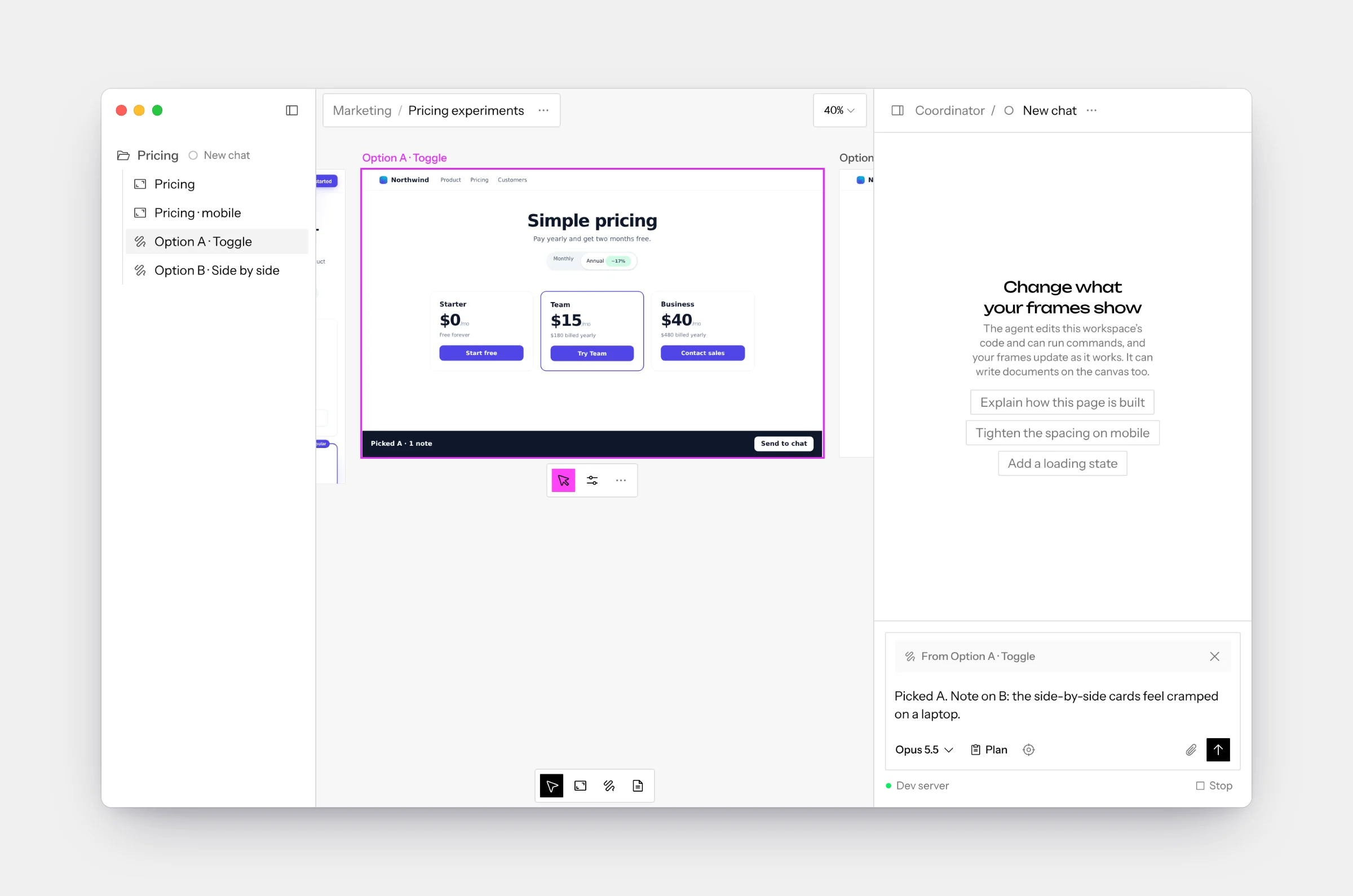
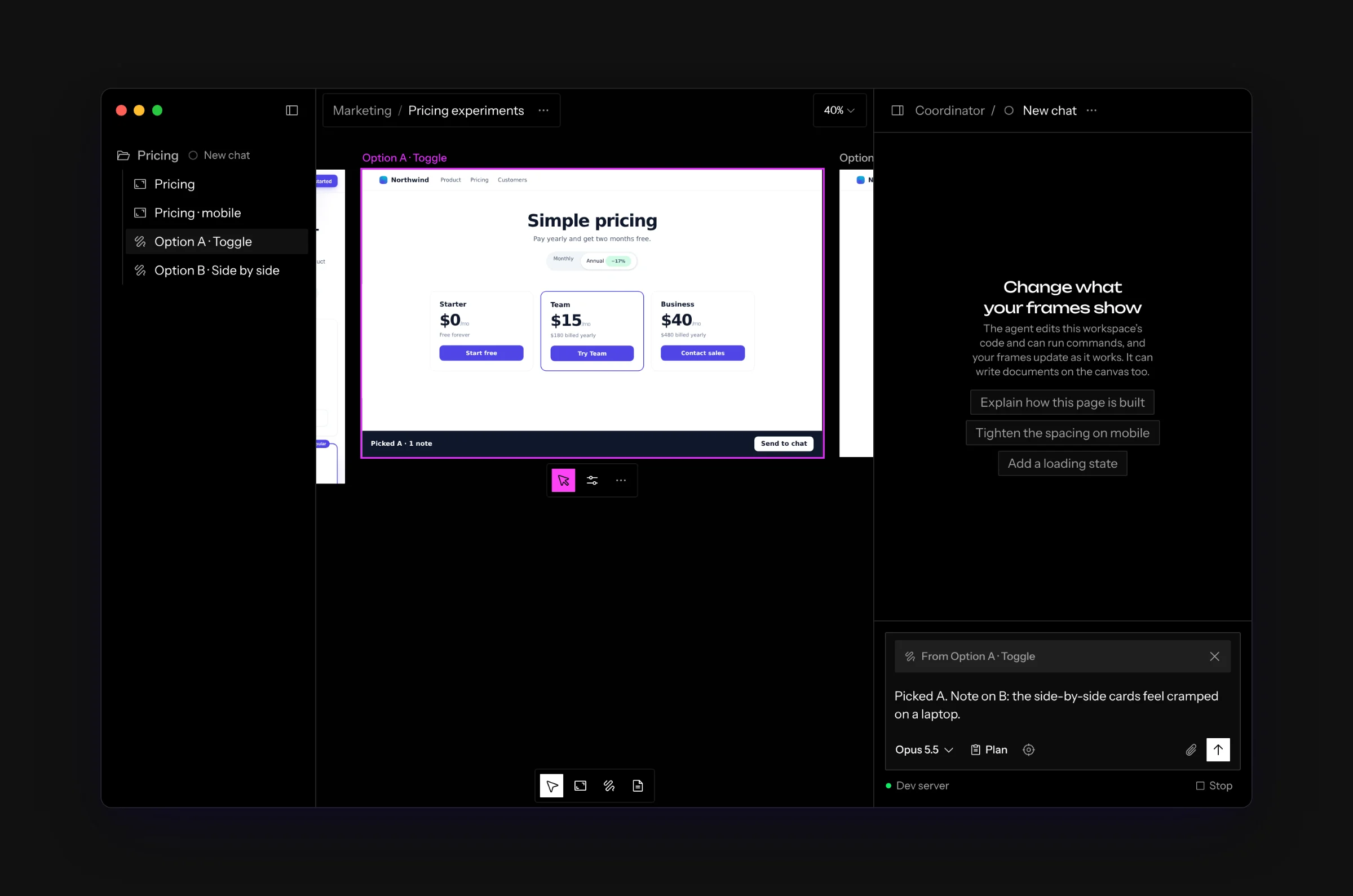
A mockup’s page can hand you a message to send to its chat. A decision page, for example, may have a Send to chat button that sums up your picks and notes. Pressing it opens the chat that drew the mockup and puts the message in its composer, after anything you had already typed, with the caret at the end. Edit it as you like, then send it. Nothing is ever sent for you.
A From row at the top of the composer names the mockup the message came from, and when you send, the chat is told which mockup it was written on. The row’s X removes it and keeps the text. When the chat that drew the mockup was deleted, the message goes to the chat the agent panel is showing, as Ask the agent to add a knob does.
A page can only do this from your own click or key press while you
Interact with it, or while you have control of a
live mockup, so a page can never write a message on its own.
The chat writes such a page with screenplay.draft(text).
Going live
On a hosted canvas, a mockup starts as your own copy, running in your browser, like a frame. To look at the very same page together, click Go live (the broadcast button after Interact under the selected mockup). Going live works as it does on a frame: it happens for everyone on the canvas. The mockup’s page opens in one browser in a chat’s sandbox, everyone’s copy switches to it, and the title line reads Live. Anyone who opens the canvas while the mockup is live lands on it live.
A mockup has no code of its own, so it borrows a chat’s to run in: the code of the chat that made it, or another chat’s running code when that one isn’t running. With no chat’s code running, Go live is disabled and its tooltip says The chat’s code has to be running.
On a live mockup, whoever has control is the only one whose clicks, keys and scrolling reach the page, and others can ask for control, as on a live frame. When the chat rewrites the mockup, the live page shows the new version for everyone. Its Knobs gain the same Theme knob as a live frame’s.
Click Go live again to end it for everyone: each of you is back on your own copy. What the live page held only in memory, like a half typed form, doesn’t come along. The desktop app has no Go live.
The agent driving a mockup
A chat’s agent can click through a mockup for you, the way it drives a frame: ask a chat to show you how a take behaves, or to get it into a state. It reads the page’s buttons and fields, clicks, types and scrolls, and looks at the mockup after each step. This works in the browser and in the desktop app, from a chat on a repository or a chat with no repository.
- It drives your copy. The steps happen in the mockup on the canvas of the person who asked. Everyone else keeps their own copy, as when you click through it yourself.
- The canvas has to be open. The agent drives only while the canvas is open in your browser or the desktop app. With it closed, the agent says so in the chat instead.
- A live mockup is the exception. On a live mockup the agent drives the one live page, so everyone on the canvas watches each step, and it works with nobody’s canvas open.
- It shows the same signs as a frame. Agent has control sits on the mockup’s title line, an unselected mockup gets a ring, the Interact button shows the agent’s dots, and the mockup has no resize handles while the agent drives it.
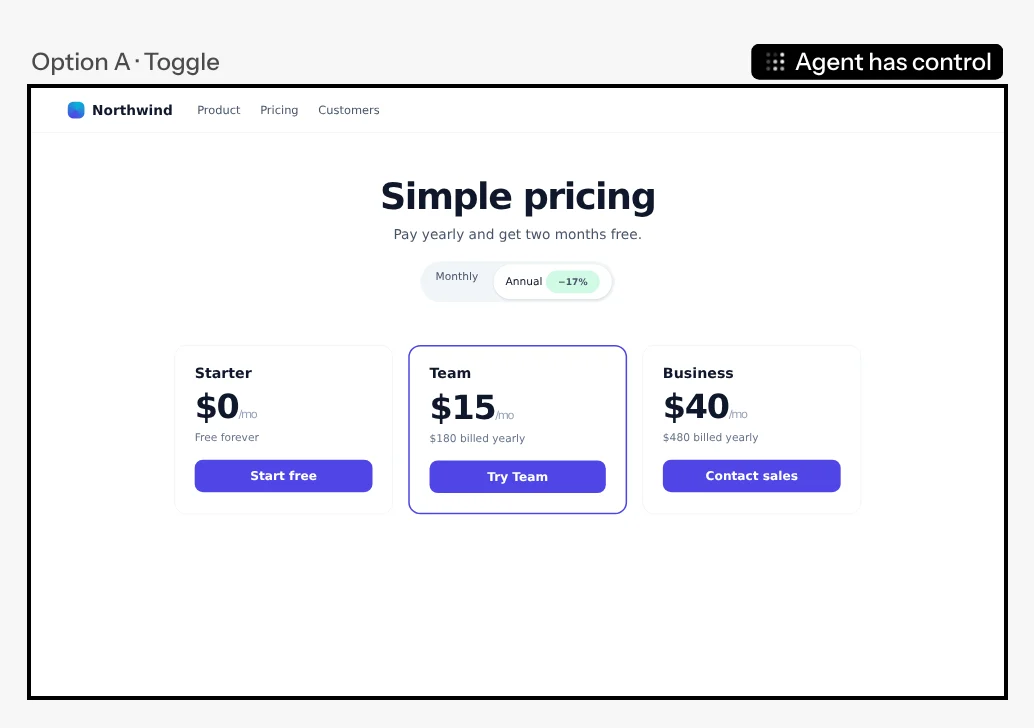
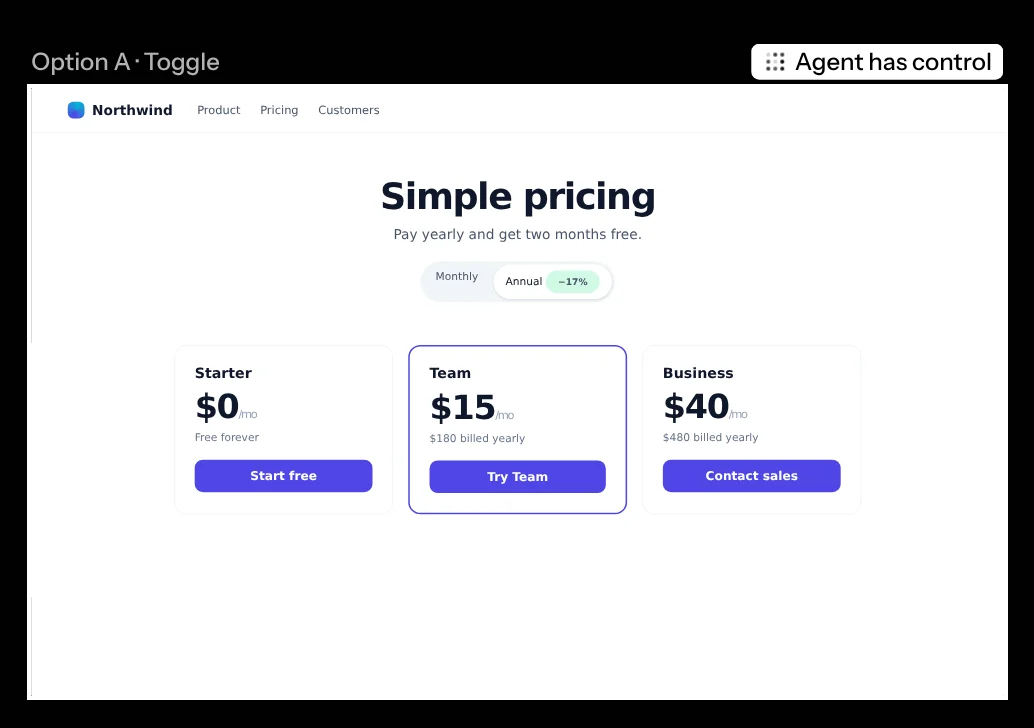
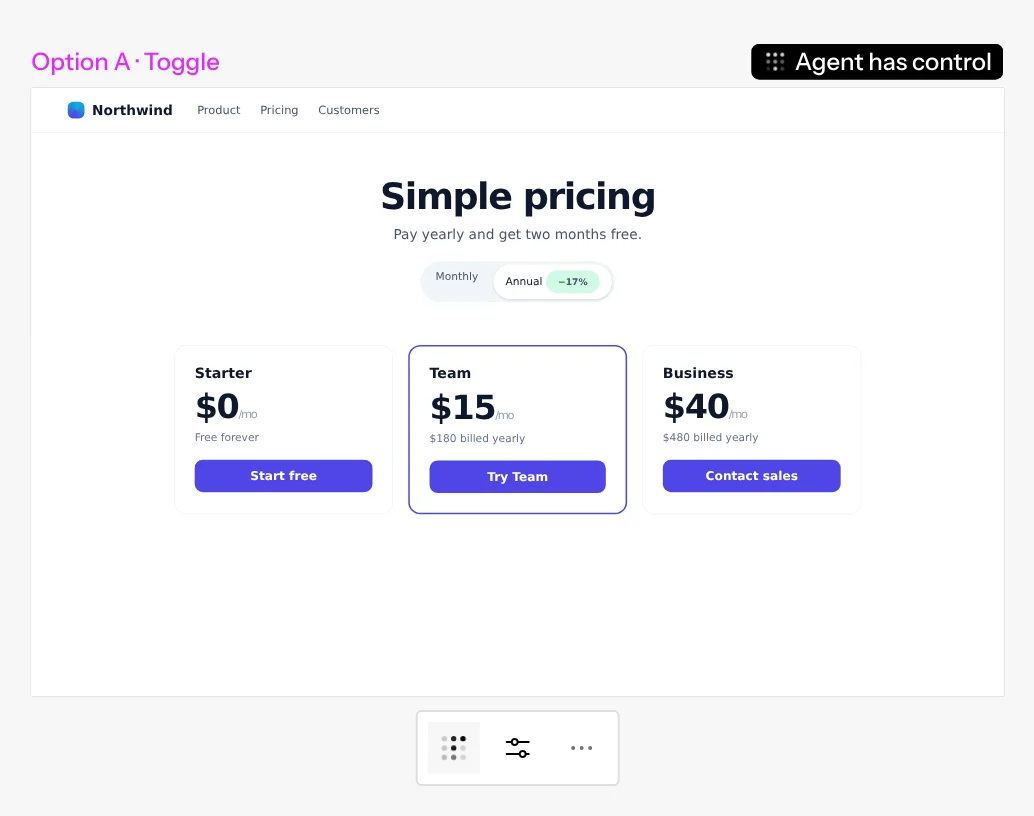
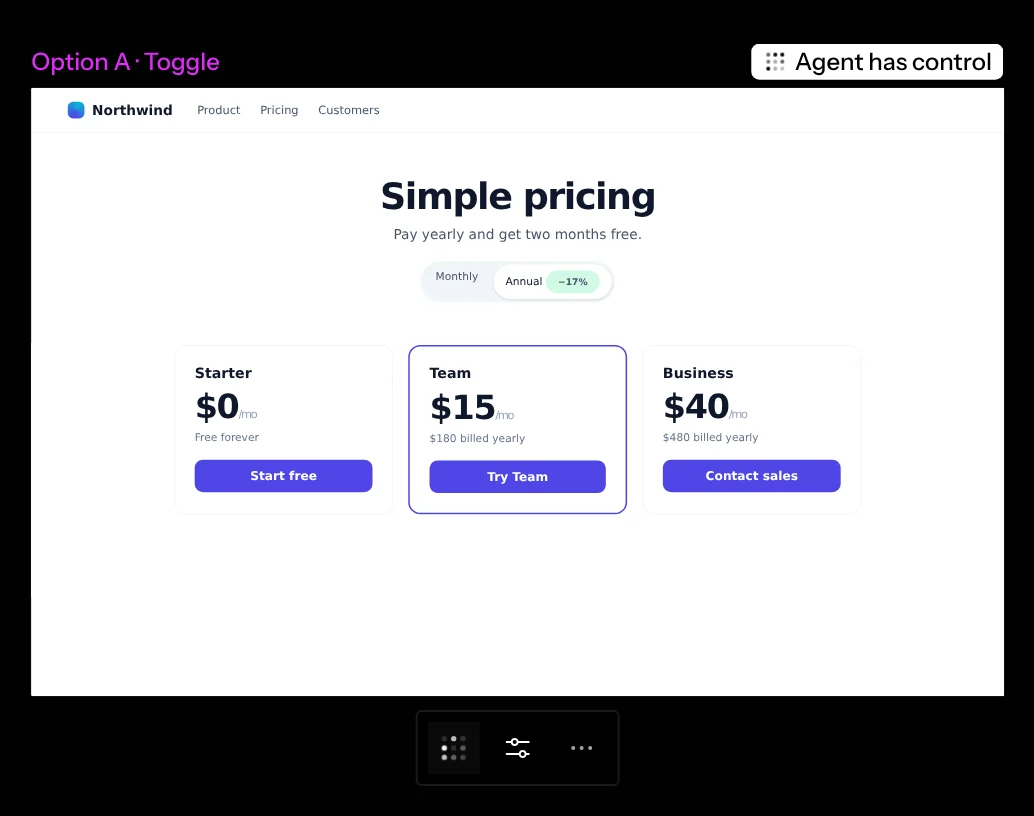
- You can take over at any moment. Click the driver button (its tooltip says Click to take control) or double-click the mockup, and the agent stops at once and asks before it carries on.
In the browser, the agent’s clicks and keys on your own copy are simulated inside the page, so it can’t open a file picker, use the clipboard or move the keyboard focus. When a step needs one of these, it asks you to do it. It can hover: tooltips and menus that open on hover do, and the mockup’s hover styles show. In the desktop app its clicks and keys are real input, as on a frame, so focus, typing and the clipboard work too.
Safety
A mockup’s page runs in a locked-down frame: it can run its own scripts, but it can’t reach Screenplay, your session or the rest of the canvas, and it doesn’t load anything from the network. Mockups are self-contained pages: the pictures and templates a page names come from the canvas, not the network. A live mockup runs locked down the same way, in its chat’s sandbox.