Agent skills
A skill is a Markdown file of instructions the agent can load when a task calls for it. The agent always sees each skill’s name and one-line description, and reads the full instructions only when it needs them. That keeps its context lean while making specialized know-how available.
Using skills
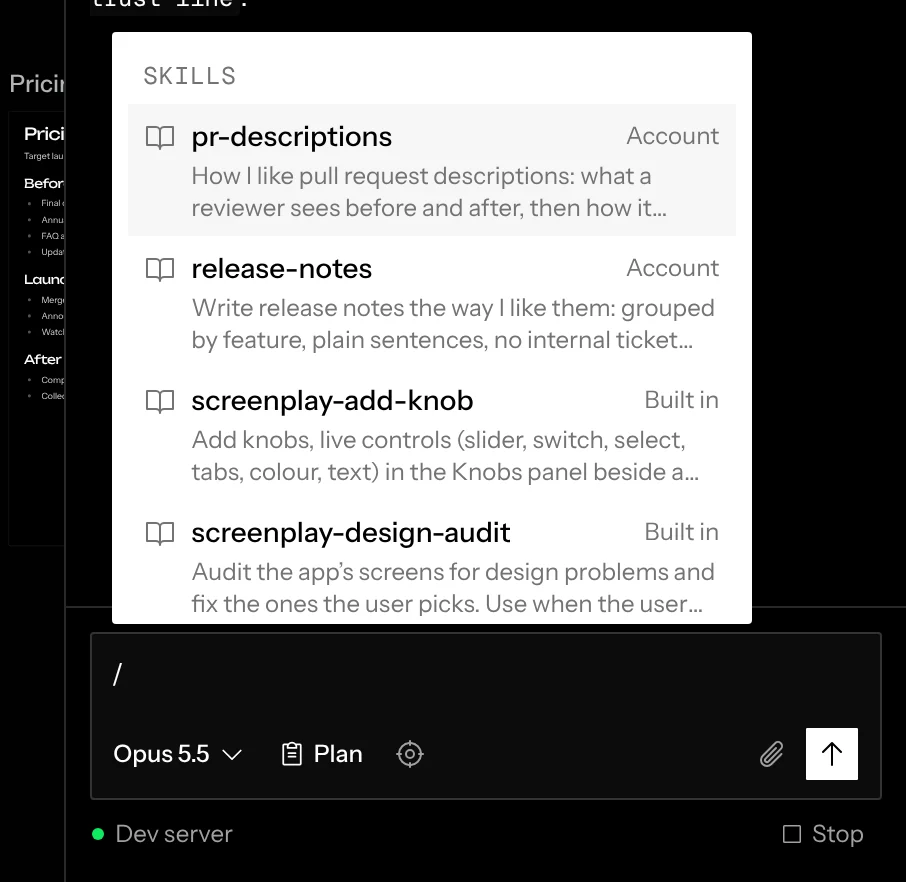
In any chat, type / to pick a skill. It’s inserted as a chip, and the agent is required to load it before doing anything else. The menu lists the skills that chat can use, and each row ends with where its skill comes from. The agent also loads skills on its own when a request matches a description.
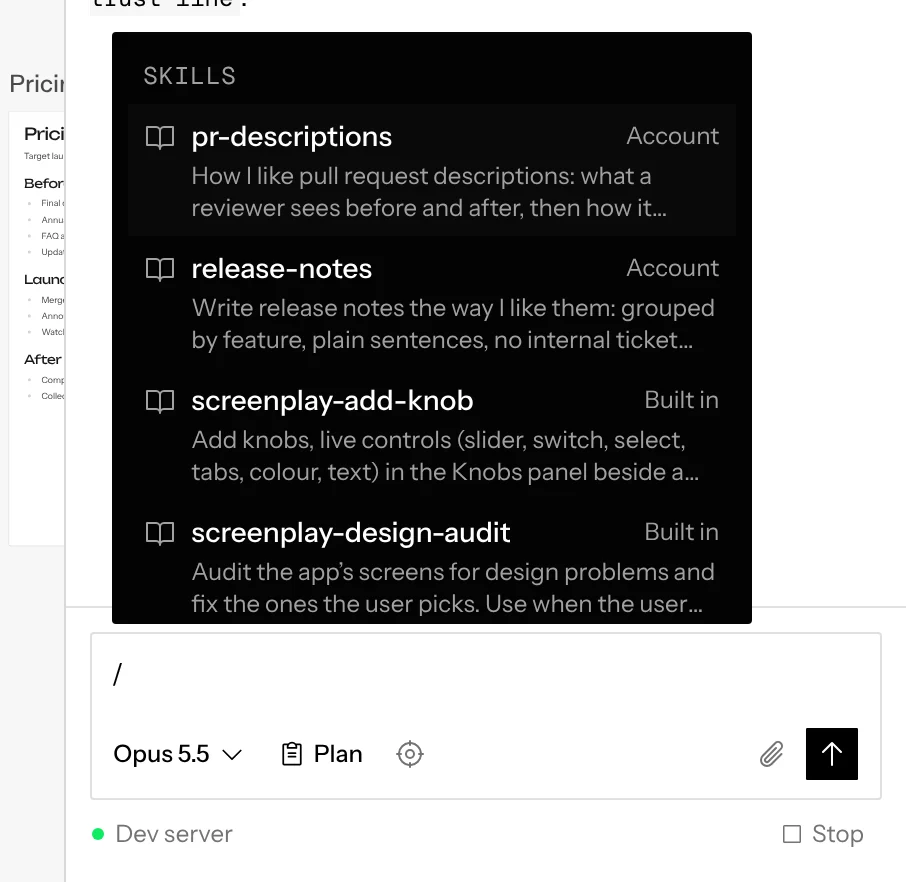
Where skills come from
Every chat sees one list of skills, gathered from these places:
When two skills share a name, only one is used: the repository’s wins, then the canvas’s, then your account’s, then your coding agent’s own, then Screenplay’s. The one that loses is left out of the list and the / menu, so what you pick is what runs. The Coordinator and chats with no repository don’t see repository skills, since they have no single repository.
Built-in skills
Screenplay ships five skills, marked Built in in the menu:
The pages the design skills make match the app’s light or dark theme as you switch it.
To change a built-in skill, ask a chat to copy it: “copy screenplay-design-audit and skip the dark theme”. The agent offers a changed copy under the same name, and its card says Replaces the Built in skill. Save it to your account or the canvas, and since your account’s and the canvas’s skills win over Screenplay’s, the copy takes its place, listed as Account or Canvas. The copy keeps the files the built-in skill holds beside its SKILL.md, like its page templates, unless the agent changed one. Delete the copy to go back to the built-in one. A copy doesn’t pick up later changes to the built-in skill.
The Coordinator has its own built-in skill,
screenplay-try-variants, which it follows when you ask to
try something several ways.
It’s in the Coordinator’s / menu only, and other chats’ agents don’t
see it. A chat with no repository lists screenplay-add-knob and
screenplay-share-state, the two that work on a mockup.
Your coding agent’s own skills
On the Mac app, chats run on the coding agent you installed, and its / menu also lists the skills that agent keeps in your home folder, marked with the agent’s name:
Pick one from / like any other skill. The agent keeps loading these skills itself as it always does; Screenplay only lists and reads them, and never changes those folders. Add, edit or remove one there and the menu shows it the next time you open the chat. Switching the chat’s model to another agent shows that agent’s skills instead. Hosted canvases don’t list them, since the agent there runs in a sandbox, not on your computer.
Saving a skill to the canvas
Ask any chat (a chat on a repository, the Coordinator or a chat with no
repository) to save what you just worked out as a skill: “save this review
checklist as a skill”. The agent writes the SKILL.md, and the chat shows it
as a card with the skill’s name and description and three buttons: Save to
account, Save to canvas and View, which shows the whole skill first.
Nothing is saved until someone presses Save, and the card then says where it
went. The agent may also offer a procedure it worked out on its own, and the
same card shows.
Saved to the canvas, every chat on it can use the skill from its next message, including chats your teammates start, and lists it in its / menu as Canvas.
To change a canvas skill, ask a chat to change it; it offers the skill again under the same name, and the card says Replaces the canvas skill (or Replaces your account skill) so a save never overwrites one quietly. Chats can’t delete skills: delete one yourself in Canvas settings or Settings, as below.
To see a canvas’s skills yourself, open Canvas settings from the … next to the canvas name and choose Skills. Each row shows the skill’s description and who saved it. Open shows the whole skill, read-only, with a sidebar of any files saved beside it; … › Delete removes it for everyone on the canvas after you confirm. There’s no add or edit here: ask a chat instead.
Saving a skill to your account
A procedure that’s yours rather than the canvas’s, like how you like release notes written, can follow you instead: press Save to account on its card. Every chat you message, on any canvas, can use it from your next message, and lists it in its / menu as Account. The card puts first the place the agent suggests: your account when you asked for that, or the procedure is plainly yours, and the canvas otherwise.
On a shared canvas, a message uses the account skills of whoever sent it, not of whoever started the chat, and Save to account saves to the account of whoever presses it. Nobody else’s messages ever use your account skills. Messages the Coordinator sends on its own, when a chat finishes, use no one’s account skills.
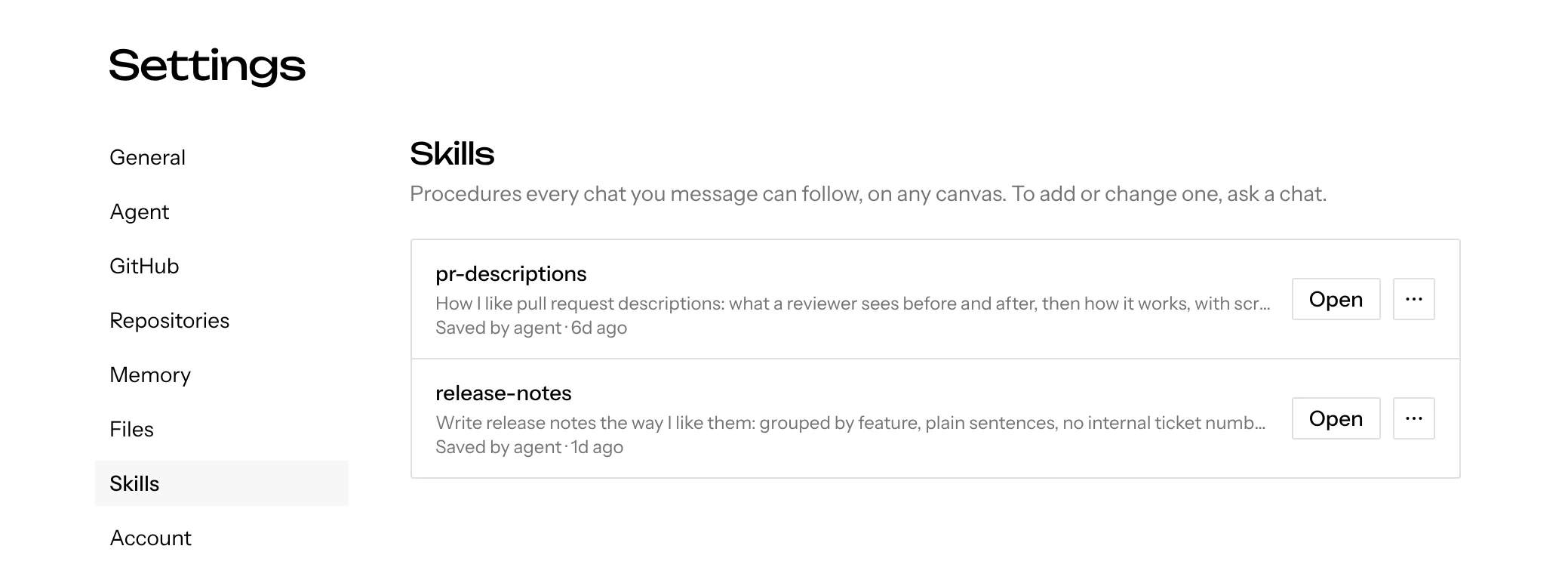
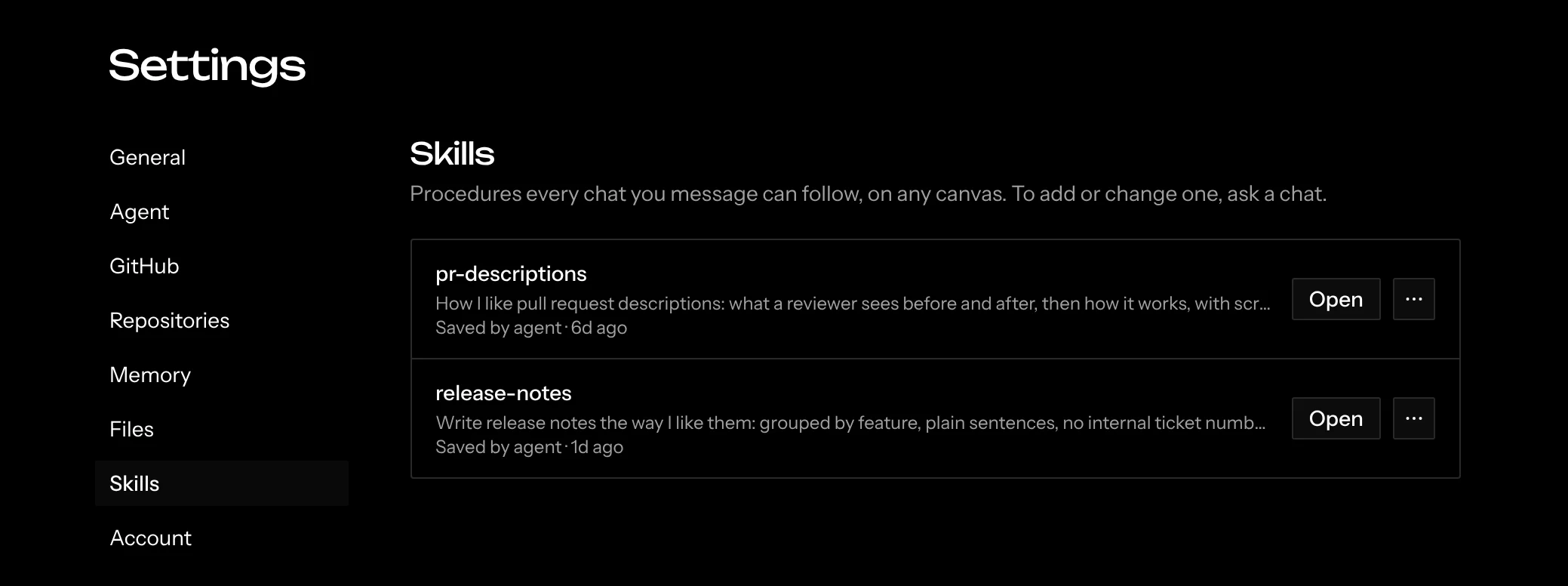
To see your account skills, open Settings from the bottom of the home screen sidebar and choose Skills. The rows work like the canvas’s: Open shows the whole skill, and … › Delete removes it after you confirm. Account skills work the same on the desktop app.
Skills in Claude Code, Codex and OpenCode
On the Mac app, chats that run on Claude Code, Codex or OpenCode get the
canvas’s skills, your account skills and the built-in skills as the agent’s
own skills, so you can also invoke one the agent’s way (/name in Claude
Code and OpenCode, $name in Codex) and it can read the files kept beside
its SKILL.md. Before every message, Screenplay writes them to a folder in
its app data, outside your checkout, and hands that folder to the agent,
which loads skills from it without asking. A skill you delete is gone from
the next message, and nothing is ever written into your repository. When
skills share a name, only the one that wins is written: the canvas’s, then
your account’s, then the built-in one. One that shares a name with a
repository skill isn’t written at all, since the agent already loads the
repository’s from the checkout.
One exception to the order above: if a skill in your own ~/.claude/skills/
has the same name as a canvas or account skill, Claude Code runs yours when
it invokes that skill itself, by name or with /name. Give them different
names to avoid this.
What a saved skill can do
A saved skill, on a canvas or your account, can’t give itself tools or run
commands: the agent removes
allowed-tools from its frontmatter and any inline !`command` lines
before saving. A skill’s name uses lowercase letters, digits and hyphens, at
most 64 characters, and a whole skill, with any files saved beside it, is at
most 1 MB.
Adding your own to a repository
Put skills in your repository under .claude/skills/, one folder per skill.
This is the same layout Claude Code uses, so existing skills just work:
- SKILL.md
Each SKILL.md starts with frontmatter. The name must match the folder
name:
---
name: add-api-route
description: >-
  Add a new API route with validation and tests.
  Use when the user asks for a new endpoint.
---

# Adding an API route

1. Create the handler in `app/api/<name>/route.ts`…
2. …
Repository skills show up as Repository once the chat’s sandbox is running. They’re read from that chat’s checkout, so different branches can carry different skills. If a repository skill has the same name as a canvas, account or built-in one, the repository’s version wins.
Write the description for the agent, not for people: say what the skill does
and when to use it. That’s what the agent matches requests against.