Repositories
A canvas runs code from one or more repositories. Each has the scripts that set it up and start its dev server. You manage them in Canvas settings: click … next to the canvas name at the top left and choose Settings.
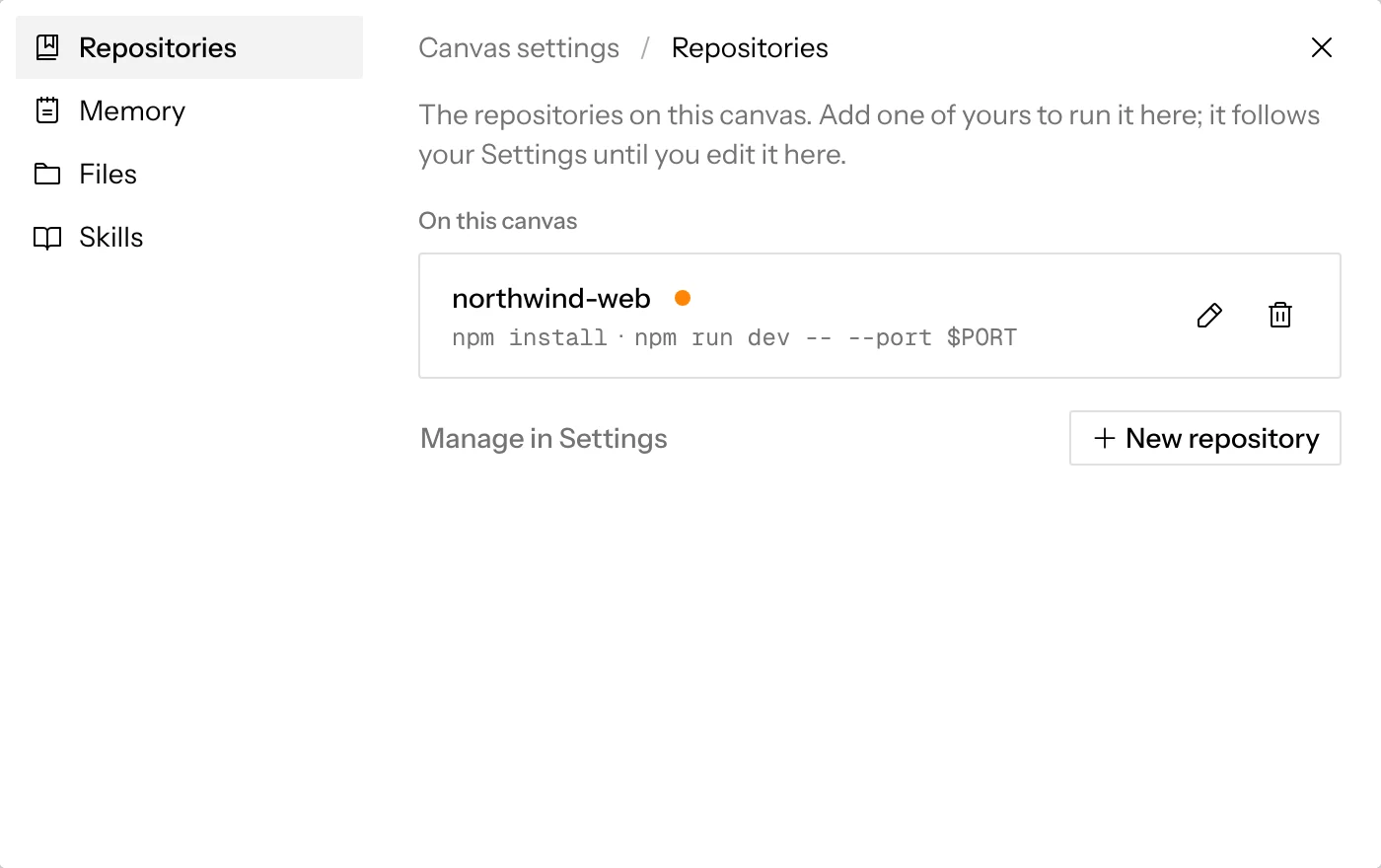
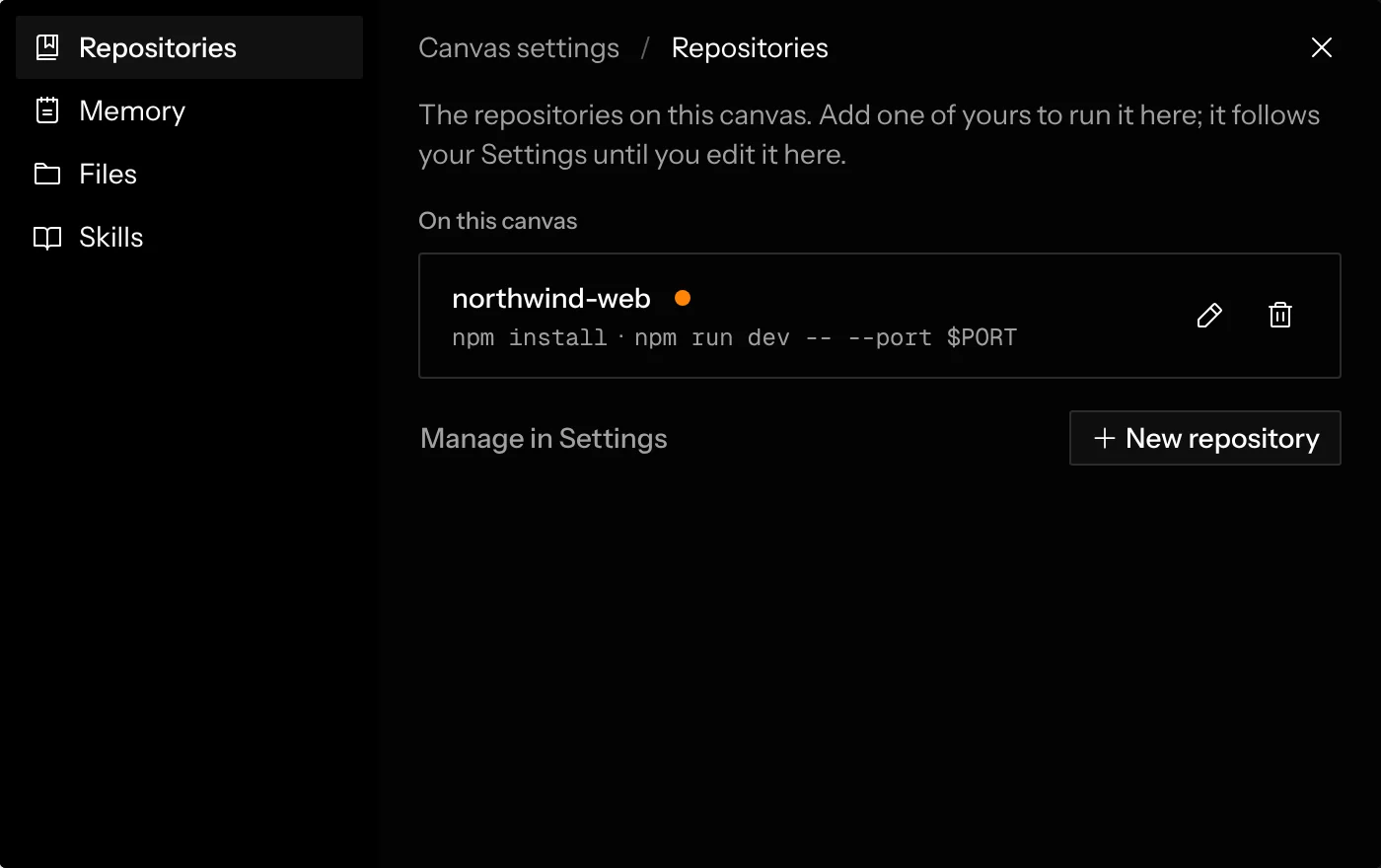
The list comes in two parts: On this canvas, every repository on the canvas, each with Edit and Remove, then Your other repositories, the ones of yours it doesn’t use yet, each with Add. Each row shows the repository’s short name (its label, or the repository’s own name) over its setup and run scripts. Add one and it’s on the canvas: chats can use it and new chats start from its settings. On a shared canvas these settings are shared with everyone on it, so a collaborator’s new chats start the same way as yours.
Hosted On this canvas holds every repository anyone on the canvas has added, and one a teammate added says who after its name. When a teammate has already added a repository you also have, under the same name, yours isn’t offered: the canvas uses theirs.
The Chats menu lists chats, not repositories: when a canvas has two or more repositories, each chat’s row ends with its repository’s short name.
Adding a repository
To set up a repository that isn’t in your list yet, click New repository at the end of the list in Canvas settings. It saves the repository to your repositories and turns it on for this canvas in one step. On a canvas with no repository yet, Add repository on the empty canvas and in the Get started checklist goes straight to the same choice, without opening Canvas settings, and closes once the repository is added. Adding a repository only adds it: no chat starts until you ask for a change.
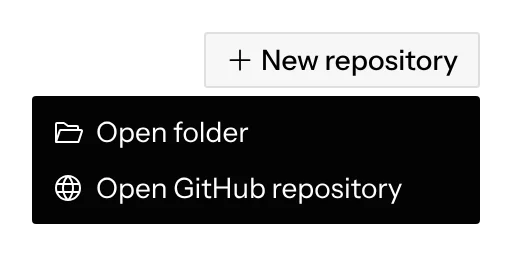
- Open folder Desktop picks a folder on your machine, usually your existing clone. Screenplay creates a separate worktree for each chat and never touches your own checkout.
- Open GitHub repository opens a searchable picker of your GitHub repositories. On desktop you can also paste any clone URL, including non-GitHub hosts, and pick Add url.
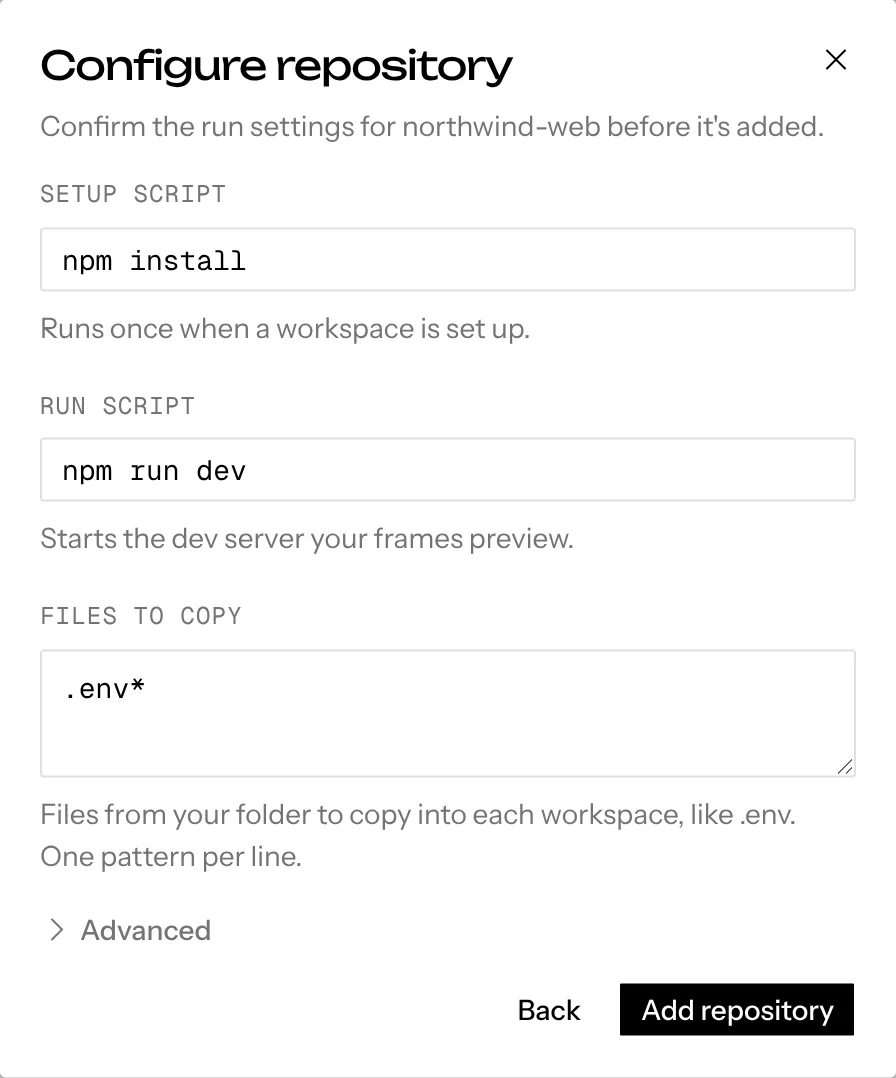
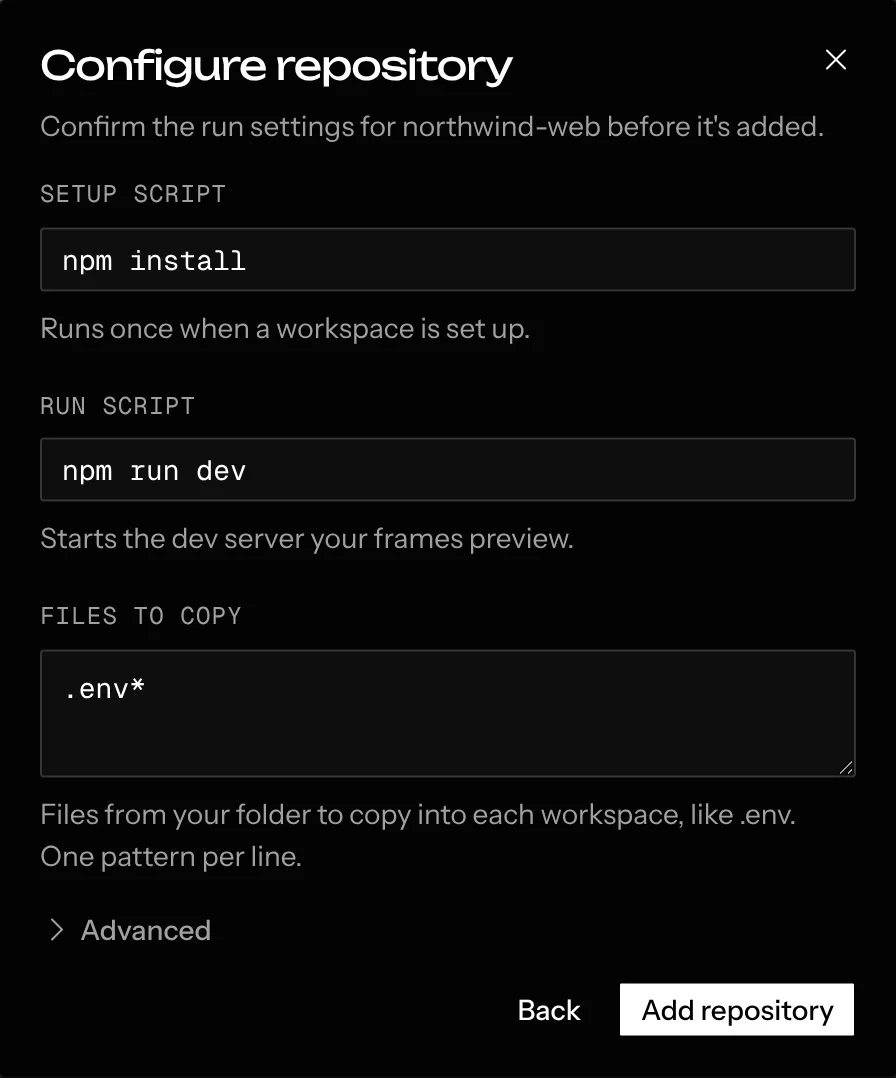
Configure repository then opens with settings already detected from the repository (Detecting settings…). Check them and click Add repository. Picking a repository you already have, with the same name, updates that one rather than adding a second; to use one you already have, click its Add instead.
GitHub browsing needs a GitHub connection. On desktop, without one you can still add a local folder or paste a clone URL; git uses your machine’s own credentials.
Repository settings
The run script has to serve on the port Screenplay assigns. Most frameworks handle this automatically; see Dev server & ports if yours doesn’t.
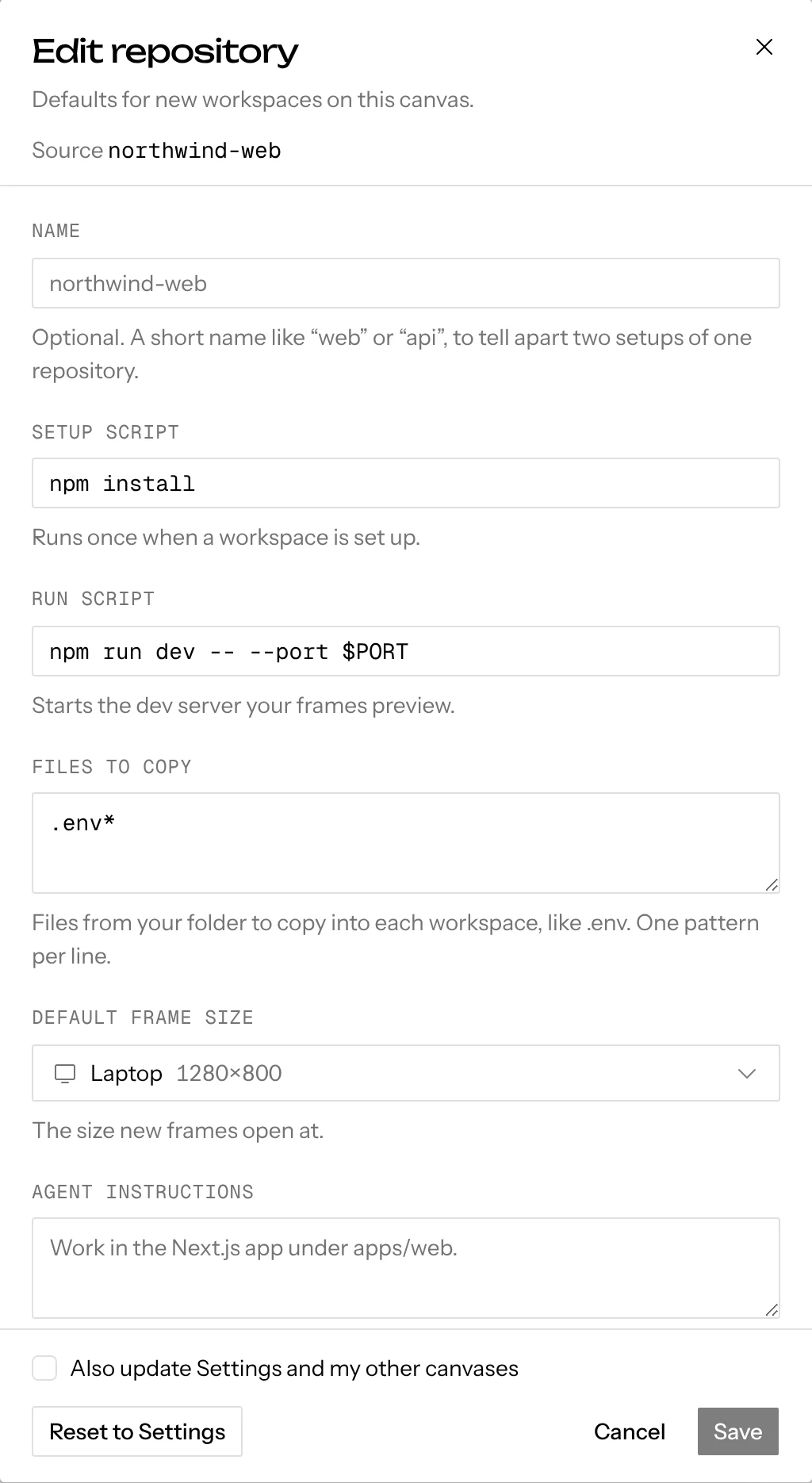
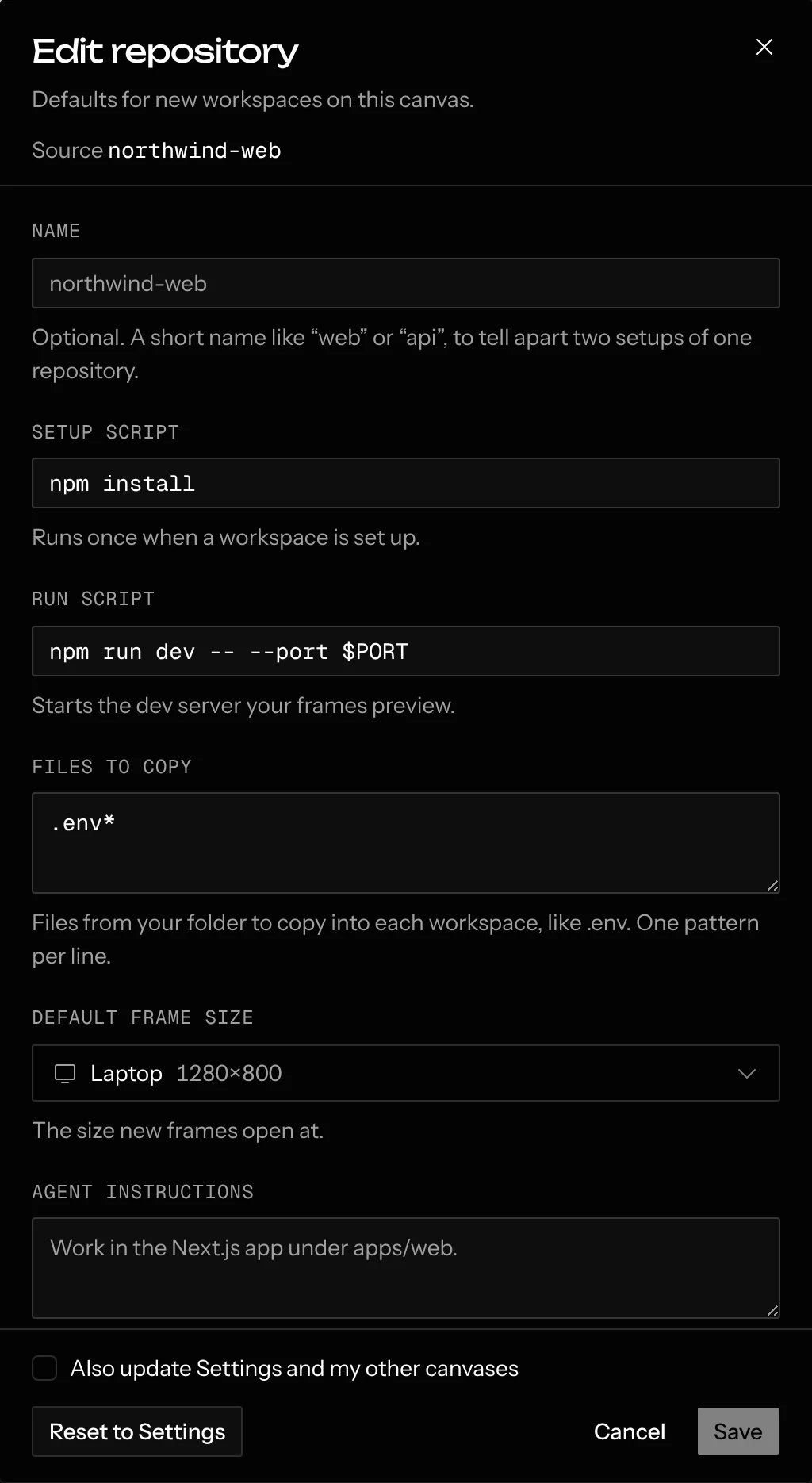
To change settings later, click Edit on the repository in Canvas settings. Changes apply to chats you start afterwards.
Environment variable values
On a canvas, environment variable values are stored encrypted on the server, never in the canvas itself. Everyone on the canvas sees which variables are set, by name, and any of them can start chats that use the values.
Only the person who added the repository to the canvas can see the values:
they click Reveal values in its settings to unlock and edit them. Anyone
else can type their own KEY=value lines, which replace those variables on
this canvas and leave the rest as they were.
Chats hide these values from what they show and store, including tool output, replies and pull requests, wherever they find them (values shorter than 8 characters aren’t hidden). This is a courtesy, not a security boundary: the values are set inside every chat’s sandbox, so code running there, or an agent that encodes a value some other way, can still read them.
Customizing a repository for one canvas
Edit in Canvas settings changes the repository on this canvas only.
On hosted, that’s all there is to it: adding a repository copies your settings onto the canvas once, and from then on the canvas’s copy is its own. Edits made on the canvas, by you or anyone else on it, stay on that canvas, and edits you make in Settings don’t reach it.
On desktop, the canvas’s copy stays linked to your repository. Once its label or any setting differs from your repository in Settings, a small orange dot follows its name, with the tooltip Customized for this canvas. That includes environment variable values someone set on this canvas.
To undo it, click Edit and then Reset to Settings: the repository takes your Settings again and the dot goes away.
To make an edit everywhere instead, tick Also update Settings and my other canvases before you click Save. It’s off by default. The edit goes to your repository in Settings and to every canvas that uses it, including ones where it was customized, so none of them has the dot afterwards. A canvas keeps its own environment variable values if you changed them there.
Removing a repository
In Canvas settings, click Remove on the repository.
On desktop, one without chats or canvas changes comes off this canvas straight away; otherwise it asks first. When it was customized, the confirm says its changes on this canvas are lost. The repository stays in Settings, so you can add it back later.
On hosted it always asks first. The repository is removed for everyone on the canvas, with any changes made to it here, and the confirm says so. When a teammate added it, the confirm names them, since it won’t appear under Your other repositories for you to add back.
When chats use the repository, the confirm says how many and lists each one, since they come off the canvas with it, and warns if uncommitted work would be lost. When you’re connected to GitHub, it also offers Also delete these N branches on GitHub, which is off by default.
Your repositories
Settings → Repositories lists your repositories and how each one runs.
Every repository you add from a canvas lands here. To set one up before any
canvas needs it, click New repository in Settings: it opens the same
picker and Configure repository form, and only saves the repository.
Canvas settings names each repository the same way, by its owner/name,
and Manage in Settings under its list opens this page.
On desktop, each row here says how many canvases use it, such as On 2
canvases, and editing a repository in Settings updates every canvas that uses
it, except the ones where it’s
customized. A canvas keeps its
own environment variable values if someone changed them there. On hosted, an
edit in Settings only changes what canvases get when you add it next.
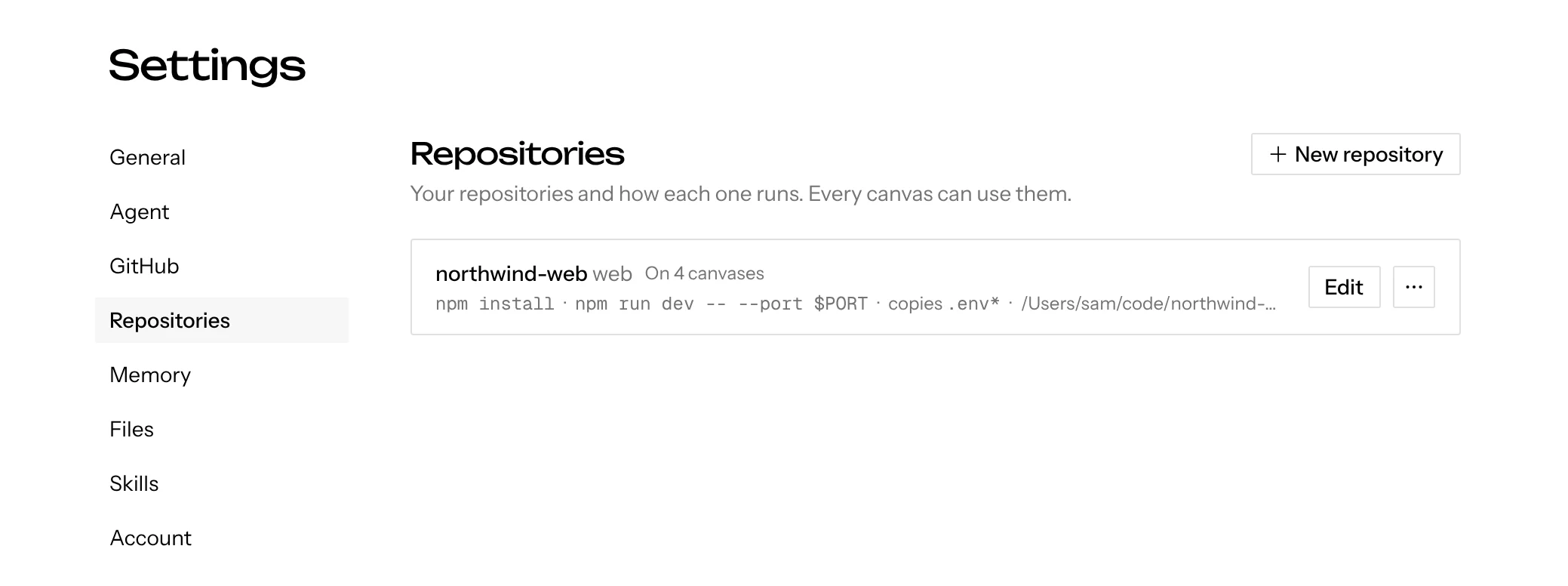
On desktop, every repository on your canvases also has a home in Settings: the first time you open Settings after updating, any canvas repository that matches none of yours is added to the list.
Deleting a repository in Settings doesn’t take it off your canvases. On desktop, the confirm says how many canvases use it; each keeps its copy, which keeps running its chats but stops getting your edits from Settings. It no longer shows a dot, and you can still edit it on its canvas. On hosted, every canvas already has its own copy, so nothing changes on them.
Your repositories are private to you and stored encrypted. Name them (web,
api, docs) to keep several from one GitHub repository. This is handy in
monorepos, where each app gets its own run script.
Monorepos
A repository on a canvas previews one app. To work on two apps from the
same monorepo, add it as two of your repositories with different names. For example,
a web one running pnpm --filter web dev and a docs one running
pnpm --filter docs dev. Use the Agent instructions field to tell the agent
which folder is its app’s root.