Chats
A chat is one git branch of a repository, running in its own sandbox with its own dev server, frames, agent and terminals. The Chats button at the top right of the Coordinator opens the list of every chat on the canvas, by title. Wherever a chat is named, on a row or a group or frame label, it shows the same way: an icon for what it’s doing, its title, and its pull request when there’s room.
Starting chats
Every new chat gets its own branch, sandbox and dev server. There are two ways to start one:
- Draw a frame with the Frame tool (F) and type what it should show. A new chat starts on the repository you used last, from its default branch (see Frames).
- Ask the Coordinator. It picks the repository and the branch to start from, and can start several chats at once.
The agent titles the chat from your first message in sentence case (for
example “Add pricing FAQ”) and names its branch from the same words
(add-pricing-faq).
A new chat’s frame appears on the canvas straight away, and the canvas zooms to it. The chat goes through creating and starting while it checks out the branch, runs the setup script, and boots the dev server. To watch it happen, open Dev server under the chat’s composer (see Terminals). When the server is up, the frame shows the app.
The agent doesn’t wait for all of that. As soon as the branch is checked out, it starts on your first message, reading and changing code (or sketching a mockup) while the setup script and dev server finish. It holds off on installs, builds, tests and previews until the dev server is running.
Every chat starts on a branch of its own, so two agents never push to the same branch. To build on a branch that already exists, ask the Coordinator to start a chat from it: the new chat starts from that branch on a new one.
A canvas with no repository yet says that chats need one, with an Add repository button that goes straight to adding one.
Titles
A chat is named by its title everywhere: the Chats menu, the agent panel’s header, the canvas list and each frame’s chat badge and address bar. Titles are in sentence case, like “Add pricing FAQ”. Where a title comes from depends on how the chat started:
- From a frame or a new repository, the chat’s first message titles it
and renames its branch to match (for example
add-pricing-faq). If that branch name is already taken on the remote, a numeric suffix is added. - From a Coordinator plan, the chat takes the title from the plan, and its branch is named from that title when it’s created. Its first message renames neither.
Earlier chats on a canvas, from before each branch had exactly one chat, keep their own names and never change the title or branch.
Renaming a chat (… → Rename, then type over its title) changes only the title, so it never touches the branch, its pull request or anyone’s checkout. The branch keeps the name it was given. To rebase it or rename it, ask the agent in the chat.
The Chats menu
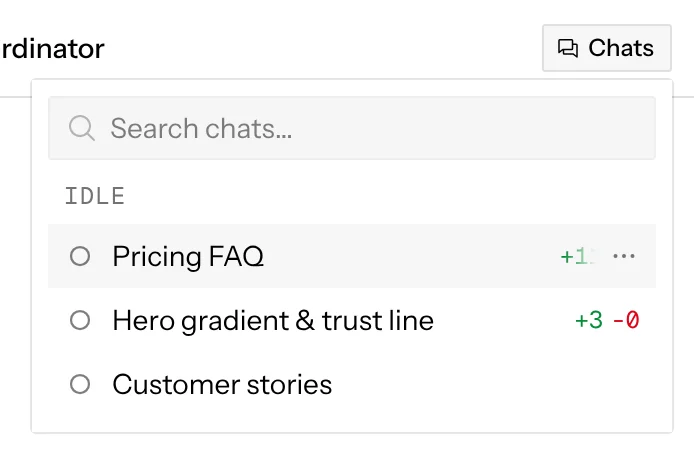
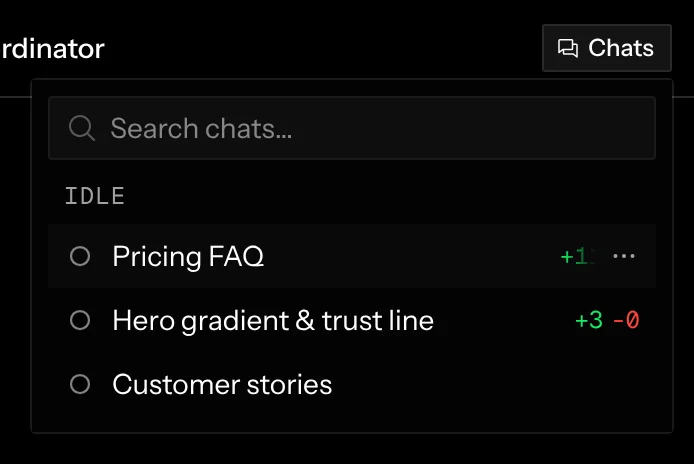
The Chats button sits at the far right of the Coordinator’s header, the agent panel’s top level. In a chat, click Coordinator in the header to get back to it. An orange dot on the Chats button means a chat needs you: its setup failed, its plan waits for your approval, its agent asked you a question, its pull request needs you, or its pull request can’t merge. An open pull request waiting on review doesn’t count. A chat with no repository counts too while its question waits. Click it (or Tab to it and press ↵) to open the menu:
- a search field that finds a chat by its title or its branch, including done ones;
- + and … beside the search field, which stay there while you search;
- one row for each chat, under Working, Needs you and Idle (see Order);
- under No repository, any chats with no repository, with a spinner while its agent works and an orange dot while its question waits.
On a canvas with no repository the menu lists only chats with no repository, and + beside the search field starts one.
Pick a row to open that chat; the menu closes. Esc or a click outside closes it without picking. The arrow keys move through the rows. With the agent panel collapsed (⌘ I), open the panel first.
Each chat row shows:
- a status icon for what the chat is doing: a spinner while it starts, an activity spinner while the agent works, an orange dot when it needs you (a plan to approve, a question to answer, a pull request the agent stopped working on, or a pull request that can’t merge), a small circle when it’s ready, a dashed circle when it’s stopped, a check circle when it’s done, or a warning when setup failed. Click the warning for the error, with Retry, Recreate and Copy error;
- the chat’s title, never its branch. A chat without one (created before titles existed, or not asked anything yet) reads New chat until you rename it or its first message names it;
- at the end, the chat’s pull request as a small outlined badge: GitHub’s icon for its state in GitHub’s colours (green open, purple merged, red closed, and red with a merge-conflict icon when failing checks or a conflict block the merge) and its number. When the row is too narrow for both, the badge is hidden rather than cutting off the title. With no pull request the row shows +/− line counts for changes compared with the base branch. A chat that’s starting, stopped or failed shows neither;
- on a canvas with two or more repositories, the repository’s short name at the end, so you can tell web and API work apart. With one repository it’s never shown.
The agent panel’s header, a frame’s chat list and the Remove repository dialog show a chat the same way: the status icon, then the title, then the pull request badge (the header keeps its own pull request button instead).
Order
The list is grouped by state: Working (the agent is working or setup is running), Needs you (setup failed, a plan waits for your approval, a question waits for your answer, the agent stopped working on its pull request, or its pull request can’t merge) and Idle (ready or stopped, including a pull request waiting on review). Each section gets its own heading, and empty sections are hidden.
Inside each section, the chat whose agent was last asked something comes first; one that never ran a turn counts from when it was created. Done chats stay in their own section at the bottom.
Hover a row to see where the chat is used: the canvas list lights up the groups on it and the frames that show it, and the canvas outlines those frames. It works the other way too: while the menu is open, hovering a group, a frame, or a group’s chat lights up that chat’s row.
The hover card
Hover a chat row, the chat’s name in the agent panel’s header, or a chat named on a group or frame label, to see its details:
- its title and what it’s doing now, such as the setup step and how long it has taken, that the agent is working, or that it’s ready, stopped or done;
- its repository, its git branch, the base branch its changes are compared with, and its changes as +/− line counts.
This is where you find a chat’s branch name, since rows and labels show its title.
On a group or frame label, the card ends with Open chat, which opens the chat in the agent panel.
Chat actions
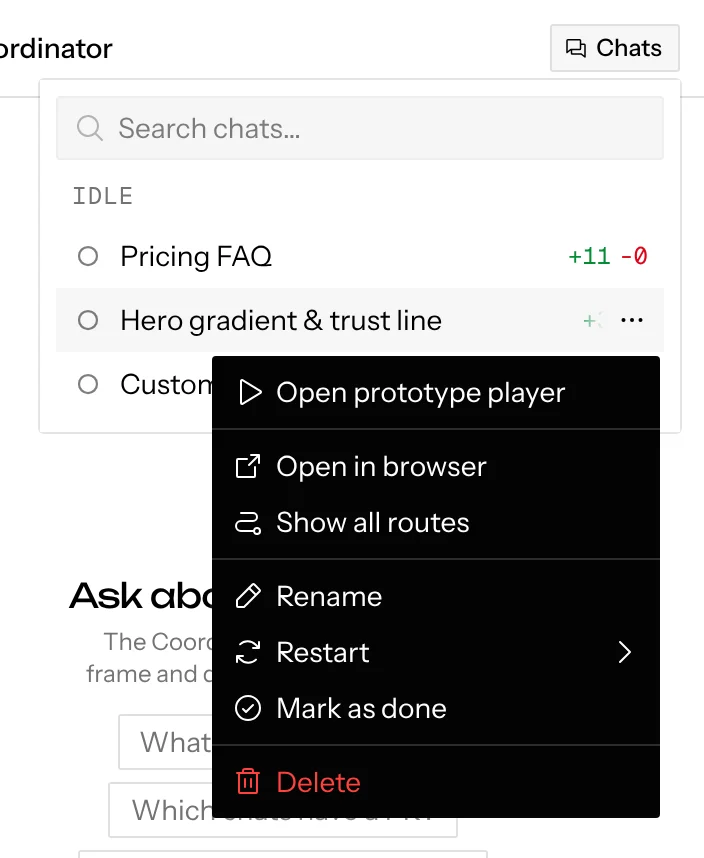
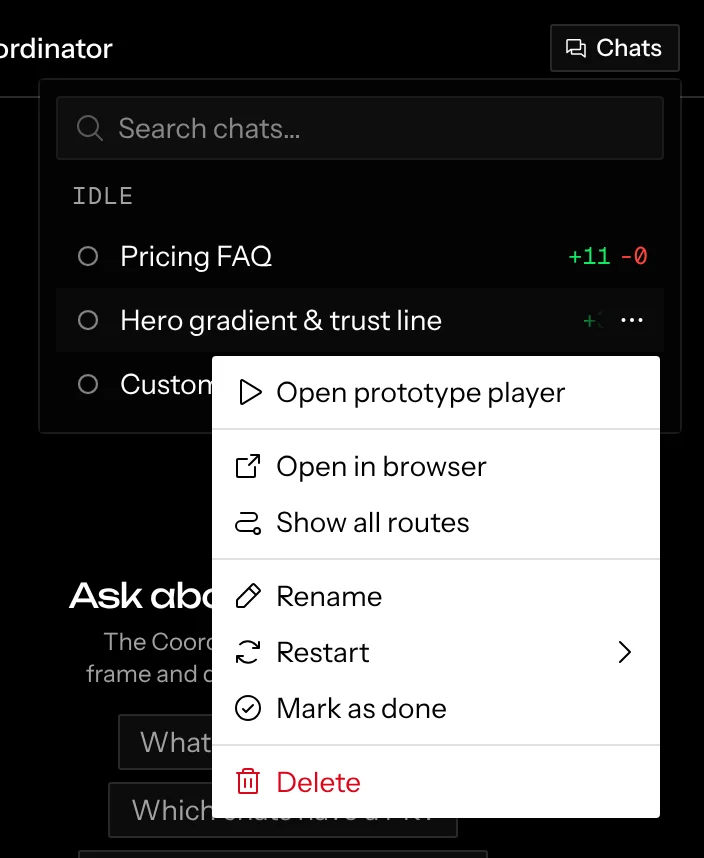
Click … after the chat’s name in its header, or hover the chat in the Chats menu and click …. A frame’s … → Chat submenu holds the same menu. It starts with the one action the chat’s state calls for (Retry setup after a failed setup, Mark as done once its pull request has merged, Create pull request, Reopen on a done chat, or Open prototype player), then the rest, with dividers between viewing, git, pull requests and managing actions:
Restarting
When a preview gets stuck, Restart offers escalating fixes:
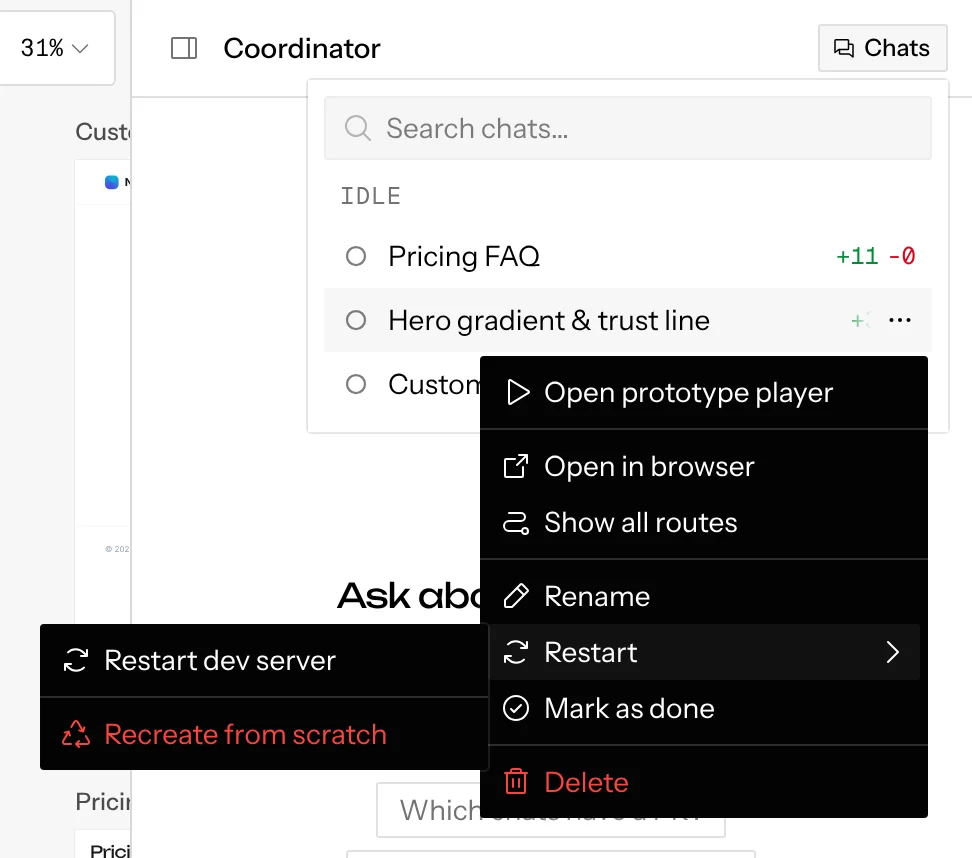
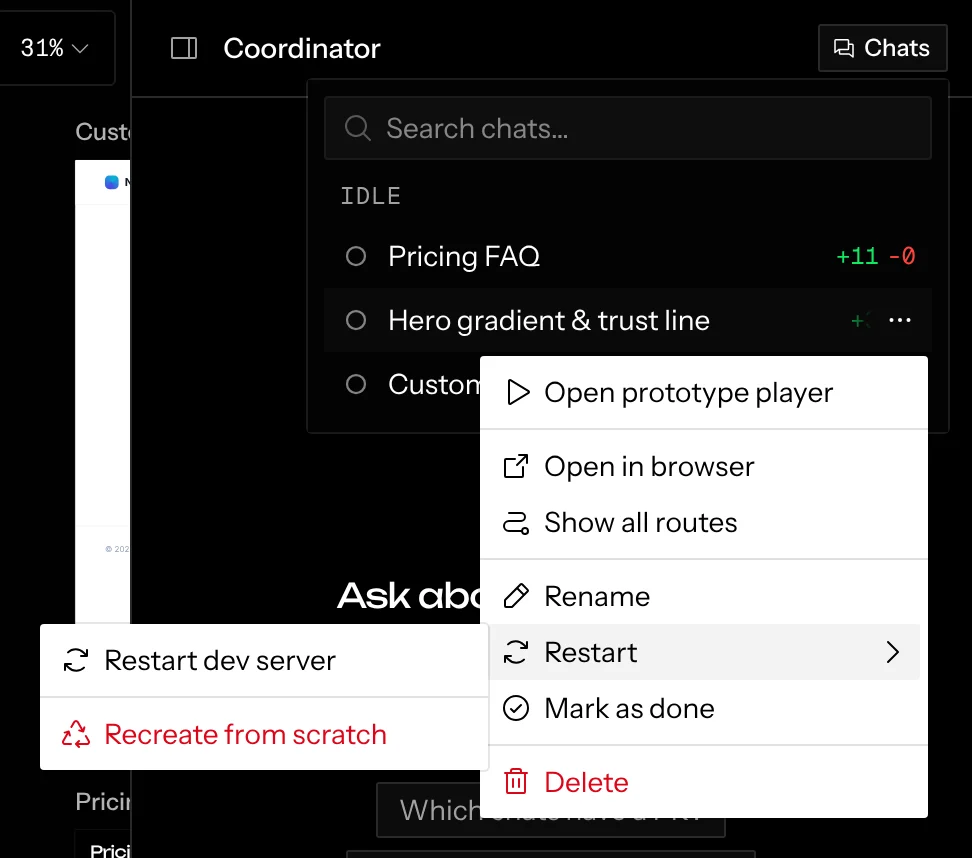
- Restart dev server restarts only the dev server process. It’s quick, keeps every file, and works even while the agent is busy. Try it first. To stop the dev server instead, see Running and stopping the dev server.
- Restart sandbox Hosted restarts the whole sandbox VM. Your working tree, including uncommitted changes, is restored from a snapshot.
- Recreate from scratch deletes the sandbox and checks the branch out fresh. Uncommitted changes are permanently discarded, so you’ll be asked to confirm.
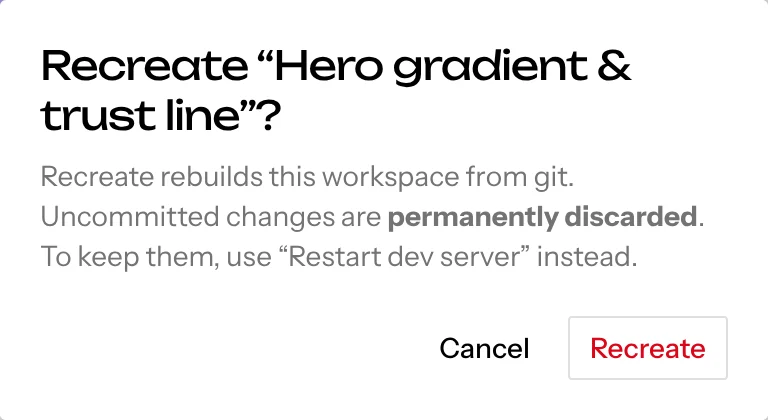
On the hosted app, sandboxes are ephemeral VMs that are reclaimed when idle. Anything worth keeping has to be committed and pushed. The agent commits after every change for this reason. On desktop, worktrees live on your disk and survive restarts.
Marking a chat done
When you’re finished with a chat, … → Mark as done puts it away without deleting anything:
- its dev server stops;
- its frames leave the canvas. Documents and other chats’ frames in the same group stay where they are;
- its row moves into a collapsed Done section at the bottom of the Chats menu, with a check circle for its status icon;
- its messages and history stay, and frame chat lists stop offering it.
Everyone on the canvas sees it as done. It isn’t available while the agent is working. Merging its pull request doesn’t mark a chat done, but once it has merged, Mark as done moves to the top of the menu.
A toast says how many frames were hidden. Its Undo reopens the chat straight away. Later, open Done and choose … → Reopen. The chat starts again and its frames return where they were.
Pull requests
There are three ways to open a PR:
- Create PR in the agent panel header. It opens the PR directly, using the branch’s commit messages for the title and body, and the button then turns into a link to it.
- Create pull request in the chat menu.
- Ask the agent (“open a PR for this”). It uses its
create_prtool and shows a link card in the chat.
PRs target the repository’s default branch. The current PR’s state (open, merged, or closed) is shown at the end of the chat’s row and on the header button. Create PR and Create pull request always agree. They show only when the repository is on GitHub, and they’re available once the chat has changes to propose and no one’s agent is working on it; hover either one while it’s disabled to see why. If you aren’t connected to GitHub, both show disabled and their tooltip points you to Settings › GitHub. While the chat has an open PR, the header button links to it instead of offering another, and a done chat offers no new PR. While the PR is being created, the button shows a spinner, the menu item reads Creating pull request…, and neither can start a second one.
PR updates in the chat
Screenplay keeps checking the chat’s PR on GitHub, every minute while the canvas is open and every few minutes when it isn’t. When something changes, the chat shows it as a quiet line across the conversation: the PR’s icon and number in its colour, then what happened.
Failing checks and conflicts are red with the merge-conflict icon, closed PRs red with the closed icon, passing checks green and merges purple, like the PR badge. With the canvas closed, Screenplay checks the PR with the GitHub account of the person who started the chat.
The agent acts on its own
Failing checks, a conflict, a merge and a close also start a turn for the chat’s agent, right after the line, so you don’t have to come back and ask. It reads the failing checks or brings the base branch in, fixes the cause and pushes, or replies saying why it can’t. After a merge or a close it replies in one line. Checks passing again is only a line.
The agent acts for the person who started the chat, with their GitHub account, and this works with the canvas closed. It never interrupts a turn that’s already running: the update waits until that turn ends, then starts its own.
After three of these turns in a row on the same PR with no message from a person, the next update only shows as its line. The chat stops waking its agent and turns PR needs you, with an orange dot, until someone writes in it.
The next pull request
A chat keeps going after its PR merges, and its next PR is a new one. The next message in it, whoever sends it, first moves the chat onto the latest code from the default branch, so the next PR carries only new changes. Screenplay does this itself when nothing can be lost: no uncommitted changes, and every commit already in the merged PR. Otherwise it asks the agent to bring the work over, which it does like any other git step, asking you if something would be lost. Create PR then comes back, available once there are new changes. After a PR is closed without merging, Create PR comes back straight away.
The Pull requests group in the chat menu lists every PR the chat has opened, newest first. Each shows its number in its state’s colour (green open, purple merged, red closed) and its title; click one to open it on GitHub.
Deleting
… → Delete deletes the chat and its frames, and shuts down its sandbox. The dialog says in a sentence what’s deleted and that the git branch stays, and warns when uncommitted changes, or on the hosted app unpushed commits, would be lost. If you’re connected to GitHub and the repository has a GitHub remote, it also offers Also delete the branch on GitHub, which also closes an open PR. It’s off by default. If the remote delete fails, the chat is still deleted and a warning names the branch left on the remote.
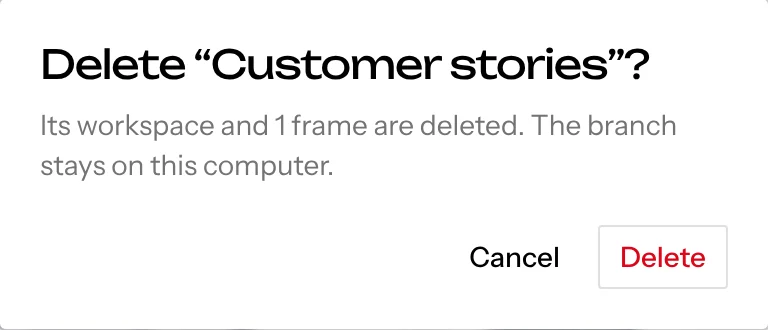
Documents and mockups the chat made stay on the canvas. Any other chat can then change them, and the first one that does takes them over.
One branch, one chat
DesktopOn desktop, every chat’s code is a git worktree of one shared clone, and git allows each branch to be checked out only once. Opening a branch that’s already open in another chat, or checked out in your own clone, fails with a clear error rather than sharing the checkout. On the hosted app each sandbox is an independent clone, so there’s no such limit. For the exact errors and fixes, see Troubleshooting.