Settings
Open Settings from the bottom of the home screen sidebar, under Docs. A list on the left picks the section, in this order: General, Agent, GitHub (desktop only), Repositories, Memory, Files, Skills and Account.
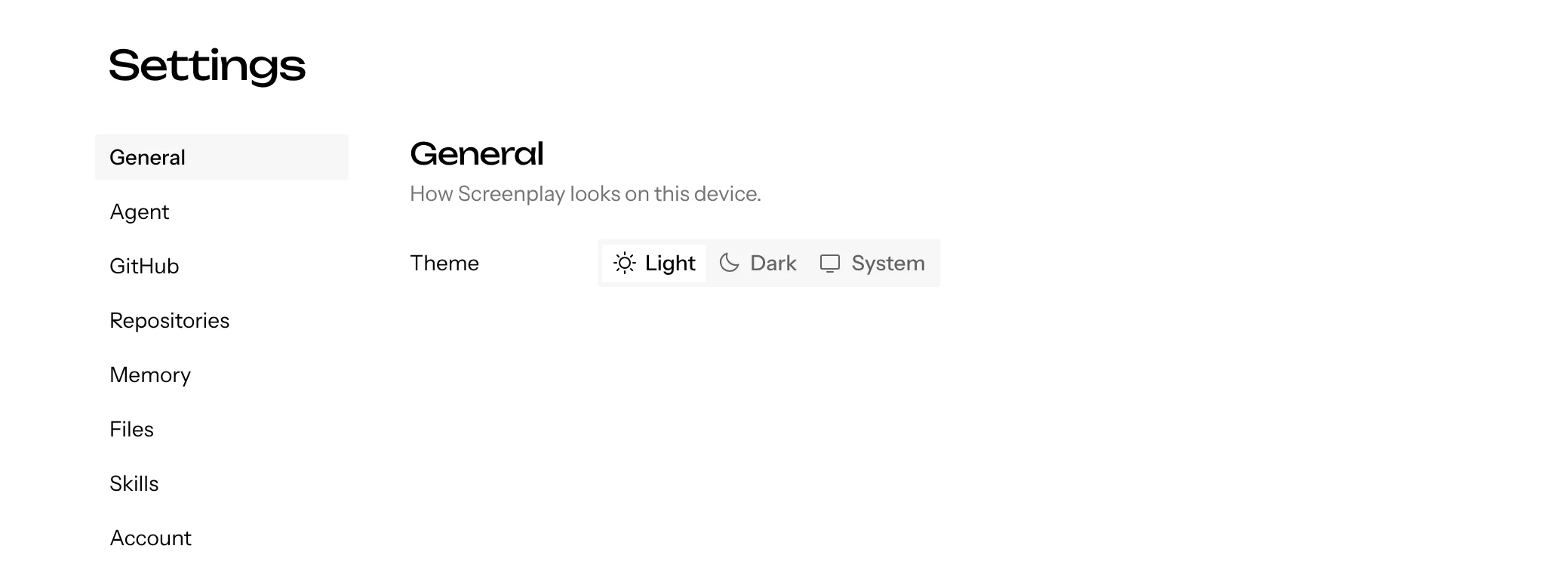
These are your own settings. A canvas’s repositories and their run settings are in its Canvas settings; see Repositories. Canvas settings also lists the canvas’s memory, files and skills.
General
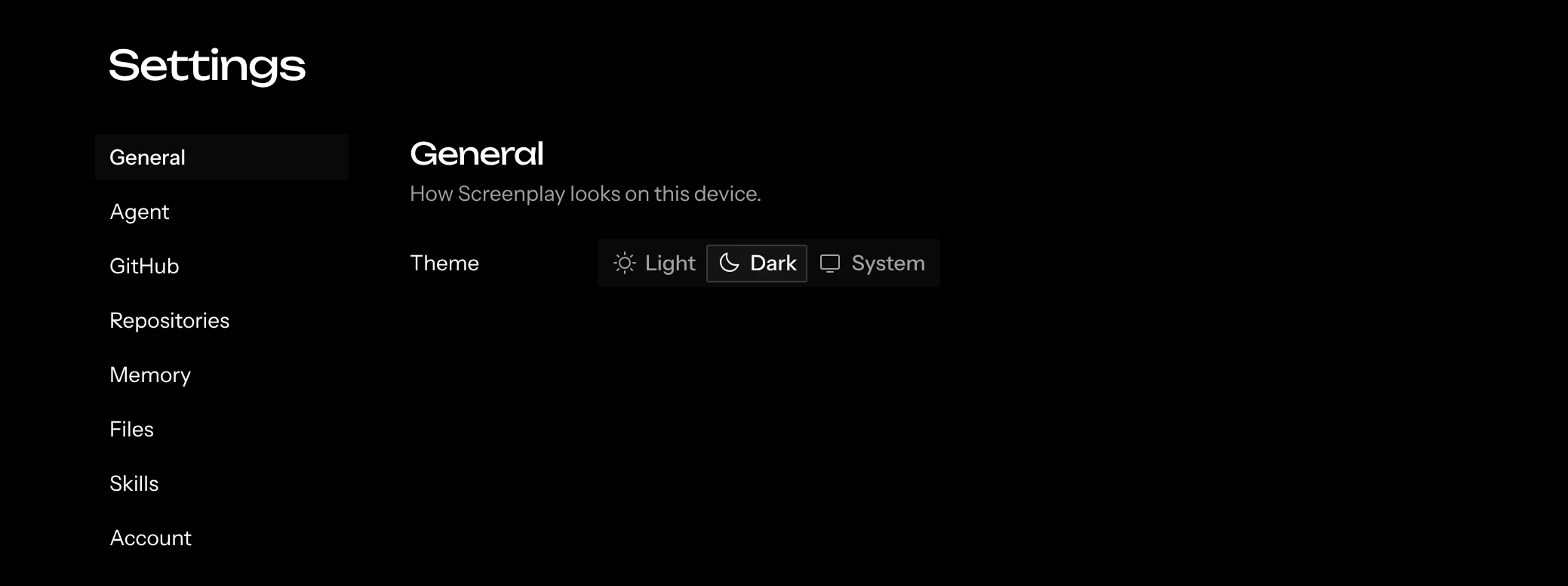
The Theme: Light, Dark, or System. This setting applies to this device only.
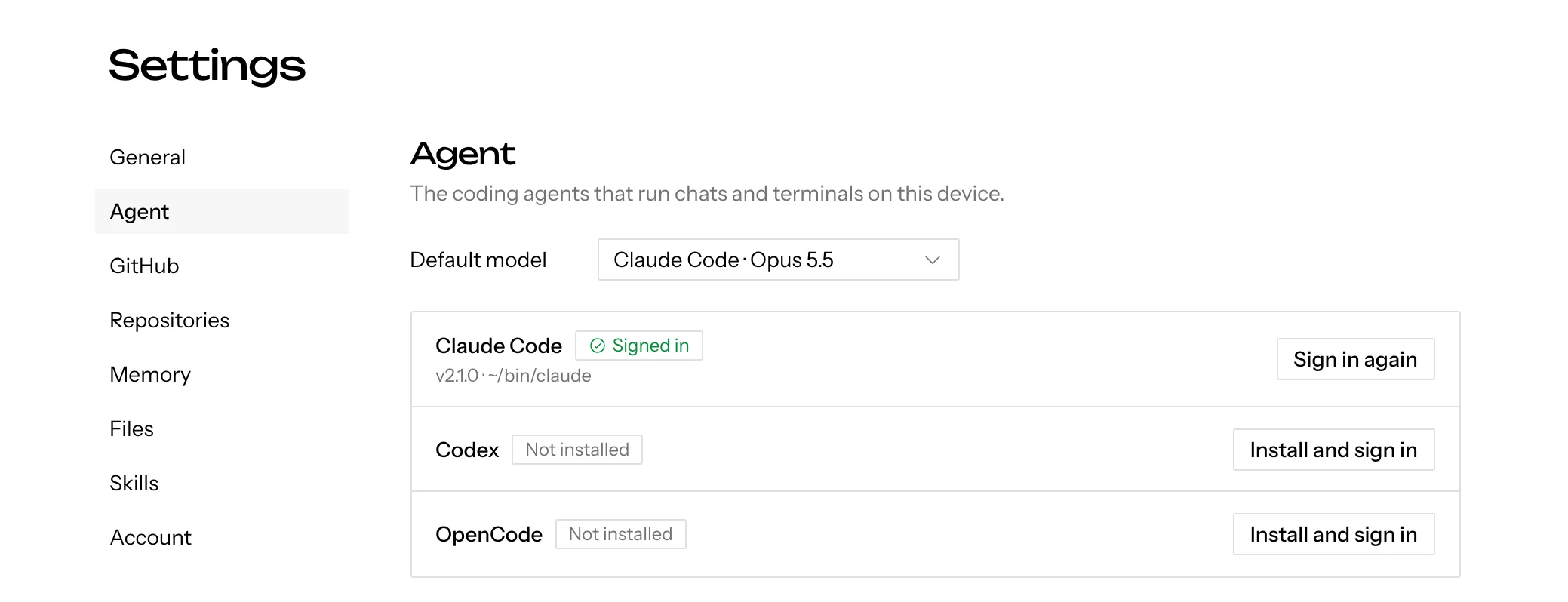
Agent
Default model, at the top of the section, picks the agent and model that new chats start with. You can still switch model in any chat.
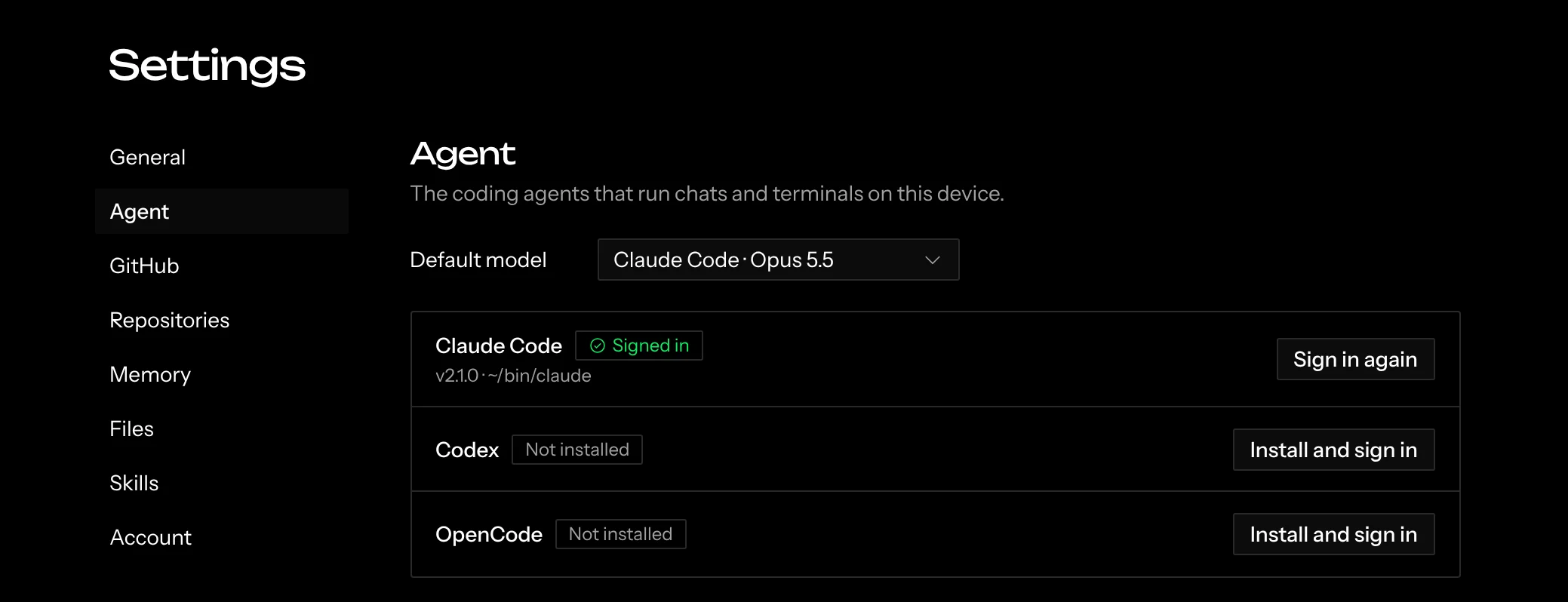
DesktopOn desktop, the agent is a coding CLI on your machine. Under the default model there’s one row per supported CLI: Claude Code, Codex, and OpenCode. Each row shows whether it’s Signed in, Signed out or Not installed:
- Install and sign in installs the CLI, then runs its own login in an inline terminal.
- Sign in appears when it’s installed but signed out.
- Sign in again appears when it’s already connected.
If an install or sign-in doesn’t finish, the row says so under its name, and the same button tries again.
OpenCode reaches every model of every provider you signed in to there, often hundreds, so its row has Choose models. It lists them by provider with a search box; check the ones you want and they show in the model picker under OpenCode straight away. With none checked, the picker has one OpenCode entry that runs the model you chose in OpenCode itself. The choice is kept on this computer.
A CLI you connect here shows up in the model picker straight away, with no restart. The app never uninstalls a CLI or signs you out of it.
GitHub
DesktopGitHub access is optional on desktop. Without it you can still add repositories by local folder or clone URL, and git uses your machine’s own credentials. With it, you can also browse your GitHub repositories and branches, and open pull requests.
The GitHub row says where things stand:
- Connected, with your
@handle. - Signed out: the
ghCLI is installed but not signed in. - Not connected:
ghisn’t installed.
Screenplay uses the gh CLI’s login. If gh is already signed in, there’s
nothing to do, and the row offers Sign in again in case that login lapses.
If gh is installed but signed out, Sign in runs its sign-in in an inline
terminal. If it isn’t installed, Install and connect installs it (with
Homebrew when available) and then signs you in. The row updates by itself
when sign-in finishes.
Screenplay never signs you out of gh, since that login is yours and other
tools use it too. To disconnect, run gh auth logout yourself.
On the hosted app there’s no GitHub section: you sign in with GitHub, and Screenplay uses that account for cloning, pushing, and PRs.
Repositories
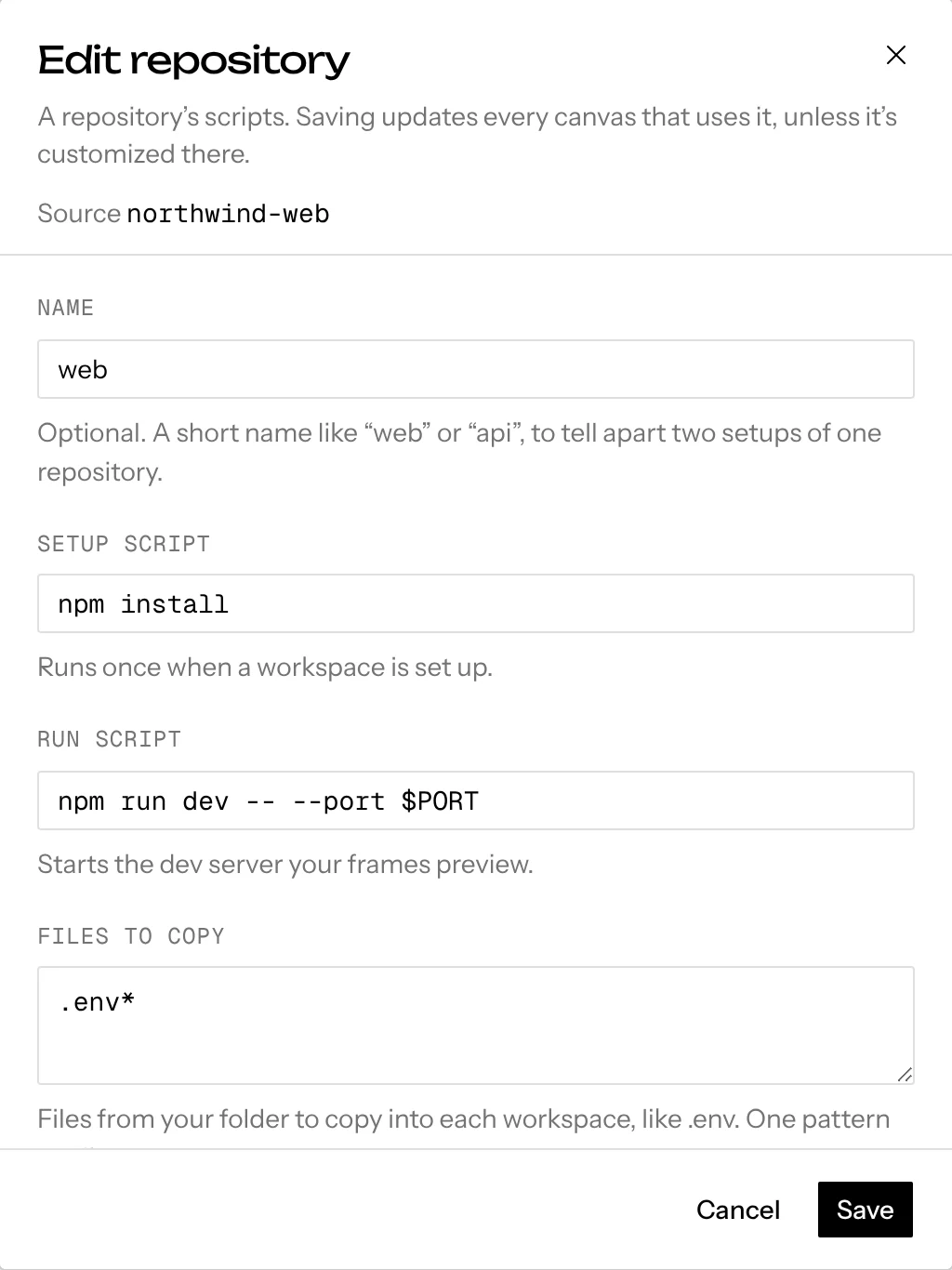
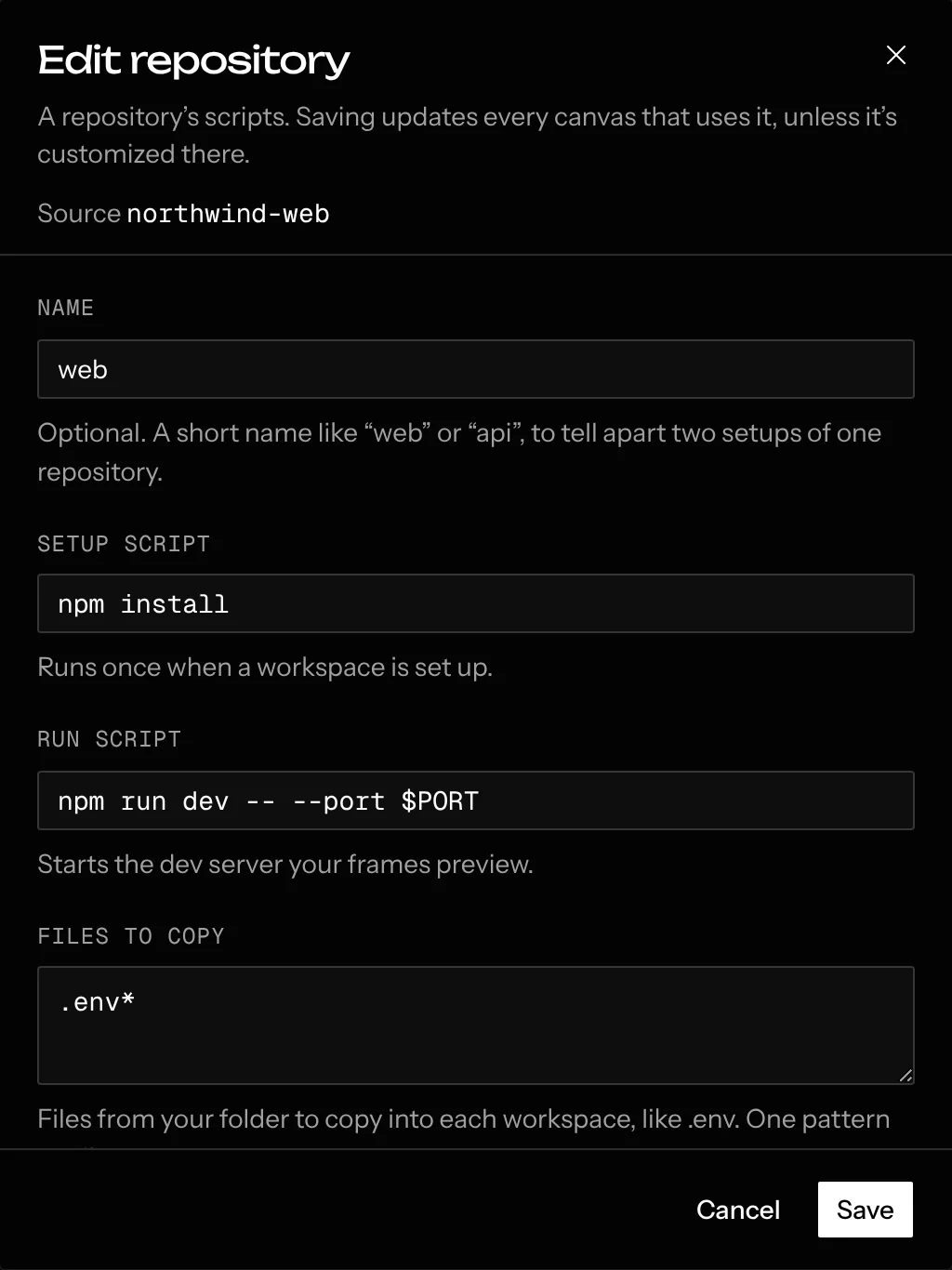
Your repositories and how each one runs. They’re grouped by repository, and each row says how many canvases use it. Edit opens its settings, and … holds Duplicate, which starts a new one from a copy, and Delete. Click New repository beside the section title to pick one and confirm its detected settings. Saving an edit here updates every canvas that uses the repository, unless that canvas customized it. See Your repositories for what each one holds.
Memory
Your account memory: preferences every chat you send a message in follows, on any canvas, like “Write UI copy in plain sentences.” Add memory beside the section title adds one, Edit changes one and … › Delete removes it. Each row says whether an agent saved it or you added it. See Memory.
Files
Your account files: files every chat you message can open, on any canvas. Agents save and organize them; you can open and delete them here. See Files.
Skills
Your account skills: procedures every chat you message can follow, on any canvas. Open shows one, and … › Delete removes it. To add or change one, ask a chat. See Agent skills.
Account
On the hosted app, this shows who you’re signed in as, with Sign out. Your name and photo at the bottom of the home sidebar open a menu with Sign out too. On desktop there’s no sign-in, and this shows the app’s version.