Working with the agent
The agent panel on the right (⌘ I) is where you work with the agent. With nothing selected it shows the canvas’s Coordinator. Pick a chat and you talk to that chat’s agent instead, and everything the agent does happens inside that chat’s sandbox.
The Coordinator uses the same composer, with less in it. It is one chat with no terminals, and has no Plan toggle or crosshair.
Every chat has its own branch, sandbox, dev server and terminals from the moment it starts, and it’s the only chat that changes that code. More work in parallel means more chats. A chat can read other chats’ code and frames, but never changes them. It can also write documents on the canvas, and edits the ones it wrote.
Choosing a target
The Chats button at the far right of the Coordinator’s header opens the list of every chat by its title, with its status icon and pull request, grouped by what each is doing (see The Chats menu). Pick one to open its chat. When you switch back to a target, the panel reopens the chat you last used there.
In a chat the header reads Coordinator / chat title: click Coordinator to go back. Hover the chat’s name for its hover card, and click the … after it for the chat menu. On the right are the chat’s +/− diff and a Create PR button (see Pull requests). Once its pull request is open, the button links to it and the +/− goes.
Chats with no repository
A chat with no repository writes and edits mockups and documents, and can click through a mockup for you. It has no sandbox, so it can’t change code, run commands or show frames. Use one to sketch an idea before there’s code for it, or on a canvas with no repository at all.
- Draw a box with the Mockup tool: on a canvas with no repository a new chat with none answers it. Elsewhere, pick New chat, no repository in the box’s chip.
- Ask the Coordinator for a document or mockup that isn’t about any chat’s code, and it starts one for you.
Its header reads Coordinator / chat title. Its first message names it, like any other chat; rename or delete it from its … in the Chats menu. Deleting it keeps the mockups and documents it made. The Chats menu lists these chats under No repository, with a spinner while the agent works and an orange dot while its question waits for you, as on any other chat.
Terminals
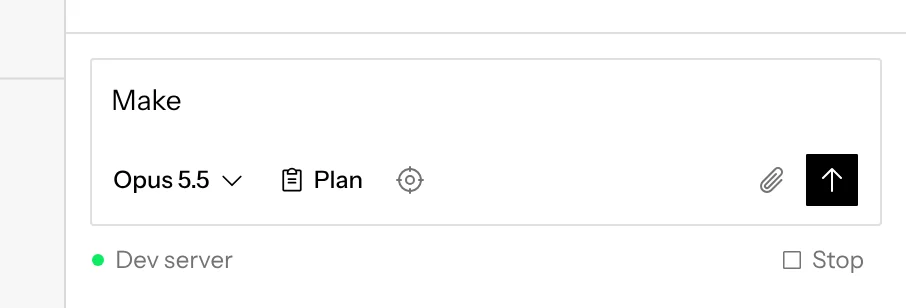
The chat fills the panel. Under the composer, a quiet line names the chat’s terminals: Dev server first, with a dot showing what the dev server is doing, then your own terminals. At the right edge, Stop stops the dev server and Run starts it again, without opening the pane.
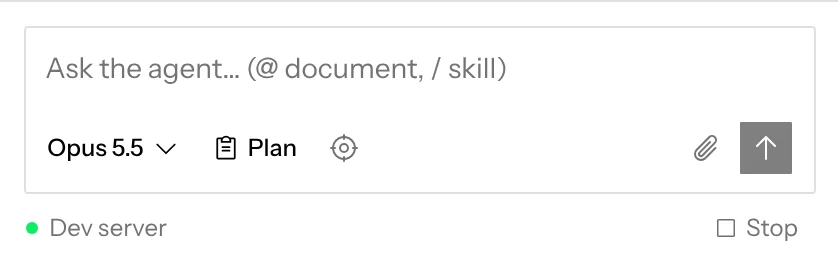
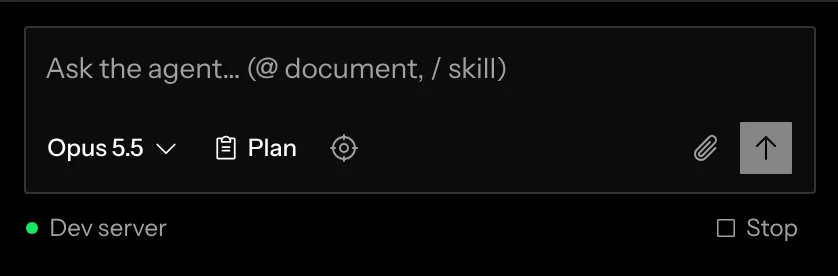
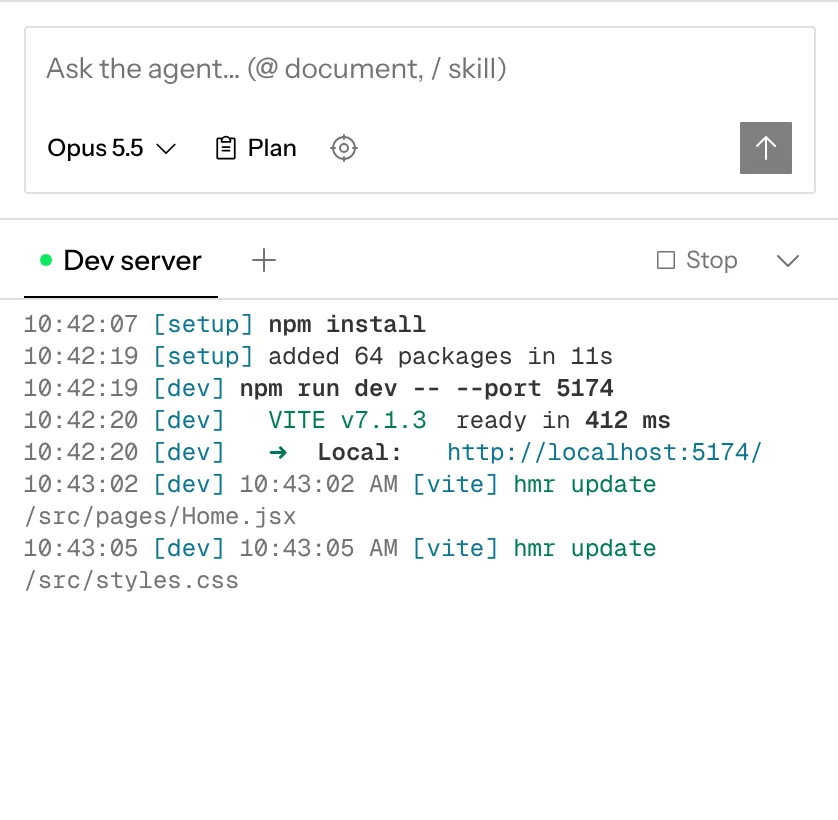
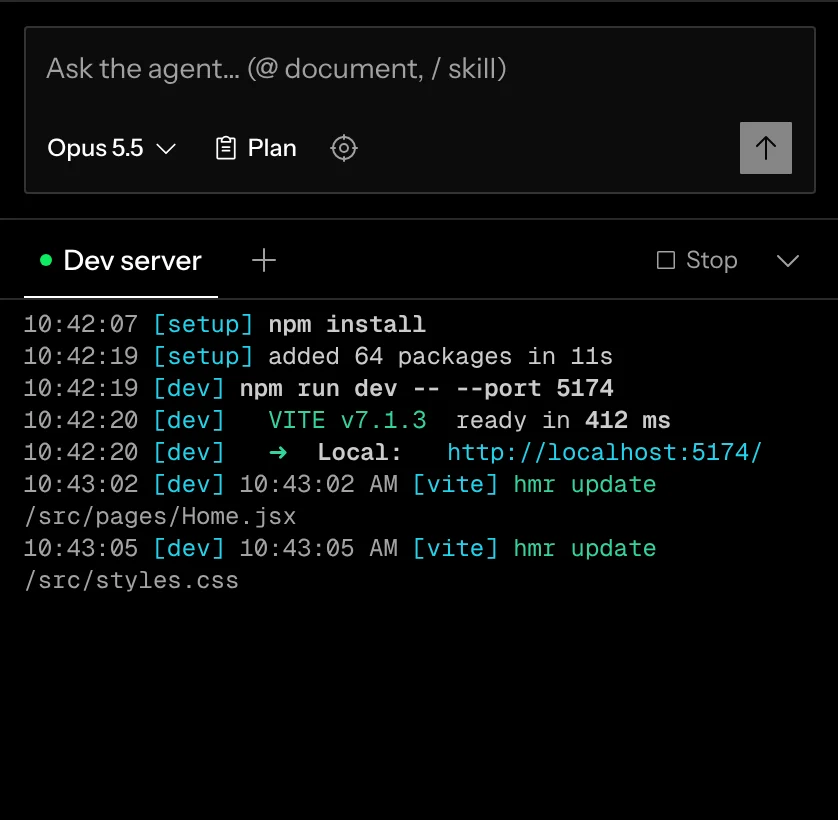
Click a name to open the terminal pane under the chat on it. The open pane has its terminals as tabs, + to open a shell, and a caret at the right to hide it. Drag the line between the chat and the pane to give either more room; drag it all the way down to close the pane. ⌃ ` opens and closes it from anywhere in a chat. The pane remembers its height and whether it’s open, the same in every chat, and never opens by itself.
Dev server shows the setup script’s and dev server’s output. It’s read only, and it can’t be closed or renamed, so the pane always has something to show. A frame’s Open logs opens the pane on it.
Running and stopping the dev server
The footnote and the open pane’s bar both have Stop while the dev server runs, and Run once it’s stopped or has crashed. Stopping it leaves the sandbox running and its output on screen; Run starts it the same way Restart dev server in the chat’s menu does. ⌃ C in Dev server never stops it.
The dot beside Dev server is the same for everyone on the canvas:
A stopped dev server stays stopped, even after a reload, until someone runs it again. The chat’s agent can stop and start it too, and the dot follows.
Earlier chats
A canvas from before each branch had exactly one chat can hold several chats on one branch. The newest is the one the panel always shows. The older ones are kept but no longer appear in the panel.
The composer
Type a message and press ↵ to send. ⇧ ↵ adds a new line. While the agent is working, the send button becomes Stop. Stopping ends the turn with a Stopped line in the chat, which looks the same after a reload. Each chat keeps its own draft, and a message that couldn’t be sent stays in the chat with Retry and Edit.
Sending while the agent works
You don’t have to wait for the agent to finish, or stop it, to correct it. Type while it works and press Send: the message shows at the end of the chat, dimmed and marked Waiting for the agent, for everyone on the canvas. The agent reads it as soon as it finishes the step it’s on (the model reply or tool call in progress), and the message moves to that point in the chat. The turn carries on with it; nothing is cancelled. Several messages sent before the agent gets to them reach it together, in the order you sent them.
If the turn ends before the agent reads a message, the message starts the next turn straight away. If you press Stop instead, messages still waiting go back into your composer, so you can decide whether to send them.
The built-in agent works this way in every chat, including the Coordinator, and so do chats running Claude Code or Codex on desktop: each reads the message at the same point it would if you typed it into its own terminal. Chats running OpenCode don’t: there the button reads Queue message, and the message waits in a Queued row above the composer, where you can Edit or remove it, and sends when the agent finishes.
Choosing a model
The model menu sits at the bottom left of the composer and names the current model; its list groups models under their coding CLI. New chats start with the default agent and model from Settings. Changing the model in a chat changes only that chat, and the menu shows · not default when it differs. You can switch at any point in a chat: the new model answers from your next message on, with the whole conversation so far. Switching to another coding CLI’s model starts that CLI with the conversation replayed to it.
- Desktop lists your installed coding CLIs with their models, for example Claude Code: Fable 5.1, Opus 5.5, Sonnet 5.5, Haiku 4.5, and Codex: GPT-6 Astra, GPT-6 Luna, GPT-5.5. OpenCode lists the models you checked in its row’s Choose models, or one entry that runs the model you chose in OpenCode itself.
- Hosted lists the models of every provider the operator configured (Anthropic, OpenAI, Google, Vercel AI Gateway, OpenAI-compatible).
Mentioning documents
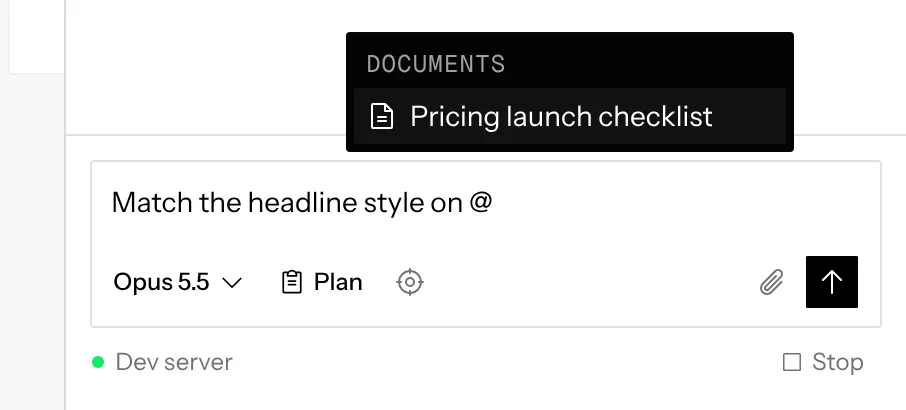
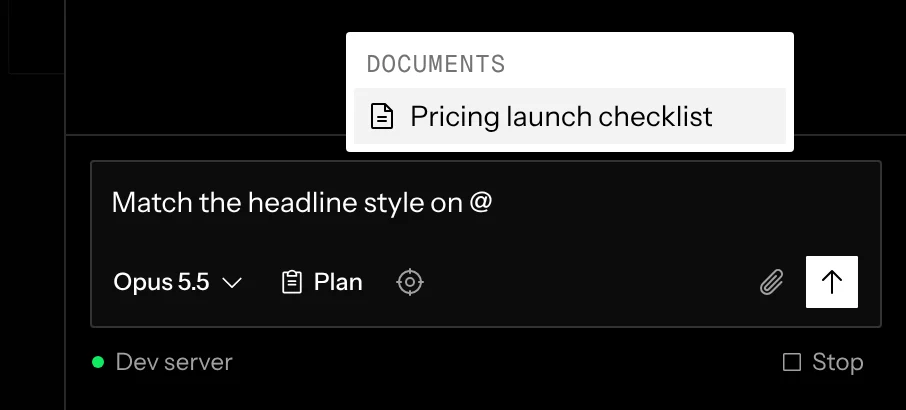
Type @ to mention a document. The agent is told which documents you mentioned and reads their current contents, so there’s no need to paste anything. A mentioned document shows in the message as its icon and title.
Attaching files
To attach files to your message, click the paperclip beside Send, paste them, or drop them anywhere in the window: a screenshot, a PDF, or a text or code file, up to 25 MB each. While you drag a file over the window, the composer reads Drop files to attach. Each file shows as a chip above what you’re typing, with a spinner while it uploads, and × takes it back out. The message sends once every file has uploaded, and a message can be only files.
Attached files are saved in the canvas’s files, in an uploads folder (a
second shot.png becomes shot-2.png), so the agent and later chats on the
canvas can open them again. The sent message shows a chip for each file, for
everyone on the canvas; click one to open the file. The agent sees an attached
image (PNG, JPEG, GIF or WebP up to 5 MB) with your message straight away, and
opens other files when it needs them.
A file of another type (a video, a zip) or over 25 MB isn’t attached, and the composer says why. Attaching works in every chat, the Coordinator’s included, on hosted and the desktop app.
Pointing with the canvas
Each message also tells the agent what you had selected on the canvas and which frames, documents and mockups were on your screen when you sent it. So “make this button bigger” or “compare these two” works without naming them: the agent takes your selection first, then what was on screen. When several people share a chat, each message carries its own sender’s view. None of this shows in the chat.
Loading a skill
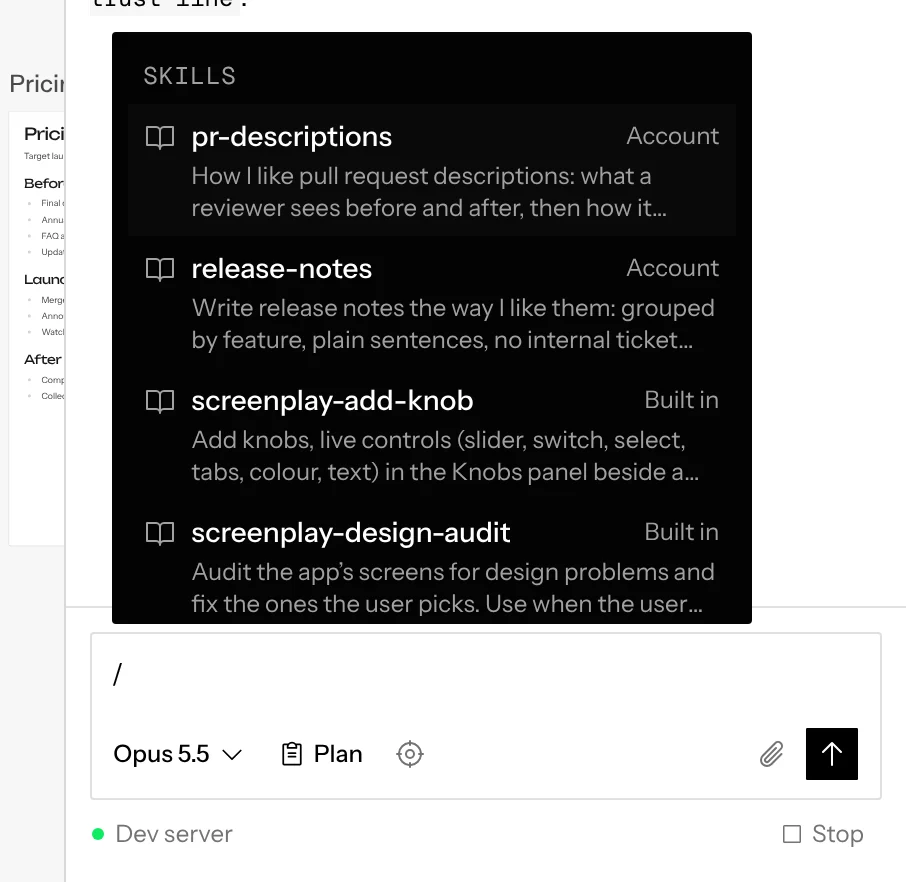
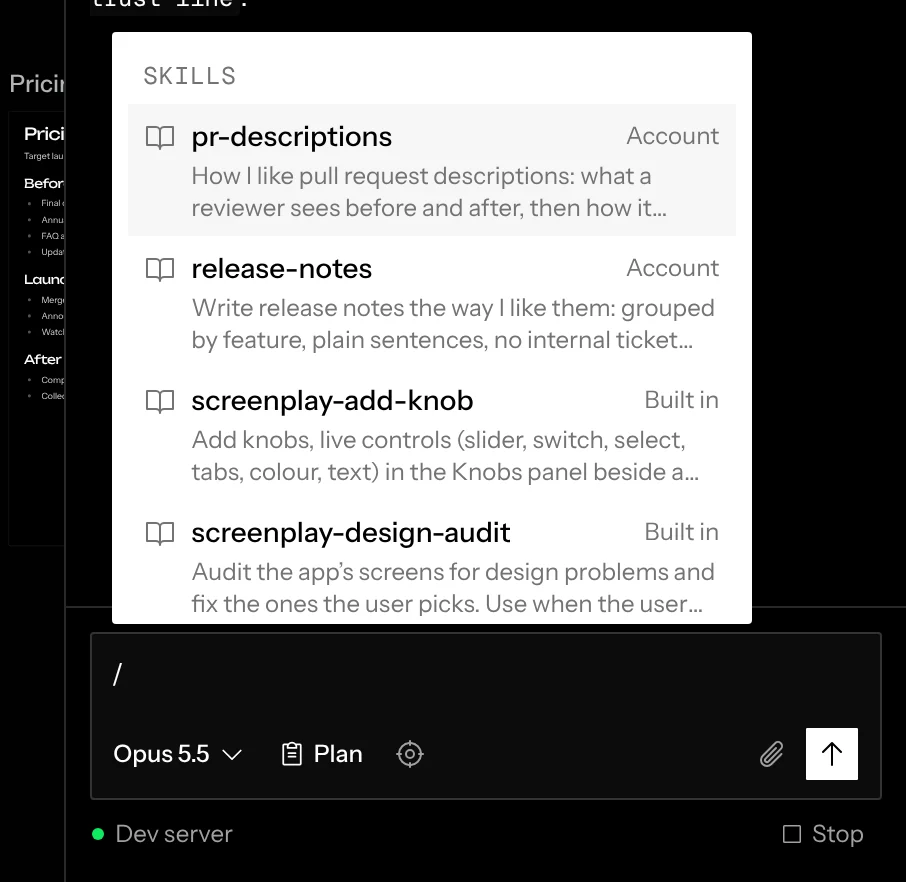
Type / to insert a skill: a packaged set of
instructions the agent loads before starting. Each row ends with where the
skill comes from: Built in skills ship with Screenplay, Repository
skills come from the repository’s .claude/skills/ folder, Canvas
skills were saved to the canvas
by a chat on it, and Account skills were
saved to your account. On the Mac app, your coding agent’s
own skills are listed too,
marked with its name, like Claude Code.
Targeting an element
Instead of describing a button, point at it. Click the crosshair (or
press ⌘ E), then click any element in one of this
chat’s frames or in a mockup it drew. A token
like ⌖ a is inserted where your cursor was, and the agent receives the
element’s CSS selector, route, and frame, or for a mockup, which mockup it’s
in. Hover the
token to highlight the element on the canvas. Esc cancels picking.
Plan mode
Turn on Plan in the composer when you want to approve the approach before any code changes. The agent investigates, then presents a Plan card instead of editing. It works the same in chats running Claude Code, Codex or OpenCode on desktop: Codex plans in its own Plan setting, OpenCode in its read-only plan agent, and you approve their plans on the same card. OpenCode has no step that asks to carry out its plan, so its last reply in a plan turn is the plan the card shows. Plan mode is for chats; the Coordinator has no Plan toggle.
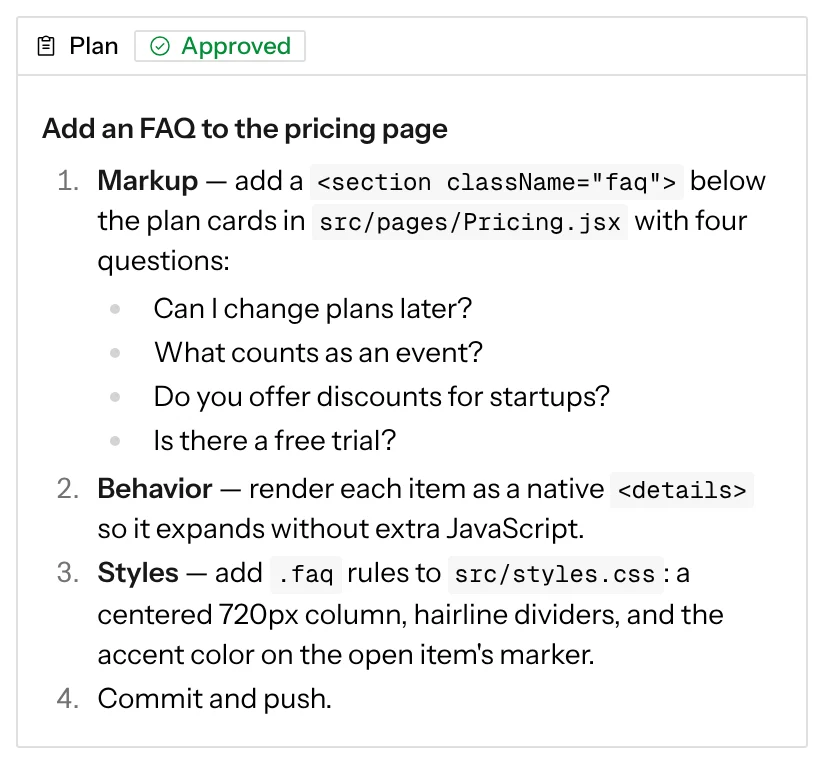
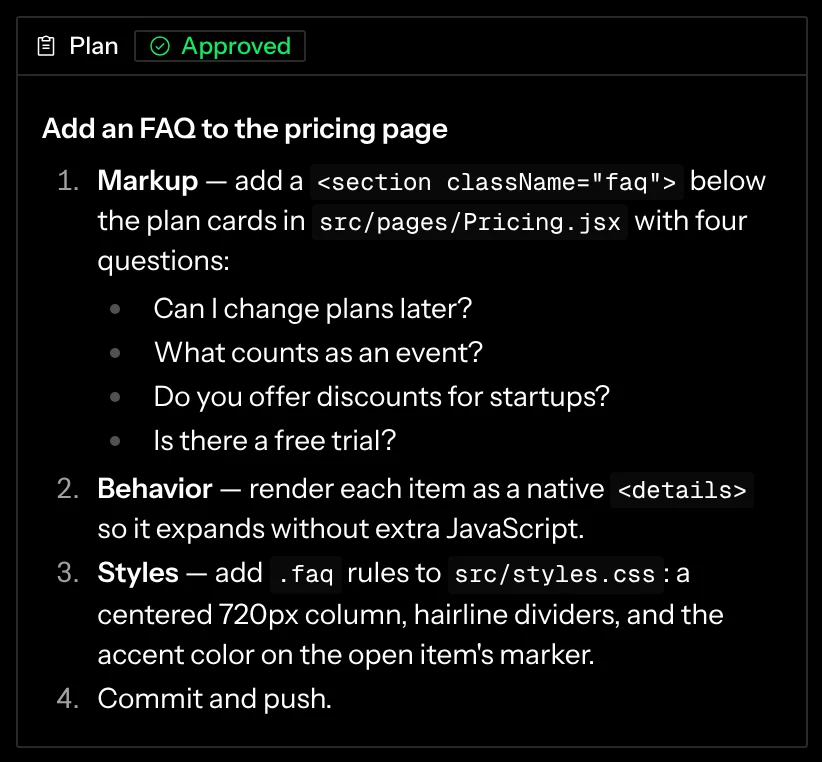
- Approve tells the agent to go ahead.
- Request changes quotes the plan in the composer so you can add your feedback. Any message sent while a plan is pending counts as feedback, so you can also just reply, and the agent revises the plan.
Questions
When the agent reaches a fork only you can decide, it can ask you with a question instead of guessing: one sentence, with two to four options to pick from, and the one it would pick marked Recommended. Pick an option to send it as your reply; the agent carries on from there. From the keyboard, the arrow keys move between options without sending, and Enter or Space sends the one you’re on. To answer something else, just type it in the composer. Until you answer, a chat’s question reads Question waiting and puts the orange needs-you dot on the Chats button.
Once answered, the question keeps the option you chose selected and can’t be answered again. On a shared canvas it also says who answered it. Chats and the Coordinator can both ask questions this way, in the browser and on desktop, including chats running on Claude Code, Codex or OpenCode.
A question about a mockup names it under the question; click the name to bring the mockup into view. You can answer on the mockup’s page too, and it counts the same as picking here.
Following the work
Agent replies stream in as they’re written. Each tool call is a compact row that says what the agent did and what it acted on, in the same words whichever agent the chat runs on. Paths are relative to the repository.
Expand a row to see what came back: code with syntax colours, diffs with the changed lines tinted, command output and logs in their own colours, skills and documents as formatted text, and screenshots as images. A row whose result only repeats it doesn’t expand.
The steps of using a frame (Take control, Click Pay now, Type “Ada”, Press ⌘ K, Scroll down, Pick, Drag, Hover, Read the page, Screenshot frame) fold into one Used row, since you watch them happen in the frame. A click names the element the page says it clicked.
Failed calls show a red mark and always show the error, or say that none was reported. Once a turn finishes, its tool calls fold behind one summary line of what the agent read, edited and ran; expand it to see them again. Secrets such as GitHub tokens are redacted from tool output. An agent’s own housekeeping (loading tools, compacting its context, asking to leave plan mode) and Codex’s automatic approval reviews (Guardian Review) are left out of the chat unless one fails or denies an action, which then shows as a failed row explaining why it didn’t run.
A few defaults are worth knowing:
- The agent commits and pushes after every change. Commits are made under your identity, which matters on shared canvases.
- The chat’s preview updates on its own. The dev server hot-reloads as files change. The agent can read the dev server’s output (the same as the Dev server terminal) to debug a broken preview, restart the dev server when a change needs it, and stop or start it when you ask.
- The agent can see the frames. It can take a screenshot of a frame, or read the page in it as HTML with the styles included, for example to start a mockup from how the app looks now. It reads its own chat’s frame unless it names another one; any frame on the canvas can be read, never changed. Chats running on Claude Code, Codex or OpenCode on desktop get these tools and the dev server ones too.
- The agent can take screenshots without a frame. It renders any route of a chat’s preview in the background, at any width (a phone, a wide screen) or as the whole scrolling page, and any public web page by its address. It can keep a screenshot in the canvas’s saved files to put in a document or a mockup, or for a later chat to open. In the hosted app it only reaches public pages; in the desktop app it reaches whatever your Mac can, local dev servers included.
- The agent can drive frames and mockups. It clicks, types, scrolls and hovers in a frame to show you something or get it into a state, and you can take over at any moment. On a shared canvas everyone watching the frame sees each step; in the desktop app it drives the frame on your own canvas. See The agent driving a frame. It drives mockups in the browser too.
- Chats are shared. On a shared canvas everyone sees every chat live, including history from before they joined.
GitHub issues and comments
An agent can search and read the repository’s GitHub issues and pull requests with all their comments, including a pull request’s reviews and its comments on code lines, what blocks an issue and its sub-issues. Ask it to “fix #12” and it reads the issue first. It can also read any pull request’s changed files and its CI checks, to see why one is red.
When you ask, it can also open an issue, comment on an issue or pull request, reply to a review comment, close, reopen, retitle or relabel one, and link issues with GitHub’s blocked-by edges and sub-issues. These post with your GitHub account, the same one that pushes the chat’s commits, so they show as yours on GitHub. It only reaches the canvas’s repositories.
Chat naming
A chat is named from its first message. That message usually names its branch too; see Titles for when it does.
“No coding agent found” on desktop means no supported CLI is installed. Install one from Settings → Agent (the composer links there); it shows up without a restart. More in Troubleshooting.
When something fails
A failed step in a chat says what failed in one line. Where the chat can try again (approving a plan, stopping a run, or a turn you started that stopped responding) the line has Retry, and Copy error copies the original error for a bug report. Retrying a turn runs it again on the message you already sent, so the message isn’t posted a second time. A chat whose history or model list didn’t load says so with Retry, rather than looking empty or telling you to install an agent you already have.