Home & organizing
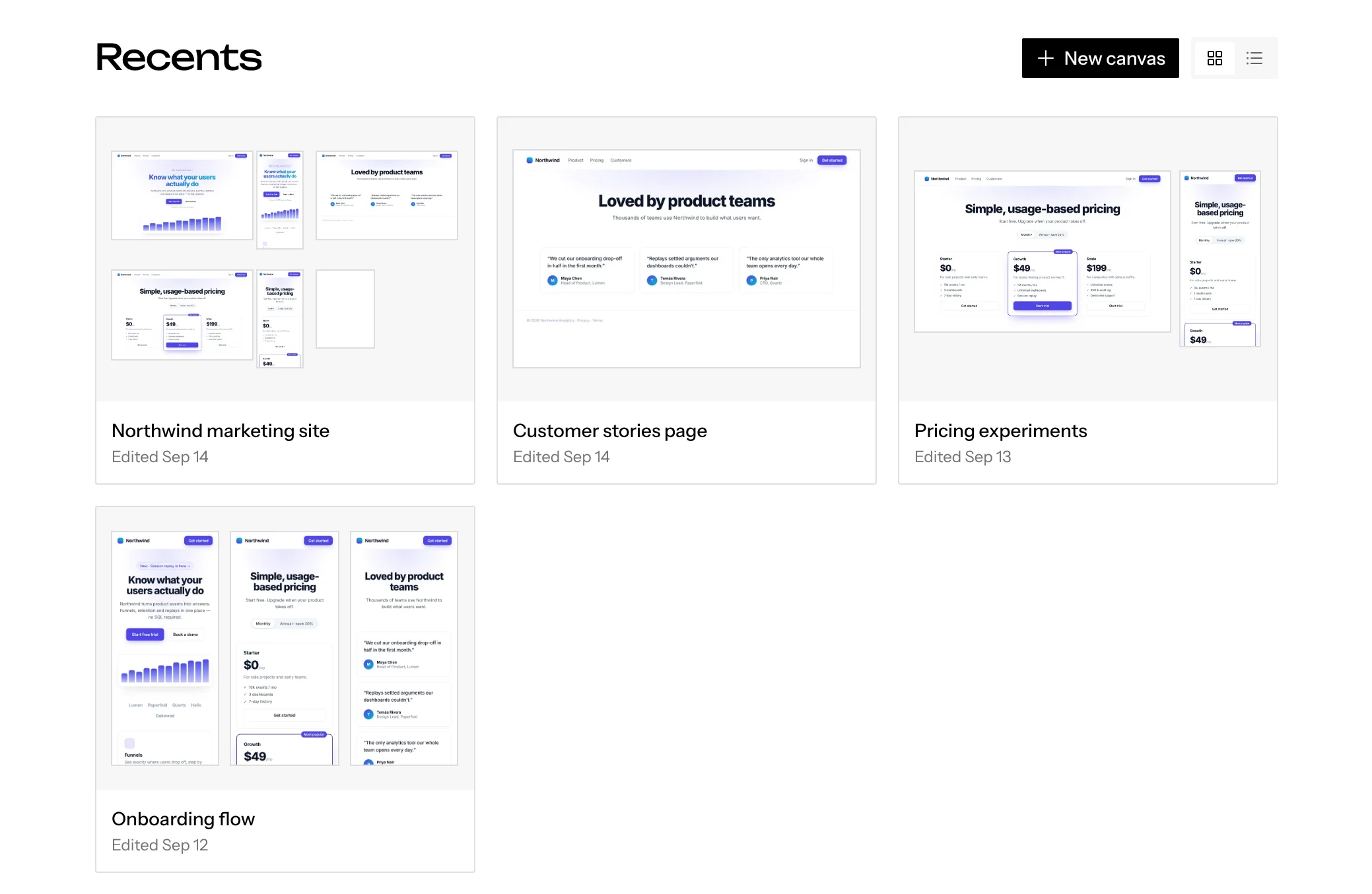
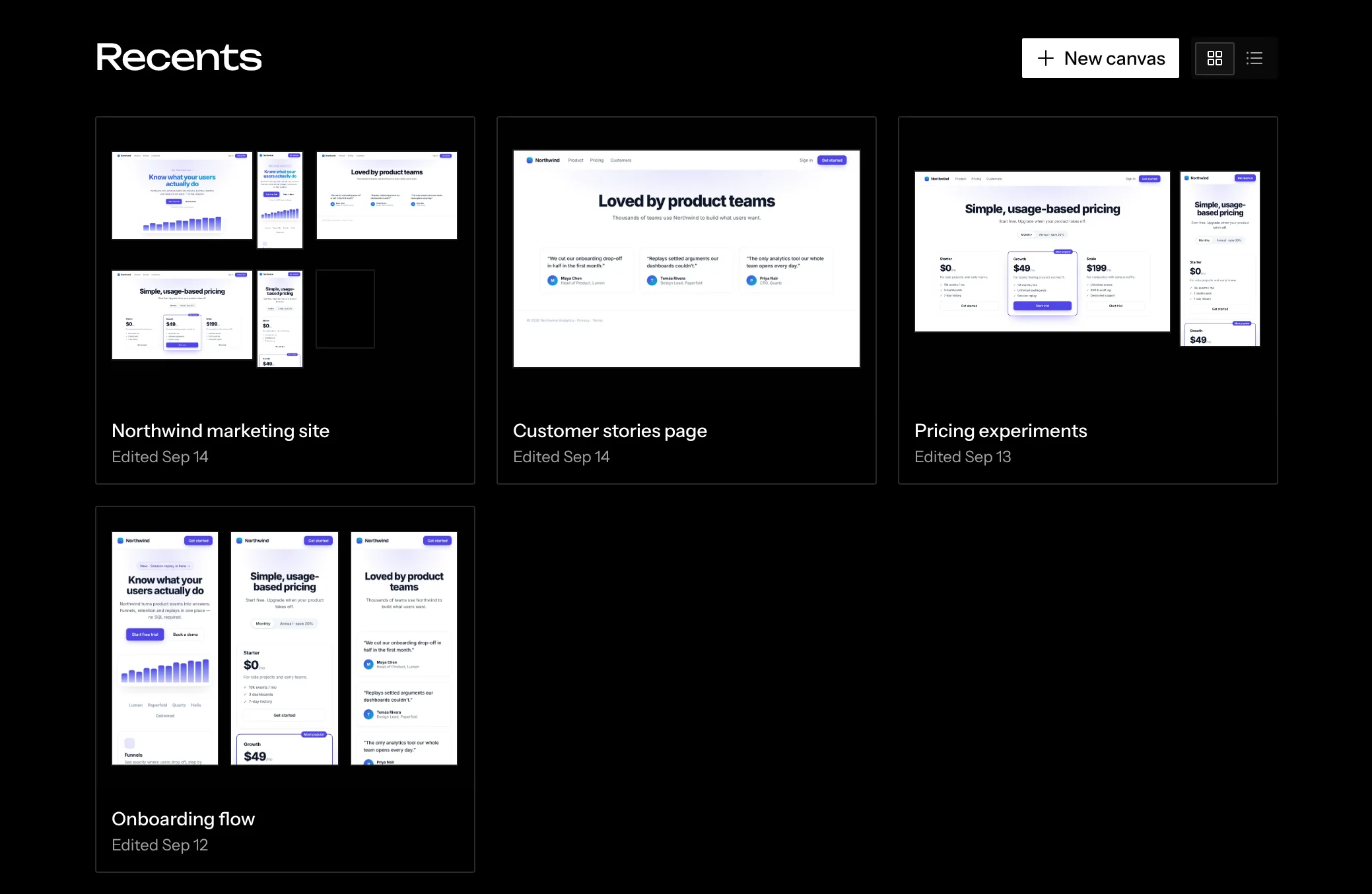
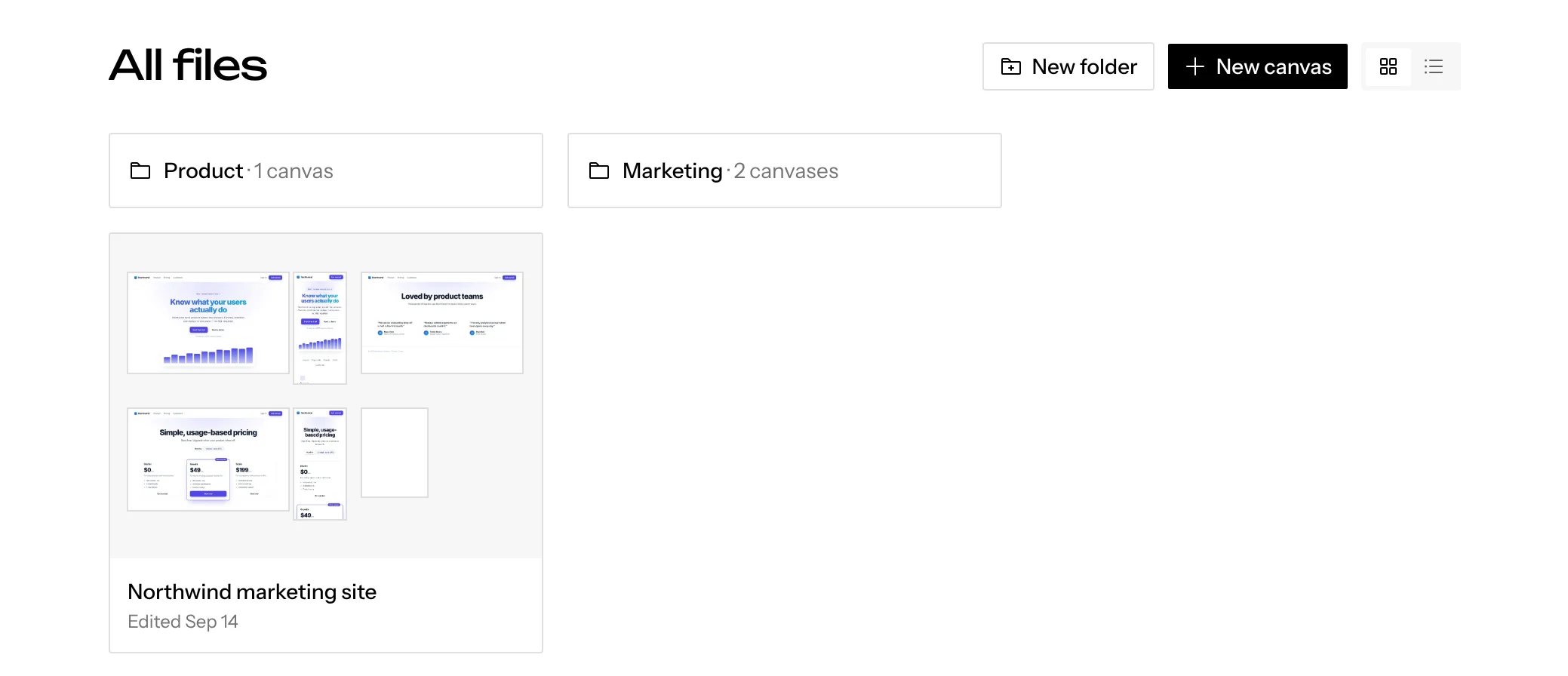
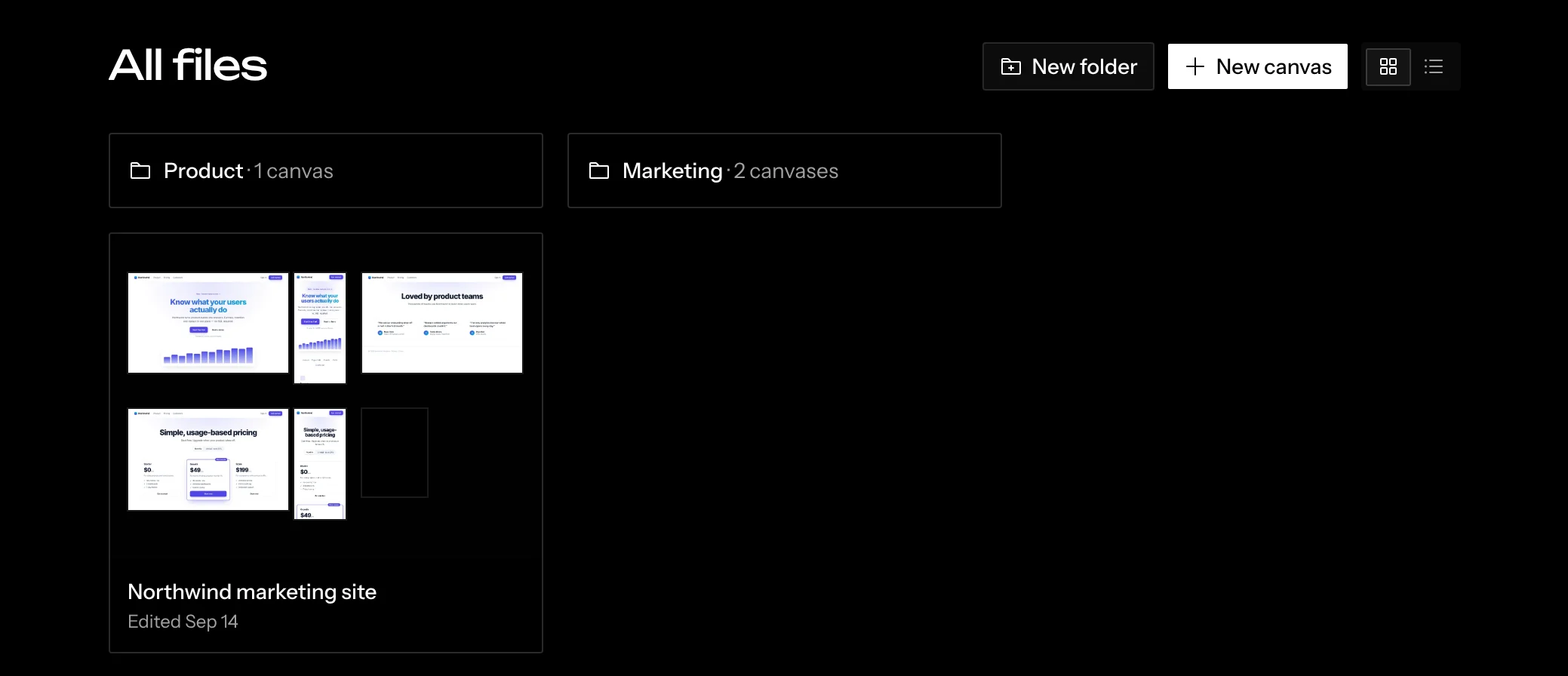
The home screen lists your canvases. Each card’s thumbnail is assembled from the canvas’s own frames, so you can recognize a canvas at a glance. Frames still starting up show as plain blocks.
Views
The sidebar has two views at the top:
- Recents lists every canvas you can open, most recently edited first, regardless of folder.
- All files is your folder tree: folders first, then canvases. Click a folder to open it. A breadcrumb shows where you are, and deep paths collapse into a … menu.
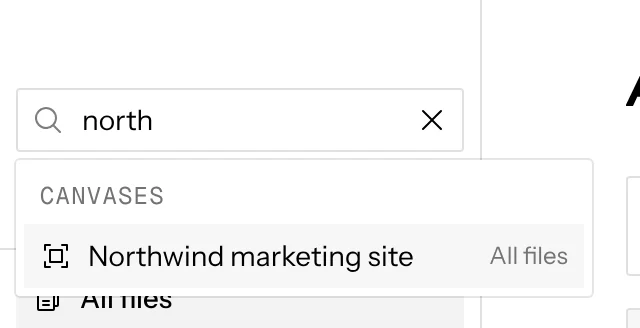
Below those, Pinned lists your shortcuts (see Pinning). At the foot of the sidebar, Docs opens these docs in your browser, and Settings opens Settings. Search at the top of the sidebar (/) finds canvases and folders across all folders. Matches open in a list under the field, each with where it lives; use ↑ and ↓ to pick one and Enter to open it. On the hosted app, the owner filter in the toolbar (Anyone, Owned by me, Shared with me) lists matches from every folder on the page, each with the folder it lives in (a Location column in the table, in place of Created).
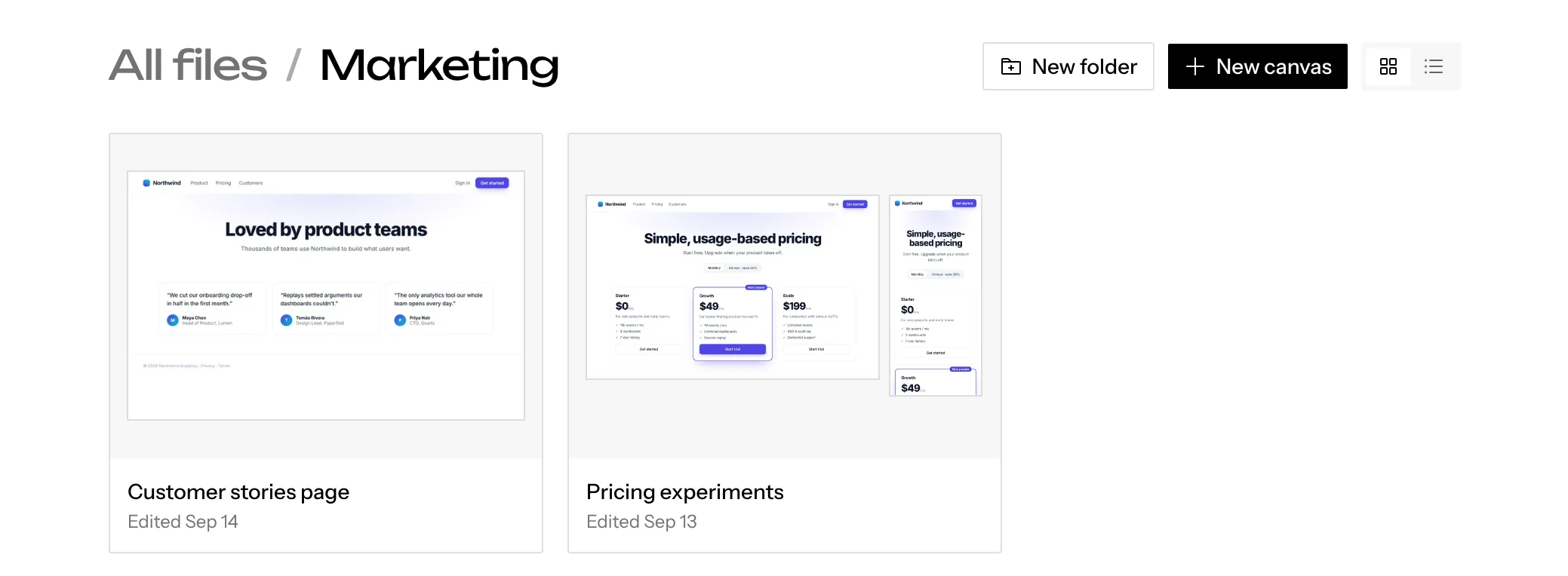
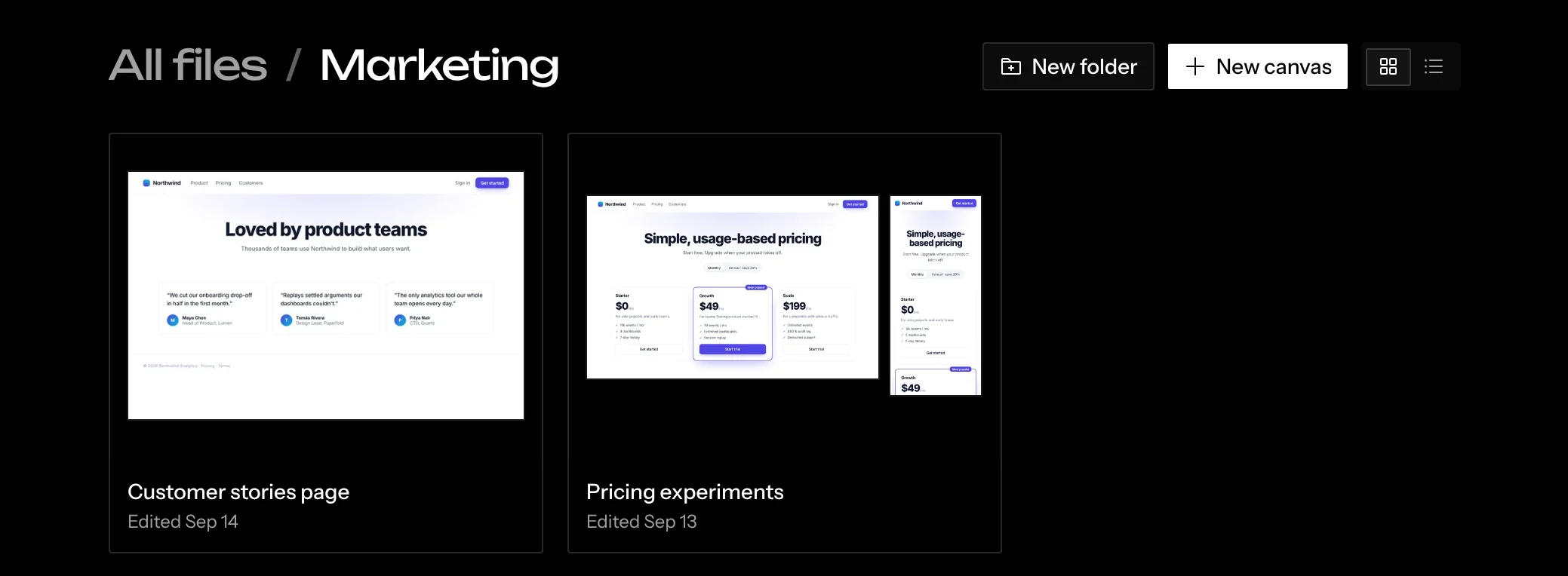
Grid and table
Switch between Grid view and Table view with the toggle at the top right. The choice applies to every page. The table shows Name, Last edited and Created, plus Owner on the hosted app. Click a column header to sort by it; click again to reverse.
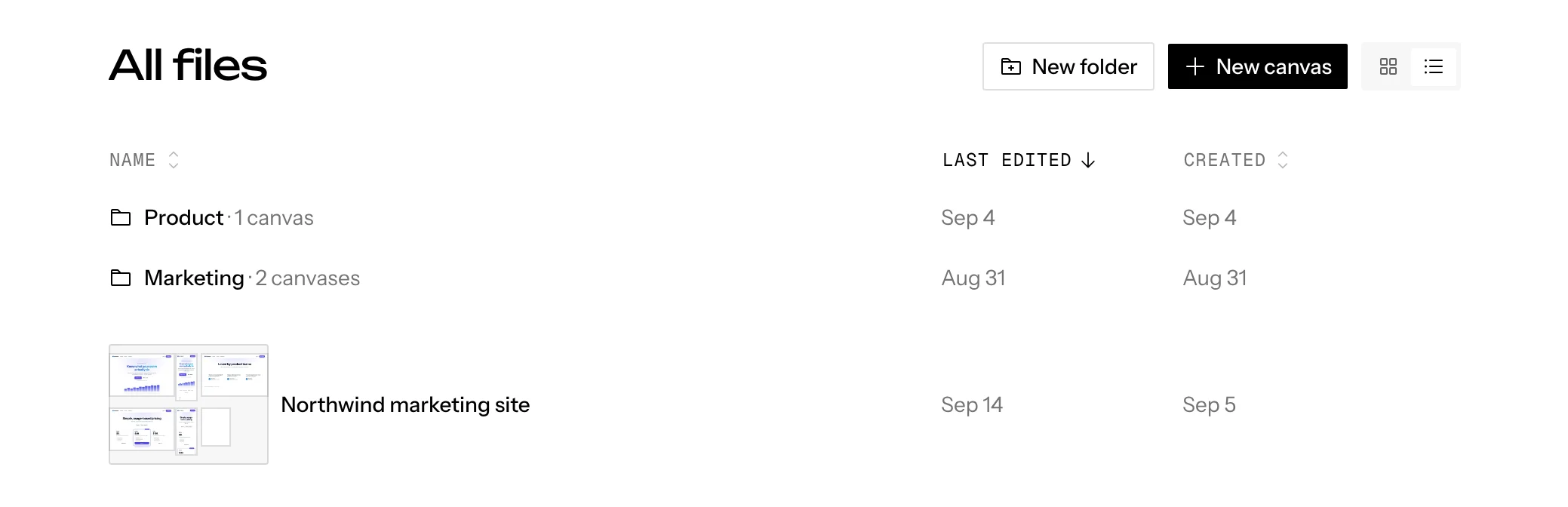
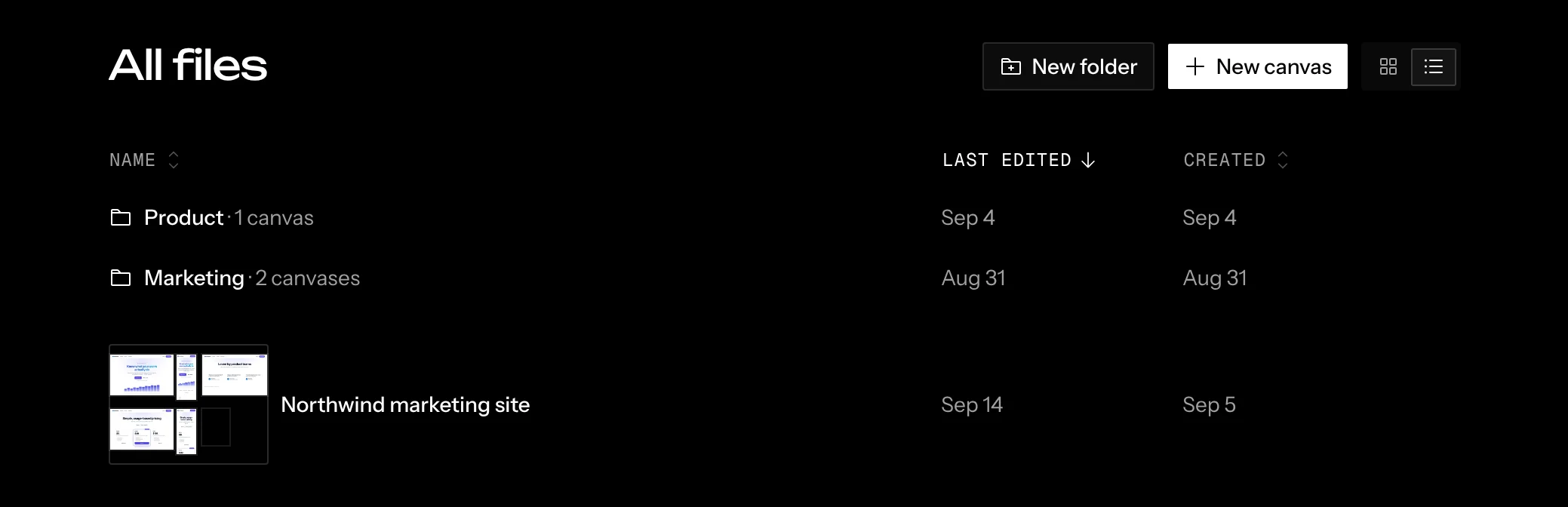
Sorting
Sort from the table’s column headers. The grid keeps the order you last picked in the table, and each page (Recents, All files, each folder) remembers its own. Until you pick one, everything is sorted by last edit, newest first.
Creating
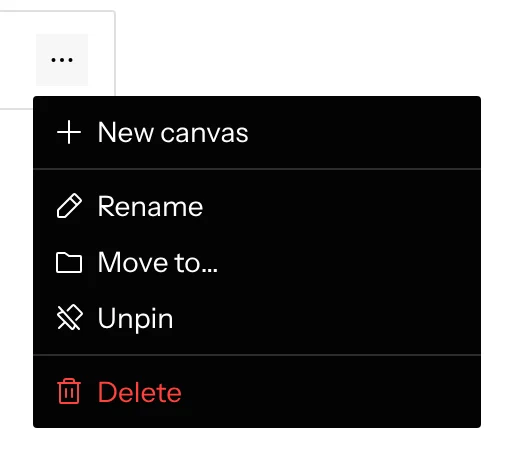
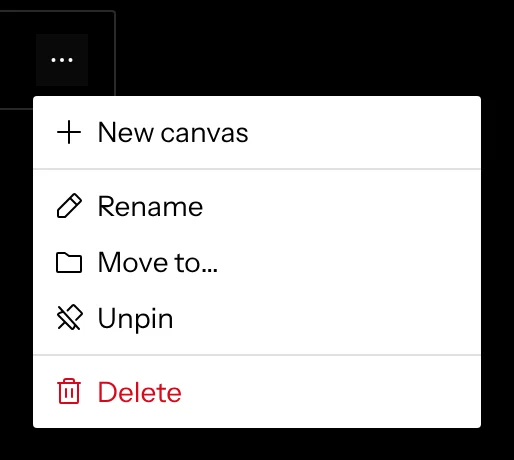
- New canvas (or N) creates an “Untitled” canvas and opens it straight away. Rename it from the canvas’s title pill. A folder’s … menu also has New canvas, which creates it inside that folder.
- New folder creates a folder inside the folder you’re viewing.
Canvas and folder menus
Hover a card or row and click …:
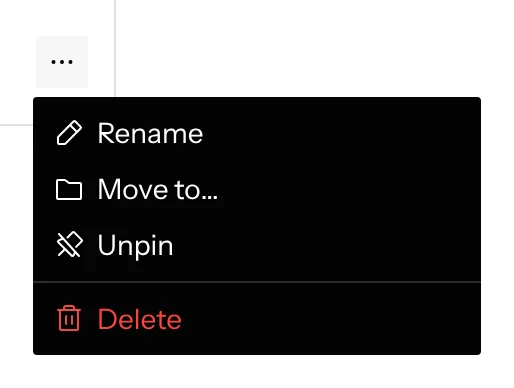
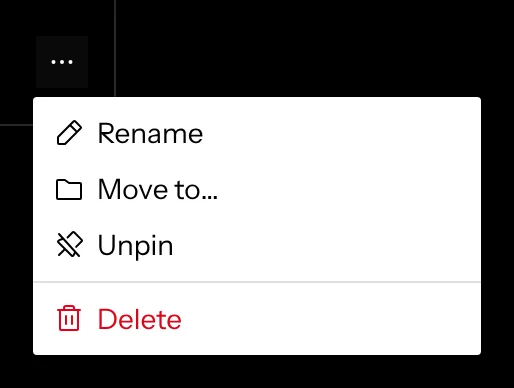
Folders have the same menu, minus Share and plus New canvas.
Filing
Move to… opens a picker of your folders, with New folder to make one on the way. You can also drag a canvas or folder onto:
- a folder card or row,
- a pinned folder in the sidebar,
- All files in the sidebar, which moves it to the top level,
- a folder, or All files, in the breadcrumb.
Each move shows a toast with Undo.
Folders nest to any depth. Screenplay stops you from moving a folder into itself or one of its own subfolders.
Folders and filing are personal. When someone shares a canvas with you, it appears at the top level of your All files. Filing it only changes your view; the owner’s organization is untouched.
Pinning
Pin to sidebar adds a canvas or folder to the Pinned section for quick access. Pinning never moves anything, and unpinning leaves the item where it was. Drag pinned rows to reorder them. Pins are personal too.
Deleting
- Deleting a canvas permanently removes it and everything on it. If you shared it, it’s removed for everyone, and the dialog tells you how many people that affects.
- Leaving a canvas someone shared with you only removes your access. The owner can invite you again.
- Deleting a folder deletes everything inside it, including sub-folders and the canvases you own. Canvases shared with you that you had filed there aren’t deleted; you just leave them. The dialog lists what will be affected before you confirm.